Quickguide - Connect
Before anything else, you need to connect to a meeting using the MeetingHUB. Follow this easy 3-step guide to get connected
|
|
Register for meeting on the CEPT Portal.
Login to CEPT portal and follow the normal procedure for registering to a meeting. |
|
|
|
Access the meeting
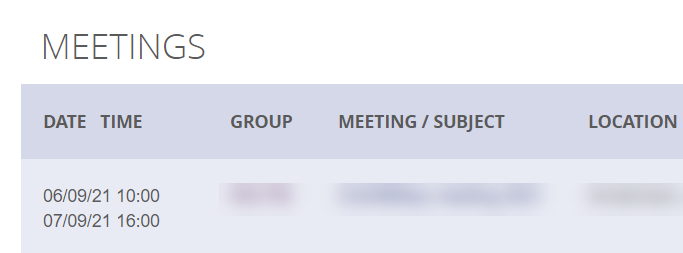
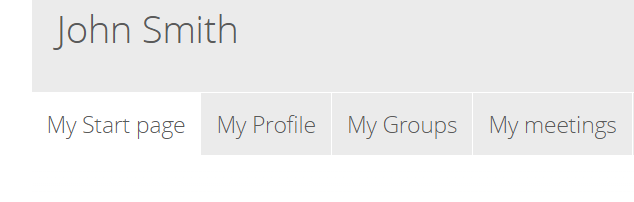
To access the meeting, go to ”My Meetings” in your CEPT portal profile. ” My Meetings” is in your start page when logged in. The list of meetings you are registered to will be displayed.
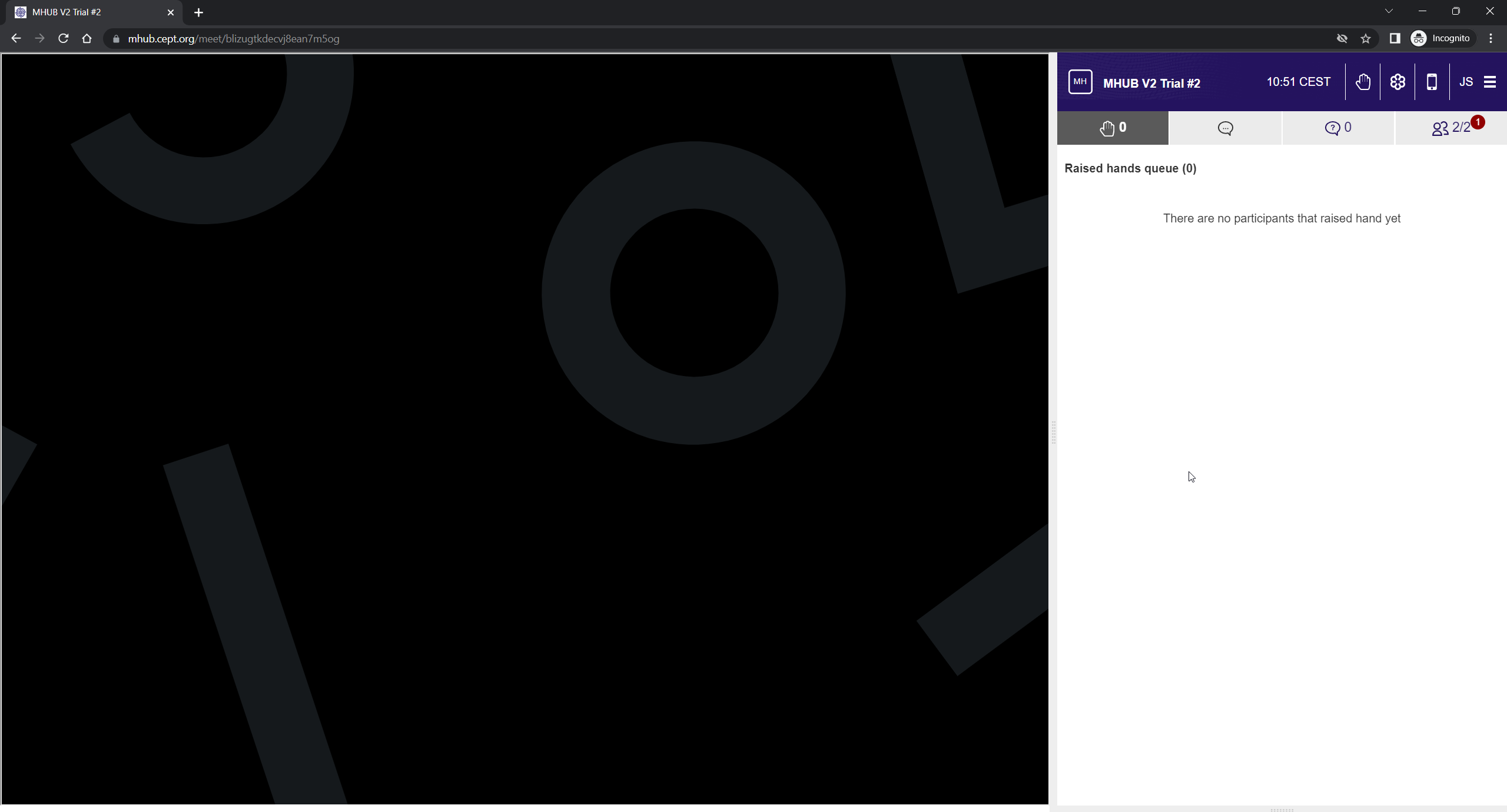
Click the mHub icon next to the meeting to access the MeetingHub and it will open in a new window with MeetingHub and GotoMeeting. Please note for Firefox users a seperate window will be opened for the GotoMeeting
|
|
|
|
Virtual participation:
GoTo will start automatically in the left side in your browser window, and you only need to click "Connect" after adjusting your Mic/Speaker when ready.
Access to the meeting will open 30 minutes before the meeting starts. You can arrange the width of the individual panes by dragging the center line.
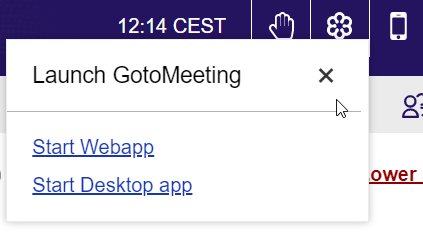
If the GoTo do not start , you can access by clicking the GoTo icon in the menu. Please note that WebApp only works for Edge and Chrome browsers, if using Firefox - you will need to have the GoTo desktop application installed.
Physical participation: If you are participating in a meeting physically, you can use GoTo but are not required to. Please make sure your audio is turned OFF on your device - otherwise echoing will occur in the room.
|
|