
Manage Live Questions
If you are appointed the Organiser role,role in MeetingHub, you can create and handle Live Questions (LQ).
Live Questions are a simple way to ask questions thatto all participants in the MeetingHub can answer.MeetingHub.
You can ask a single question, and participants can be presented with options to answer either single-choice of multi-choice.
Result can be published, or only shown to organisers.
Also answers can be collected anonymously.
HOW TO SETUP AND USE:
The process of handling LQ is divided into 4these tasks:
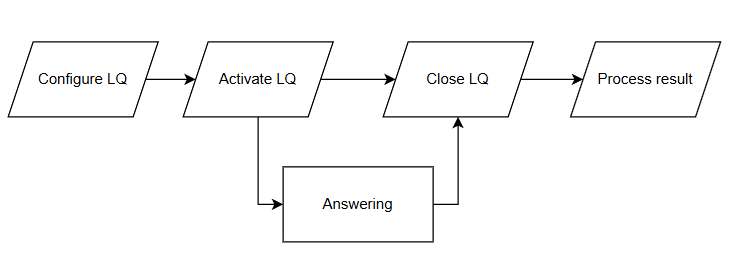
Configure the LQ
Activate (publish) the LQ
Close the LQ
Process the answer
Example setup of LQ:
|
Step / Action |
Description |
|
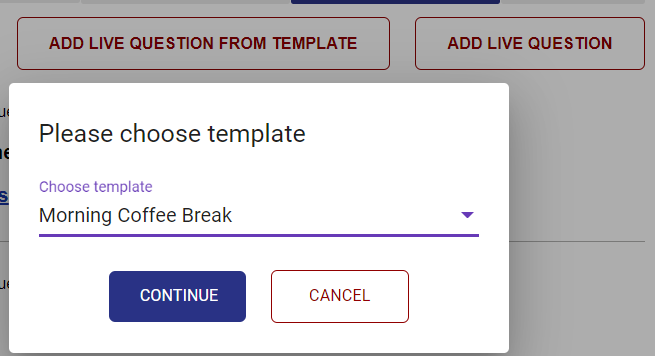
There are two ways to create a LQ, either from a template , or from scratch. When you create a LQ, you have the option to save it as an template in the current meeting. Click either the "Add Live Question" or "Add live question from template".
|
|
Description of the fields is provided at the end of this page. When the LQ is configured and "Submit" is clicked, the LQ is ready to be activated and presented to the participants.
It is not visible to the participants until it is activated (see next step).
See field description at the end of this page.
|
|
3. Assign respondents
|
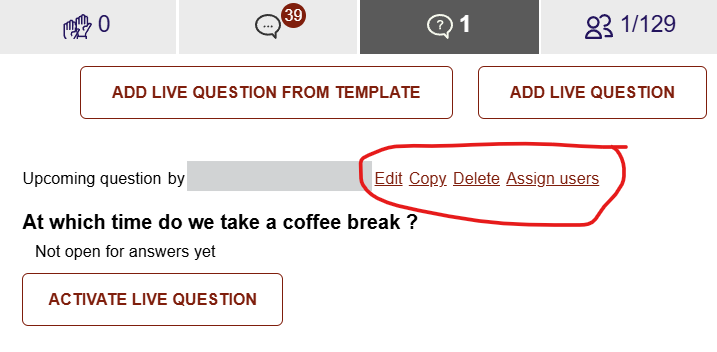
If only a subset of participants are required to answer the LQ, you can assign those by clicking the "Assign users" option next to the LQ.
Please note that the LQ will be visible to all participants in the meeting, but only the selected participants can answer.
|
|
Remember, the LQ will not be visible to participants before it is activated.
When you click “activate” the LQ will be locked from editing - no further changes are possible.
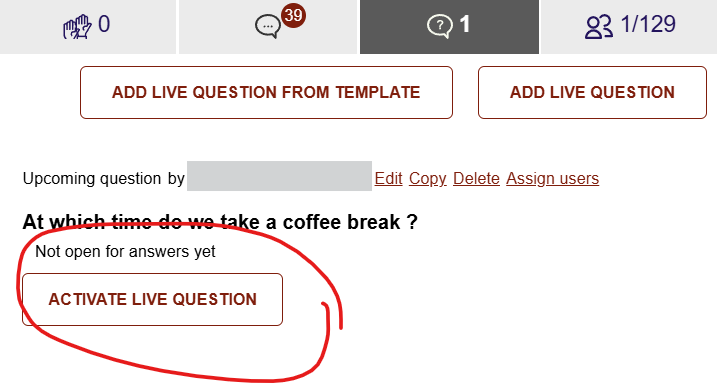
Click "Activate Live Question" to publish it to the participants. You will be asked to confirm the activation.
Please be aware that ONLY one LQ can be active at a time. If the "Activate" button is not visible another question is already active.
|
|
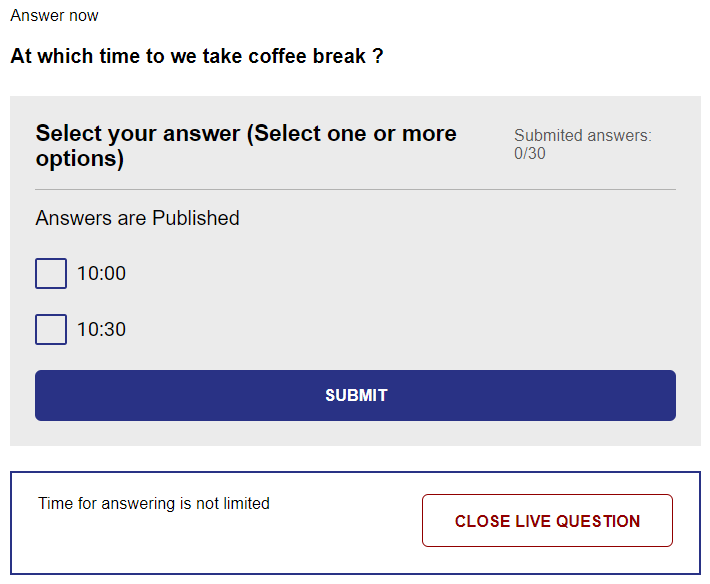
If you have configured the LQ with a limited answering time, the LQ will automatically close when the period is over. Otherwise you will have to close the LQ when you see fit. Click the "Close Live Question" to end the answering period. The panel to close the question is only visible to participants with organiser role.
You will be asked to confirm the closure of the LQ. Please note, a closed LQ can not be activated again.
|
|
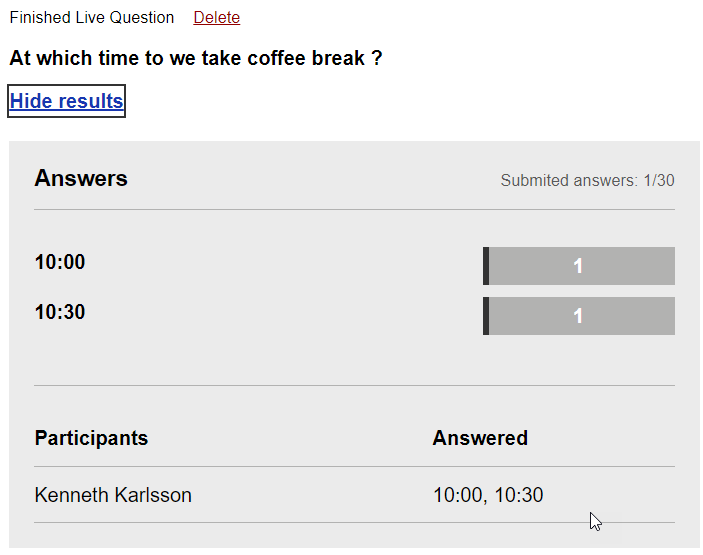
When the LQ is closed, the answers will be published , if the relevant setting of the LQ has been properly ticked. If the LQ has been configured NOT to publish the answers, only organisers will be able to see the result. If the LQ has been configured to publish the answers, all participants will be able to see the result. If a LQ has been configured as Anonymous, the system does not record who provided the individual answers. Therefore nobody can see who answered what.
|
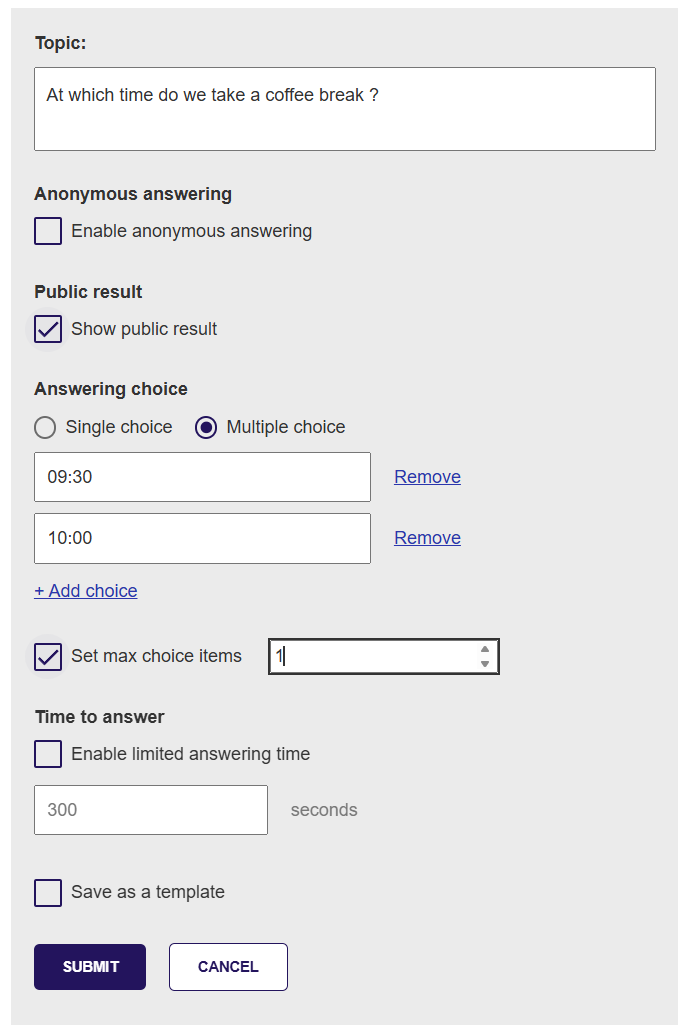
The properties to be set for a LQ
|
Property |
Definition |
|
Topic |
This is the question asked
|
|
Anonymous answering
|
If selected, the system will not record any information on the user who provided the answer.
|
|
Public result
|
If selected - the result will be published when the LQ is closed. If this is not selected, only participants with the organiser role can see the results. |
|
Answering choice
Set max choice items |
The LQ can be configured as either a single-choice or multiple-choice. Based on this setting, the respondent can select one or more of the listed answering choices. The organiser can include several answering choices for the LQ through the dedicated "+ Add choice" function.
If multiple choice is selected, it is also possible to indicate a maximum number of options to be selected. Example: there are 3 choices, but the respondent is only allow to select 2. Respondent can then select any answers but only 2 and can swap as they want. |
|
Time to answer |
The LQ can be time limited. If selected the LQ will only be open for the indicated duration (in seconds), and it will automatically close afterwards.The LQ still need to be activated to start the timer. If this is not set, the organiser is responsible to close the LQ when appropriate. |
|
Save as Template |
If you have recurring questions, you can save the LQ as a template. In this way you can easy and quickly create a new LQ based on the same setup. Give the template a short descriptive name. You cannot edit a template. |