
How to get started
This is a short guide how to install the Signal app on your mobile device and setup an account.
Step 1: Download Signal
-
On your phone (Android/iOS):
- Go to the Google Play Store (Android) or App Store (iOS).
- Search for "Signal Private Messenger".
- Tap Install and wait for the app to download.
-
On your computer (optional):
- Visit signal.org/download and download the desktop app for Windows, macOS, or Linux.
Step 2: Open Signal and Register
- Open the Signal app on your phone.
- Tap "Continue" on the welcome screen.
- Enter your phone number (make sure it’s correct—Signal will send a verification code).
- Tap "Register".

(Example: Signal registration screen—you’ll see a field for your phone number.)
Step 3: Verify Your Phone Number
- Signal will send you a 6-digit verification code via SMS.
- Enter the code in the app.
- If you don’t receive the code, tap "Resend code" or "Call me" to get it via a phone call.
(Note: Signal requires a real phone number for registration.)
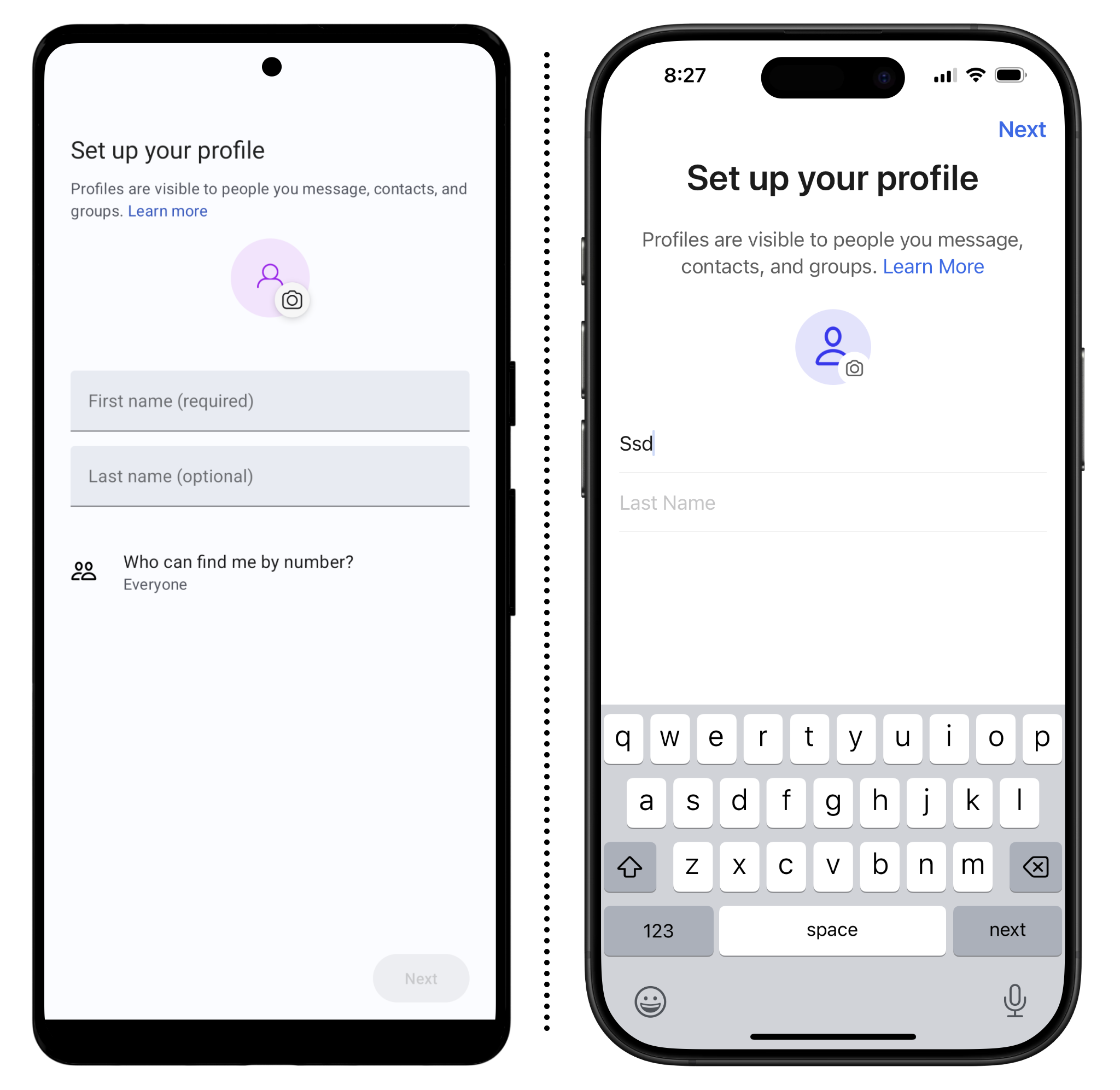
Step 4: Set Up Your Profile
- After verification, Signal will ask for your profile name (this can be your real name or a nickname).
- You can also add a profile picture (optional).
- Tap "Continue".
Step 5: Set a PIN (Optional but Recommended)
- Signal will prompt you to create a 4-digit PIN to secure your account and backups.
- Choose a PIN you’ll remember and confirm it.
(This PIN helps recover your account if you switch phones.)
Step 6: Allow Permissions
- Signal will ask for permission to access your contacts, microphone, and camera (for calls and media sharing).
- Tap "Allow" for each permission to enable full functionality.
Step 7: Start Chatting!
- Signal will automatically sync your contacts (if allowed) and show you who else is using Signal.
- Tap the pencil icon (✏️) to start a new chat.
- Search for a contact and send your first message.

(Example: Signal chat screen—tap the pencil icon to start a conversation.)
Optional: Link Signal to Your Computer
- Install the Signal App on your computer first
- Open Signal on your phone and go to Settings > Linked Devices.
- Open Signal on your computer and scan the QR code shown there with your phone.
(This syncs your messages across devices.)
Troubleshooting Tips
- No verification code? Check your SMS or request a call.
- Contacts not showing? Ensure Signal has permission to access your contacts.
- Need help? Visit Signal Support.
(Created with Mistral AI)