Workplace setup
Attending with a single-screen setup
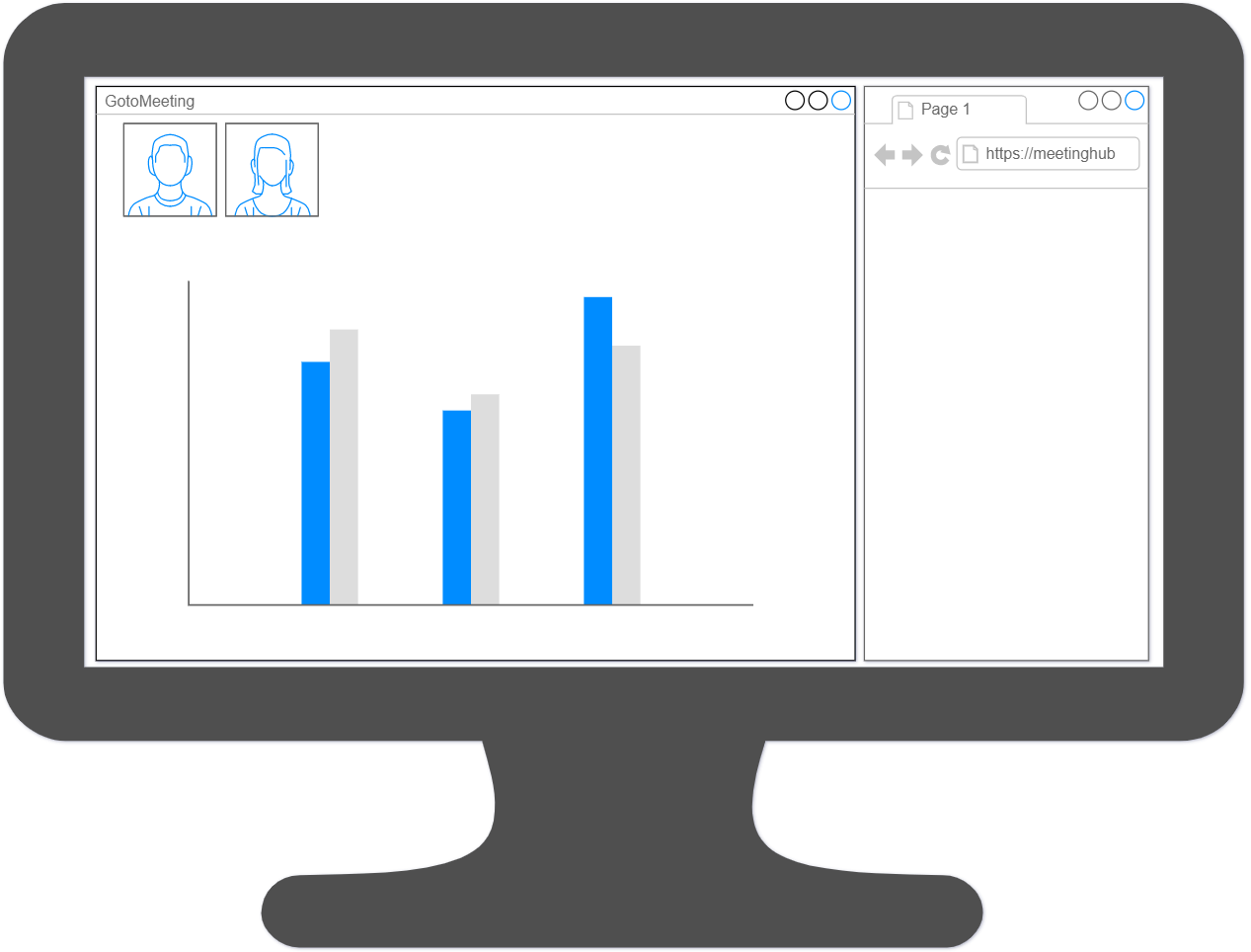
Organise the windows, so both the GoToMeeting and the MeetingHub windows are visible at the same time.
If your screen size/resolution is not sufficient and only one window can be open at a time, please enable notifications in the MeetingHub window. You can then switch between the GoToMeeting and MeetingHub window when needed (Windows keys: Ctrl-Tab, Mac keys: Command-Tab).
Attending with a multi-screen setup
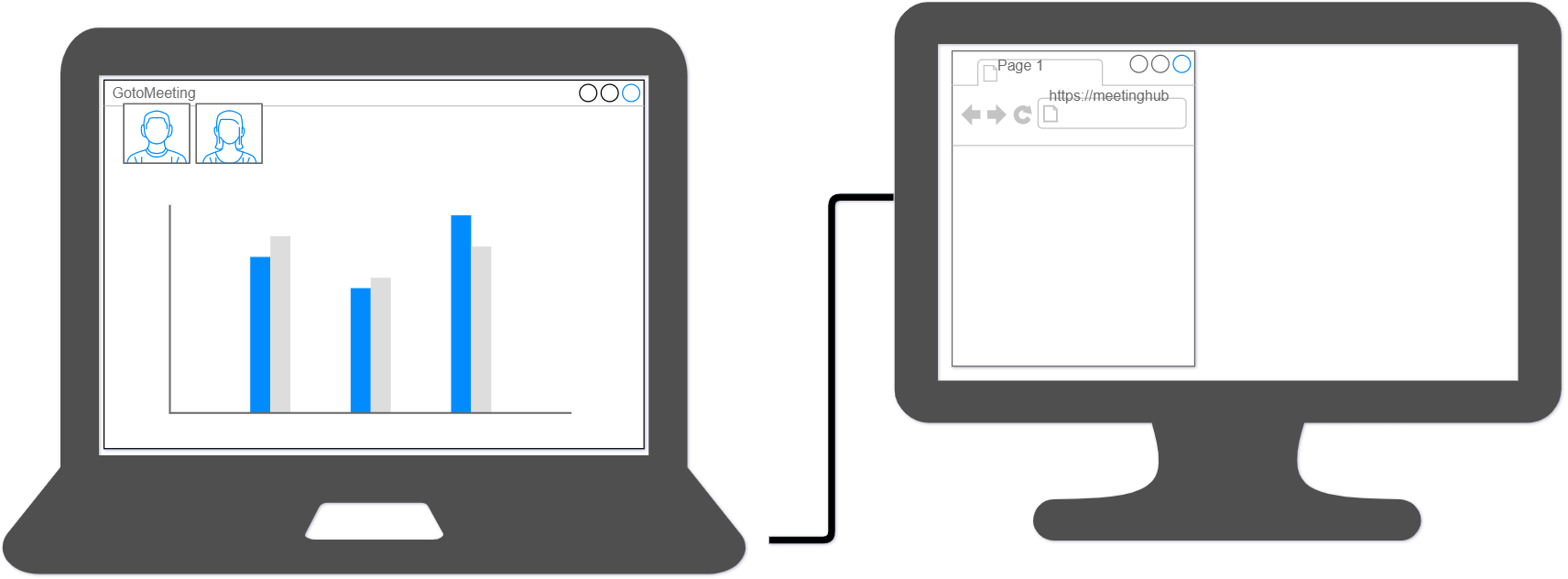
If you have the opportunity to use two screens, you can display the GoToMeeting on one screen, and the MeetingHub on the other screen.
If you are the presenter in a meeting, you can choose which screen to share only.
ECO generally advice the presenter to use two screens when presenting content to avoid personal messages in The MeetingHub to be displayed in G2M or projector at the venue.
Please note some settings on the computer may need to be adjusted, as the extra monitor will need to be setup to "extent" the screen and not "duplicate". If you are running windows operating system, this is adjusted in the screen setup (right-click on desktop and select "Display settings"