MeetingHUB
The MeetingHub is a platform designed by ECO to support the management of Hybrid Meetings and assist/complement the current GoToMeeting tool with further capabilities.
Hybrid Meetings are defined as meetings where participants can attend either physically or virtually.
The MeetingHub is designed to assist the management of these meetings, where there's a need to handle specific tasks, including managing jointly the requests for the floor from both remote and in-person participants
- Quickguide - Connect
- Quickguide - Engage
- Workplace setup
- MHub as an Organiser
- MHub as an Participant
- FAQ
- Release History
Quickguide - Connect
Before anything else, you need to connect to a meeting using the MeetingHUB. Follow this easy 3-step guide to get connected
|
|
Register for meeting on the CEPT Portal.
Login to CEPT portal and follow the normal procedure for registering to a meeting. |
|
|
|
Access the meeting
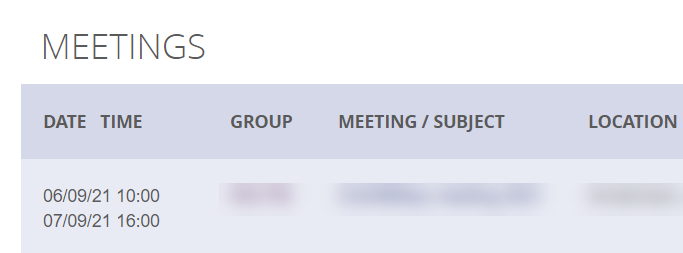
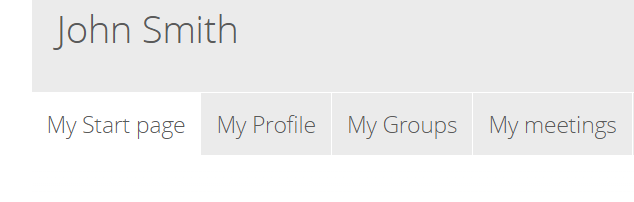
To access the meeting, go to ”My Meetings” in your CEPT portal profile. ” My Meetings” is in your start page when logged in. The list of meetings you are registered to will be displayed.
Click the mHub icon next to the meeting to access the MeetingHub and it will open in a new window with MeetingHub and GotoMeeting. Please note for Firefox users a seperate window will be opened for the GotoMeeting
|
|
|
|
Virtual participation:
GoTo will start automatically in the left side in your browser window, and you only need to click "Connect" after adjusting your Mic/Speaker when ready.
Access to the meeting will open 30 minutes before the meeting starts. You can arrange the width of the individual panes by dragging the center line.
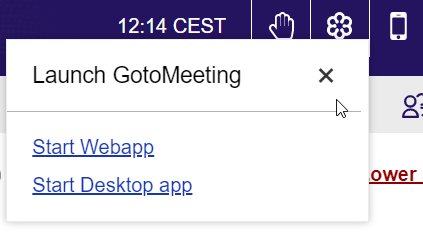
If the GoTo do not start , you can access by clicking the GoTo icon in the menu. Please note that WebApp only works for Edge and Chrome browsers, if using Firefox - you will need to have the GoTo desktop application installed.
Physical participation: If you are participating in a meeting physically, you can use GoTo but are not required to. Please make sure your audio is turned OFF on your device - otherwise echoing will occur in the room.
|
|




Quickguide - Engage
When you are connected to the meeting, a number of options is available to you, we will describe them here:
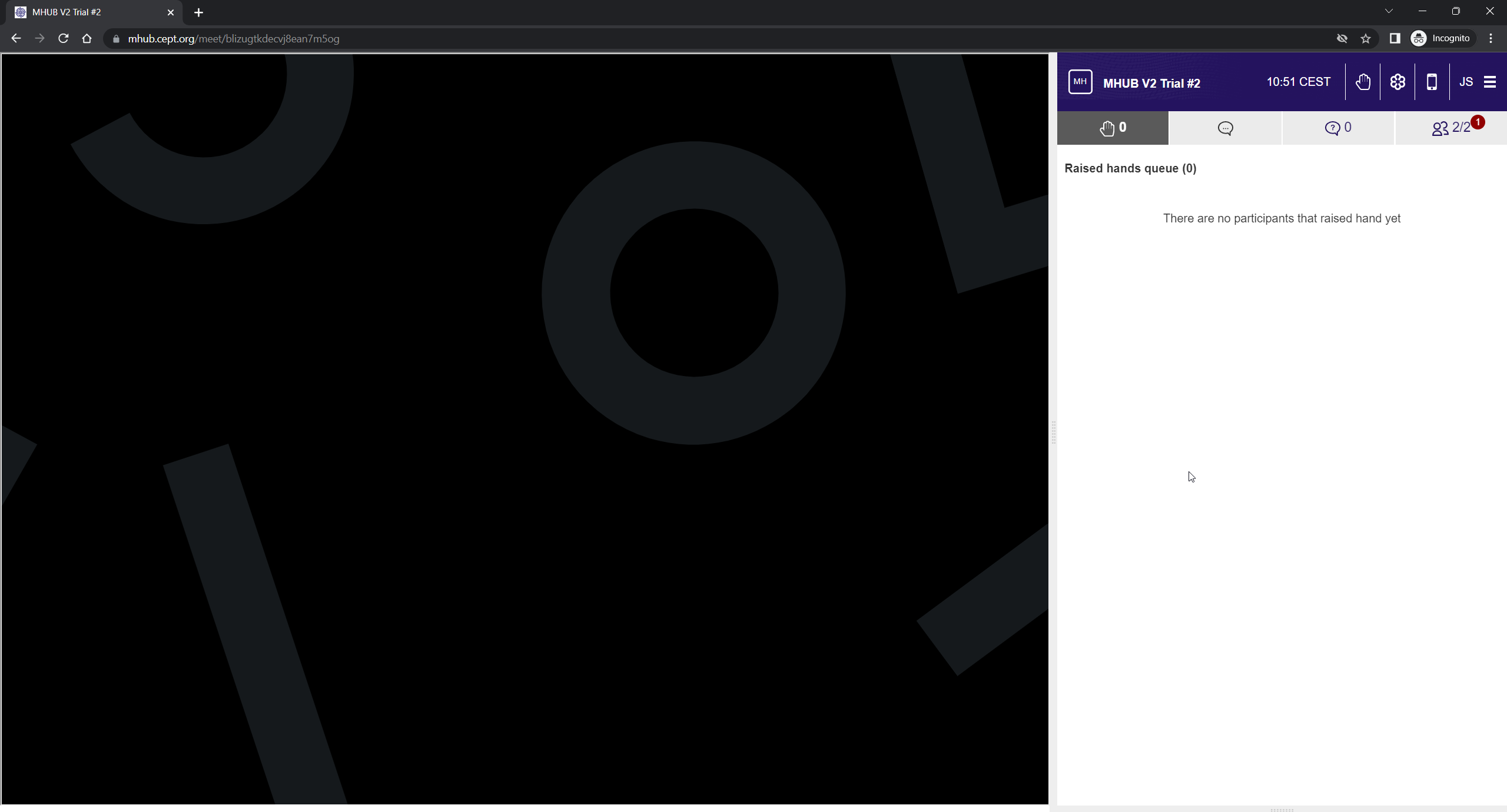
The MeetingHub window layout is depicted below.
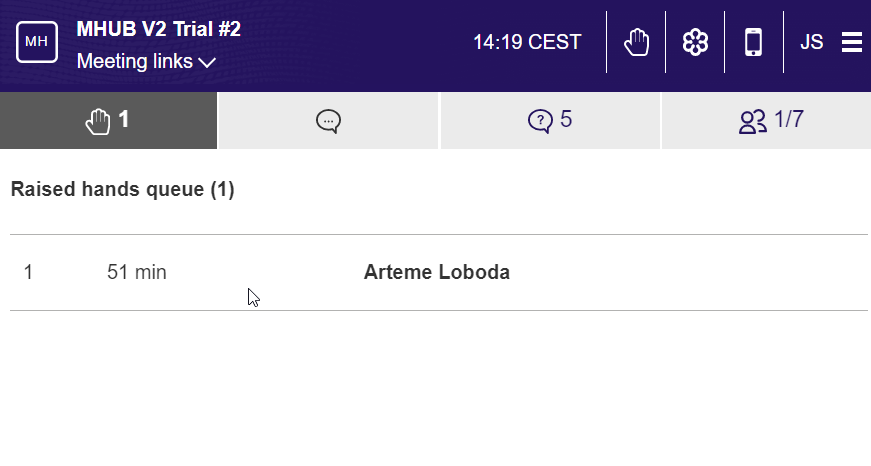
The key functions are described here:
Raise Hand
Raise your hand to ask for the floor by clicking the RaiseHand icon in the top bar.
-
Remember to lower it again when done.
Check the list of raise hands to see who is waiting. Organiser can manage raised hands. The list is visible in the Chat and Participants list also.
Please note in the GoTo window another raise hand button may appear. Please refrain from using this option when asking for the floor, as it may not be visible to the Chair.

Chat messages
Send a message in Chat
You can send a message to all or a specific person in the chat. If a new message has arrived the icon will indicate that.
Live Questions (LQ)
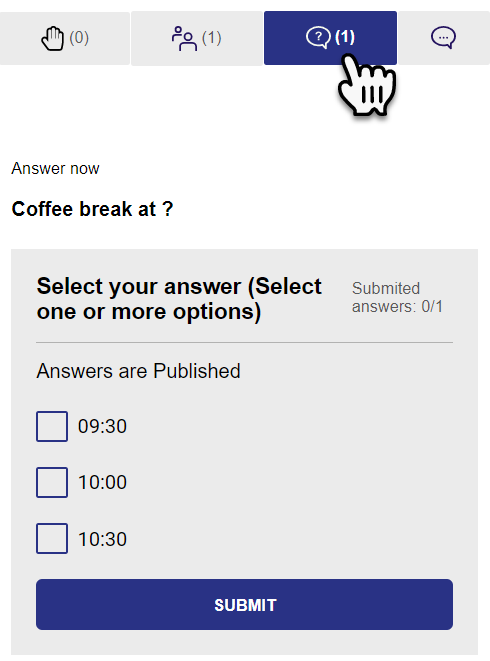
Answer a Live Question
During the meeting, an organiser can ask questions for all or a subset of participants.
Go to the Live Question section to see and answer pending questions.
Participants list
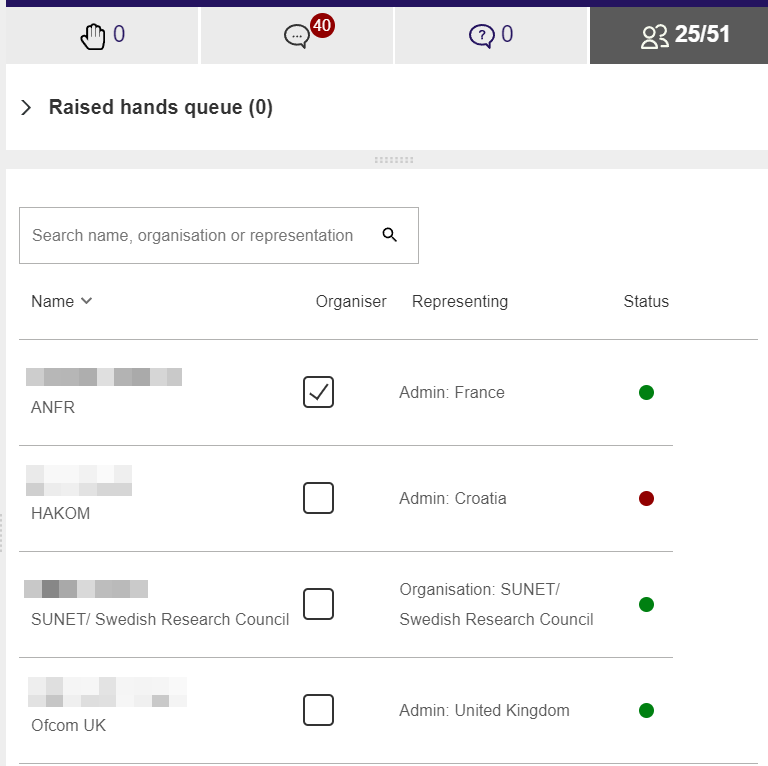
On the participant list tab, you can see who is attending, and whether they are online in the MeetingHub or not.
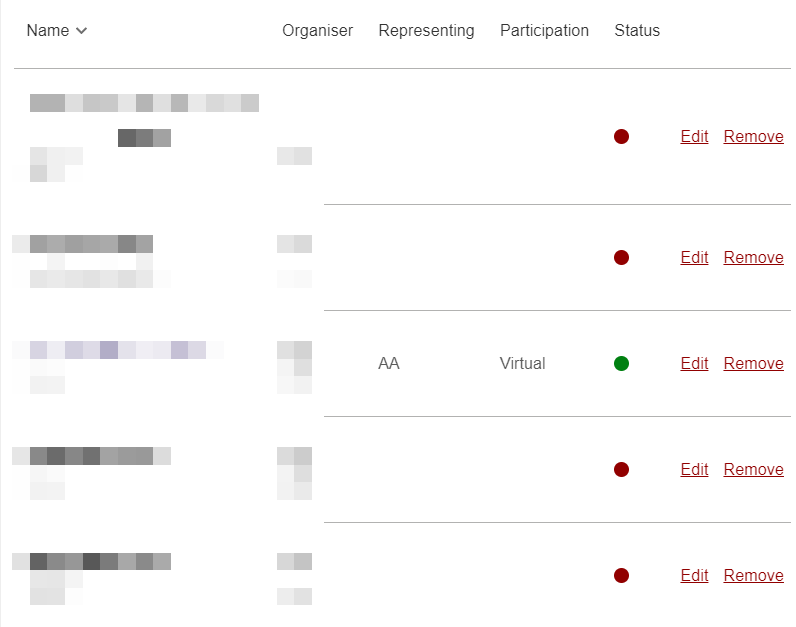
The Status column will show either a green dot (online) or a red dot (offline). In the tabs title you can see the number of Online/Number of participant which in this case is 25 online and 51 participants in total.
If you click the name of the participant, if will start a private chat for that participant on the chat tab.
You can sort the partipants by clicking the headline of the columns.
Workplace setup
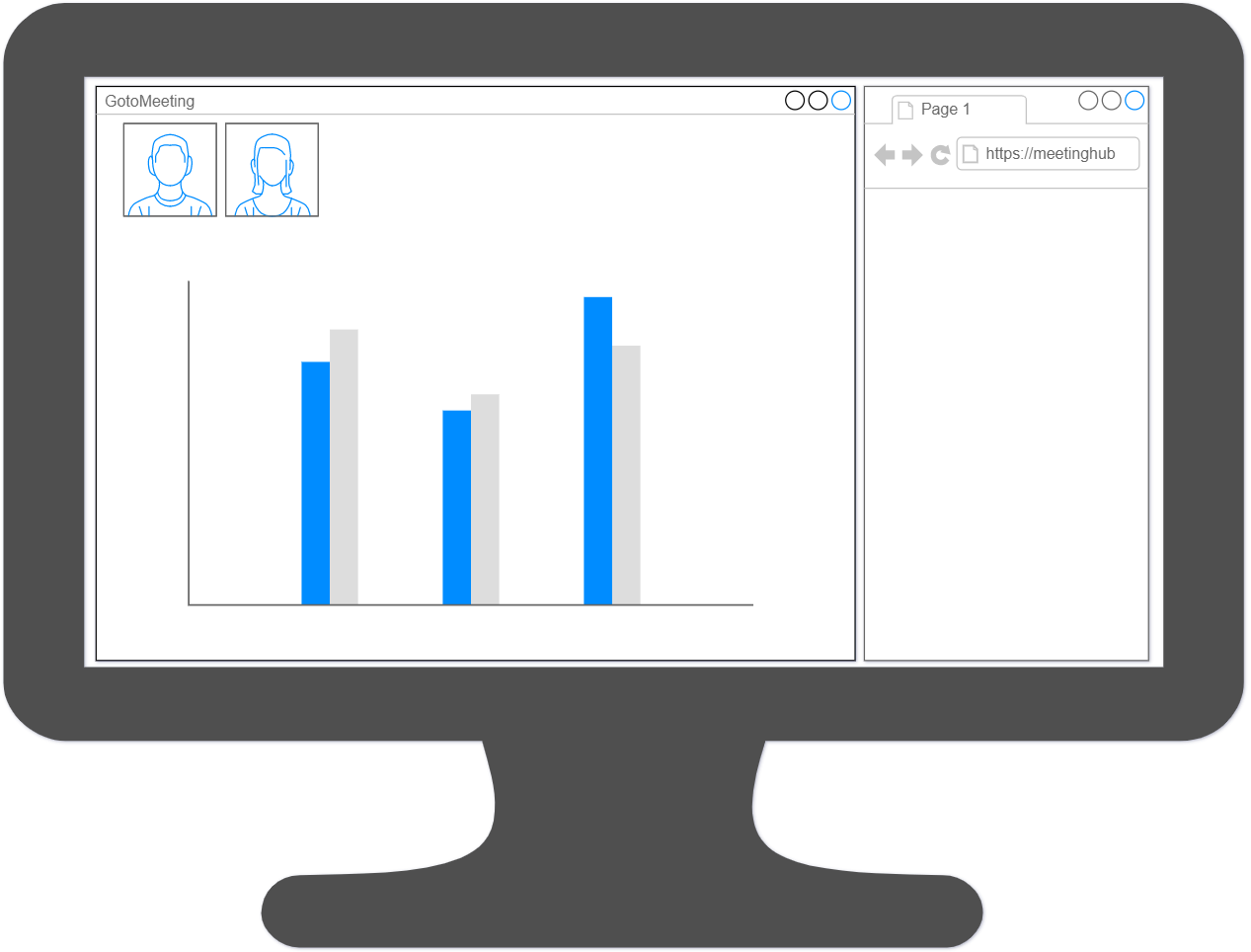
Attending with a single-screen setup
Organise the windows, so both the GoToMeeting and the MeetingHub windows are visible at the same time.
If your screen size/resolution is not sufficient and only one window can be open at a time, please enable notifications in the MeetingHub window. You can then switch between the GoToMeeting and MeetingHub window when needed (Windows keys: Ctrl-Tab, Mac keys: Command-Tab).
Attending with a multi-screen setup
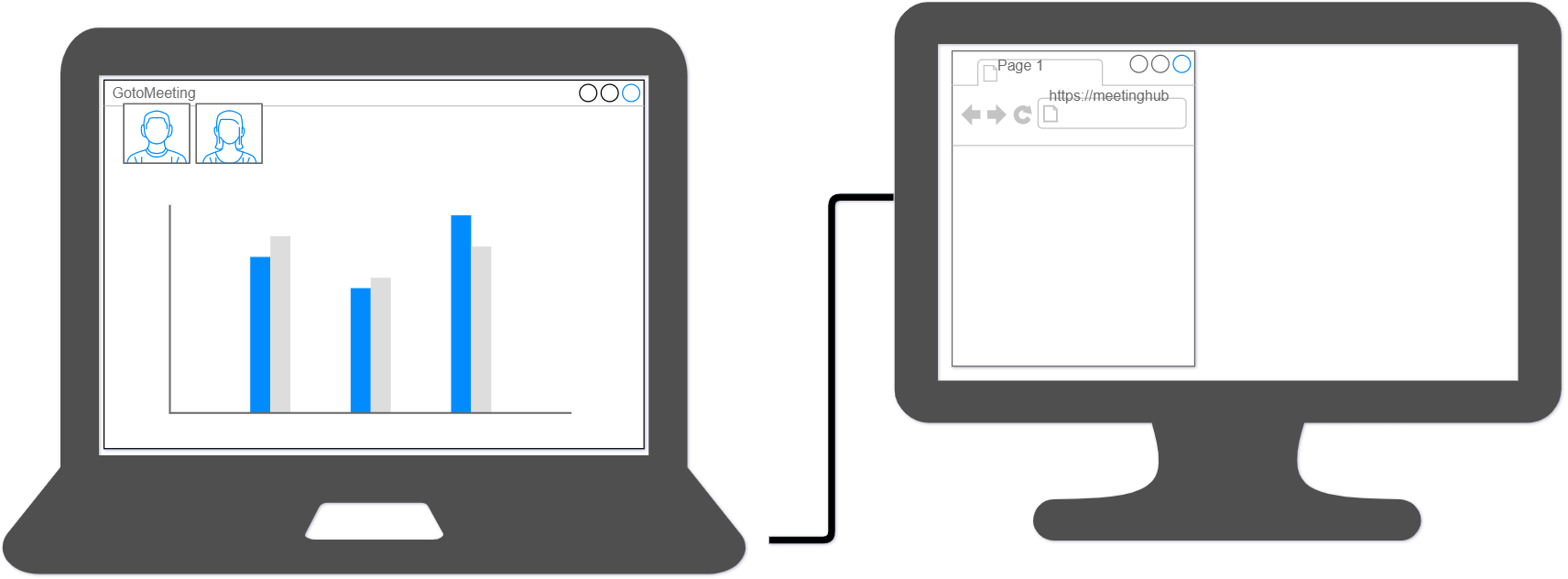
If you have the opportunity to use two screens, you can display the GoToMeeting on one screen, and the MeetingHub on the other screen.
If you are the presenter in a meeting, you can choose which screen to share only.
ECO generally advice the presenter to use two screens when presenting content to avoid personal messages in The MeetingHub to be displayed in G2M or projector at the venue.
Please note some settings on the computer may need to be adjusted, as the extra monitor will need to be setup to "extent" the screen and not "duplicate". If you are running windows operating system, this is adjusted in the screen setup (right-click on desktop and select "Display settings"
MHub as an Organiser
If you are appointed "Organiser" in the MeetingHub, extended functionality will be available for you.
You will get Organiser role by either being appointed by the ECO staff) or when you are the Chair of a group.
Managing a meeting
If you are appointed organiser rights on the MeetingHub, these options will be available to you:
Please see detailed WIKI for description.
Raise Hand
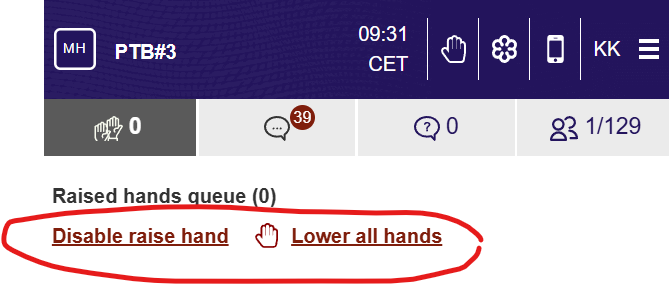
You will be able to lower a participants hand individually, or all raised hands at once.
You can also “close” the floor by clicking the “Disable raise hand” - this will disable the raise hand button at all participants.
Chat
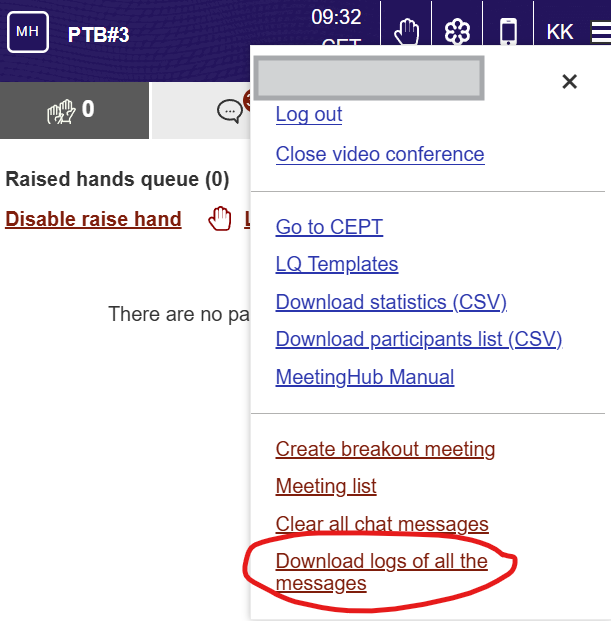
You will be able to download a chat log for all public messages. Private messages between users and between organisers are not possible to download.
Live Questions
You will be able to create new Live Questions and manage the results their display to the audience. See section for information how to create a Live Question
Participant List
You will be able to remove participants from the list, Please note the users are able to connect again and will appear on the list again. This function can assist in making a valid participants list.
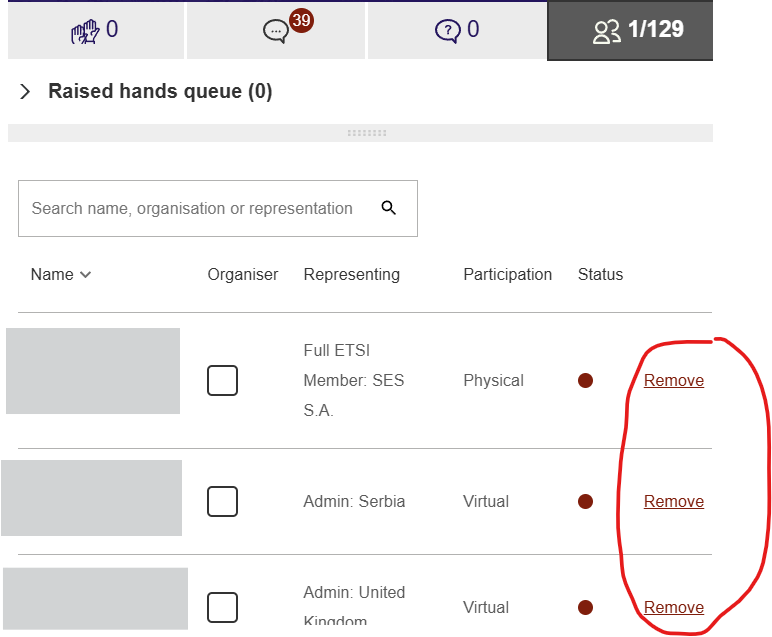
On this list you will also be able to edit the participants - if the participation information in “open” meetings (like breakout sessions), if a meeting is linked to a meeting planned on the CEPT portal , this will not be possible as the information is received from the portals meeting registration.
Manage Live Questions
If you are appointed the Organiser role in MeetingHub, you can create and handle Live Questions (LQ).
Live Questions are a simple way to ask questions to all participants in the MeetingHub.
You can ask a single question, and participants can be presented with options to answer either single-choice of multi-choice.
Result can be published, or only shown to organisers.
Also answers can be collected anonymously.
How to setup and use
The process of handling LQ is divided into these tasks:
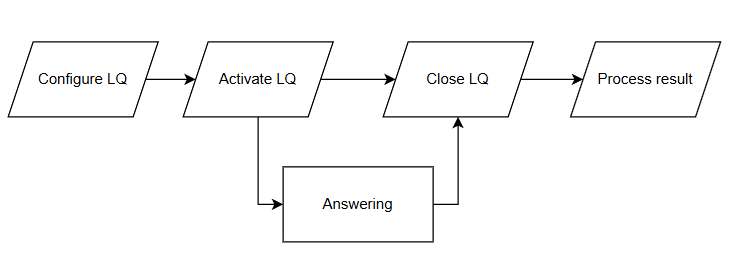
Example setup of LQ
|
Step / Action |
Description |
|
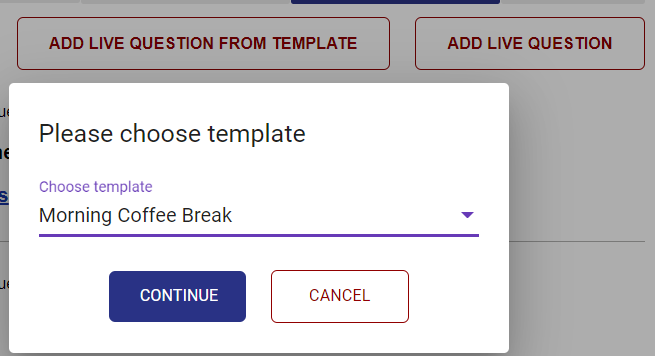
There are two ways to create a LQ, either from a template , or from scratch. When you create a LQ, you have the option to save it as an template in the current meeting. Click either the "Add Live Question" or "Add live question from template".
|
|
Description of the fields is provided at the end of this page. When the LQ is configured and "Submit" is clicked, the LQ is ready to be activated and presented to the participants.
It is not visible to the participants until it is activated (see next step).
See field description at the end of this page.
|
|
3. Assign respondents
|
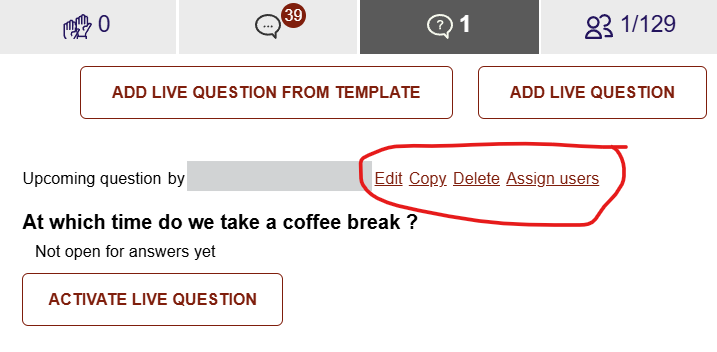
If only a subset of participants are required to answer the LQ, you can assign those by clicking the "Assign users" option next to the LQ.
Please note that the LQ will be visible to all participants in the meeting, but only the selected participants can answer.
|
|
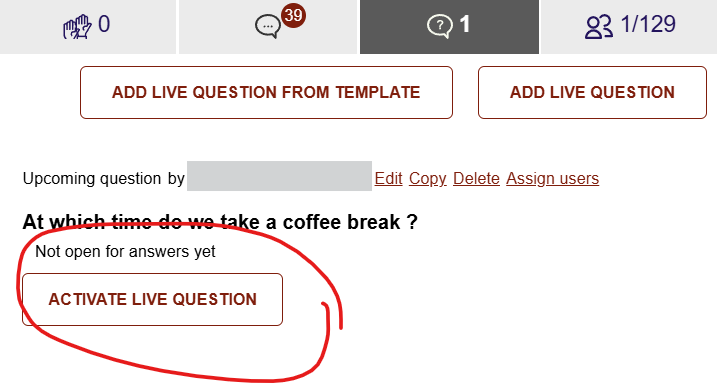
Remember, the LQ will not be visible to participants before it is activated.
When you click “activate” the LQ will be locked from editing - no further changes are possible.
Click "Activate Live Question" to publish it to the participants. You will be asked to confirm the activation.
Please be aware that ONLY one LQ can be active at a time. If the "Activate" button is not visible another question is already active.
|
|
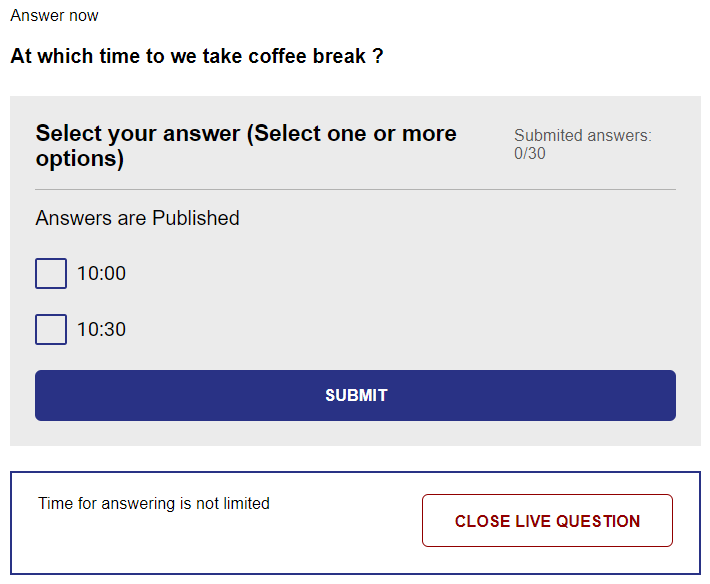
If you have configured the LQ with a limited answering time, the LQ will automatically close when the period is over. Otherwise you will have to close the LQ when you see fit. Click the "Close Live Question" to end the answering period. The panel to close the question is only visible to participants with organiser role.
You will be asked to confirm the closure of the LQ. Please note, a closed LQ can not be activated again.
|
|
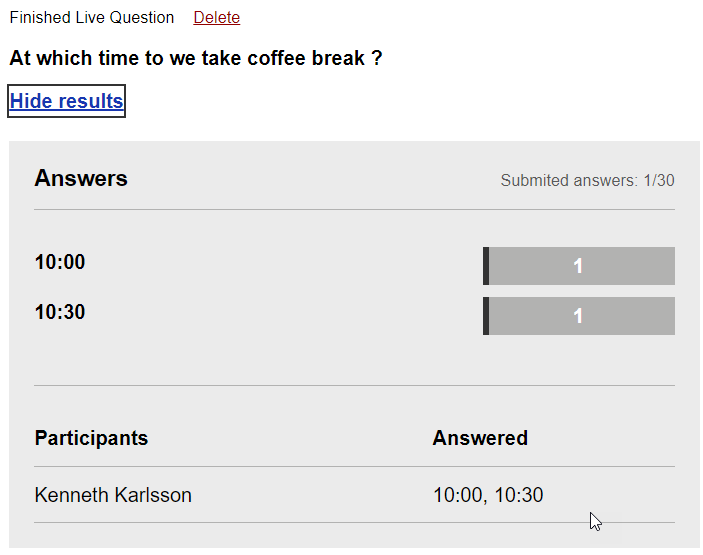
When the LQ is closed, the answers will be published , if the relevant setting of the LQ has been properly ticked. If the LQ has been configured NOT to publish the answers, only organisers will be able to see the result. If the LQ has been configured to publish the answers, all participants will be able to see the result. If a LQ has been configured as Anonymous, the system does not record who provided the individual answers. Therefore nobody can see who answered what.
|
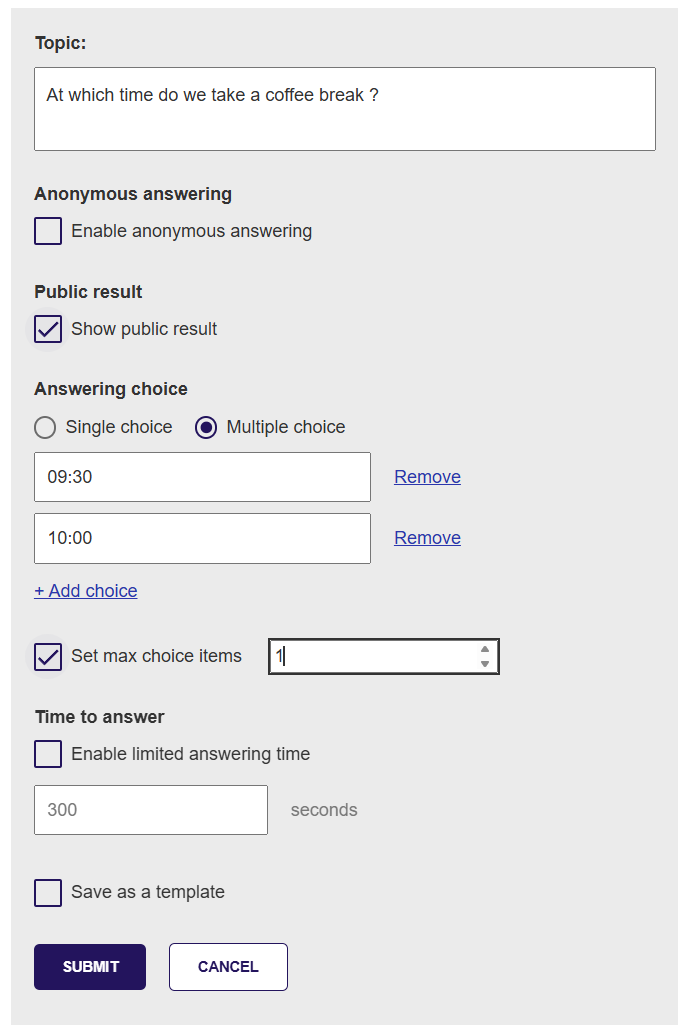
The properties to be set for a LQ
|
Property |
Definition |
|
Topic |
This is the question asked
|
|
Anonymous answering
|
If selected, the system will not record any information on the user who provided the answer.
|
|
Public result
|
If selected - the result will be published when the LQ is closed. If this is not selected, only participants with the organiser role can see the results. |
|
Answering choice
Set max choice items |
The LQ can be configured as either a single-choice or multiple-choice. Based on this setting, the respondent can select one or more of the listed answering choices. The organiser can include several answering choices for the LQ through the dedicated "+ Add choice" function.
If multiple choice is selected, it is also possible to indicate a maximum number of options to be selected. Example: there are 3 choices, but the respondent is only allow to select 2. Respondent can then select any answers but only 2 and can swap as they want. |
|
Time to answer |
The LQ can be time limited. If selected the LQ will only be open for the indicated duration (in seconds), and it will automatically close afterwards.The LQ still need to be activated to start the timer. If this is not set, the organiser is responsible to close the LQ when appropriate. |
|
Save as Template |
If you have recurring questions, you can save the LQ as a template. In this way you can easy and quickly create a new LQ based on the same setup. Give the template a short descriptive name. You cannot edit a template. |
Manage Raise Hands
All participants are able to manage their own "Raise Hand" indication, that means they can raise and lower their request when needed.
If you are appointed in the Organiser role, you will also have the option to manage other participants hand indications.
These following options will be available to you:
-
Next to each participants names on the right - the "Lower hand" and "Give Floor" option will be visible
-
At the top of the list commands to lower all hands or disable raise hands (close the floor) in one click is shown.
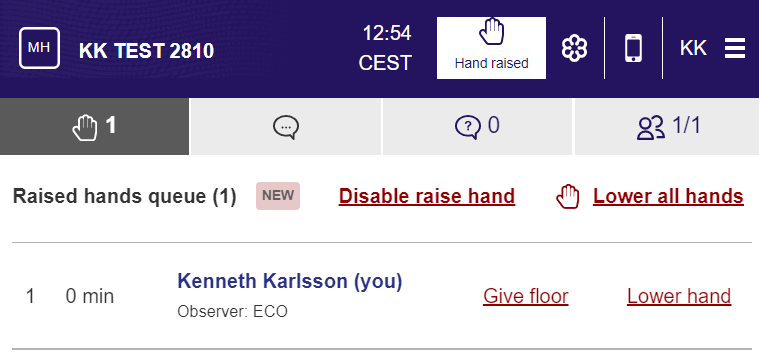
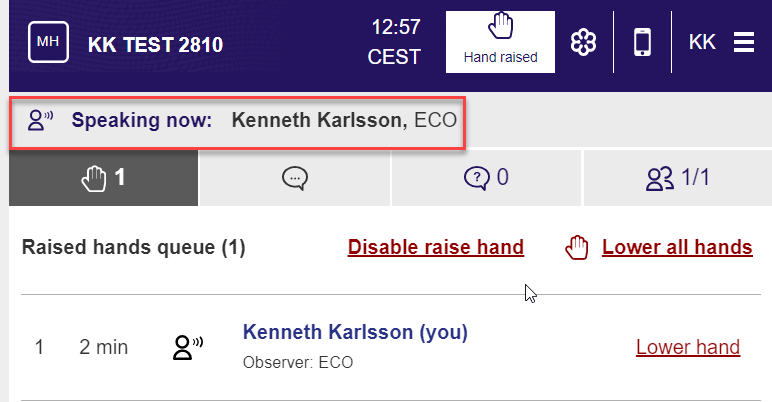
The "give floor" option will display the selected users name and affiliation in the window. When the user lower their hand or you as organiser gives the floor / lowers hand the indication will disappear.
Manage Participants List
Only ECO can appoint a participant to become an organiser in the MeetingHub, therefore the "Organiser" tick box will remain grey even if you are appointed organiser - this is by design.
You can as an organiser maintain the participant list, you can edit the participation info for open meetings (i.e. breakout sessions and non-linked meetings to CEPT portal) , and you can remove participants which are not attending the meeting (please note this will not prevent the participant to re-enter the meeting). Use the “Edit “ or "Remove" link option for this.
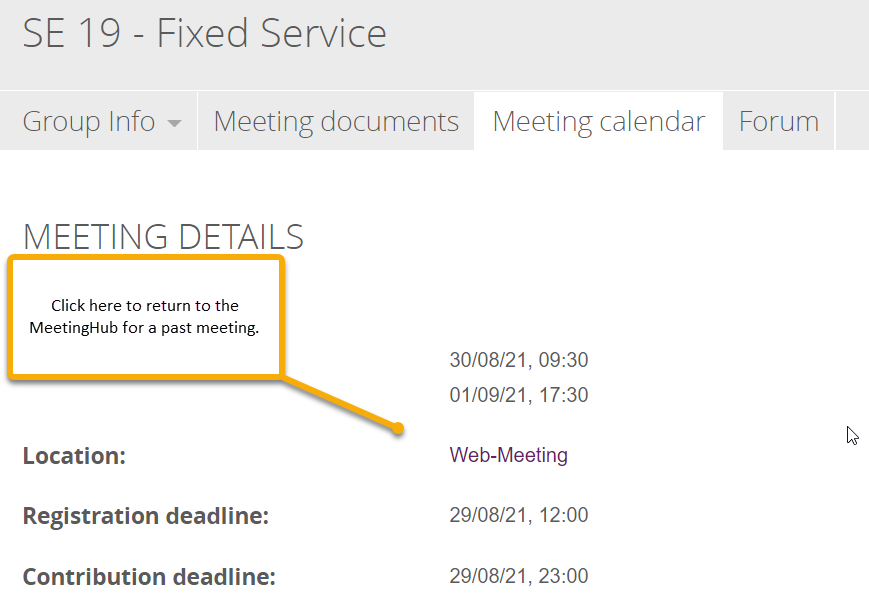
If you need to get the participants list from a past meeting and the meeting is no longer listed on your "My Meetings" page on the CEPT portal - you will need to find the details of the meeting and click the "Webmeeting" link. Please note that a cleanup-routine is done regularly (180 days), and the data may therefore no longer be available.
Manage Chat
As an organiser you are able to download a log of all PUBLIC messages.
Please note NO private chats will be included in the downloaded logfile - this is by design.
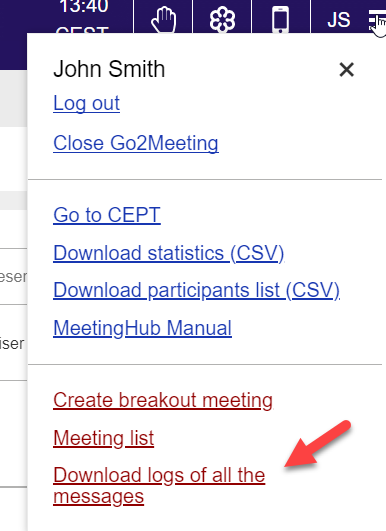
The file is downloaded as en CSV file containing various data:

MHub as an Participant
As a participant, you have various options on the MHub that will ease the cooperation between onsite and online participants.
Find here an description and intructions how to use the functions.
Raise Hand
The raise hand (RH) functions purpose is to ask for the floor.
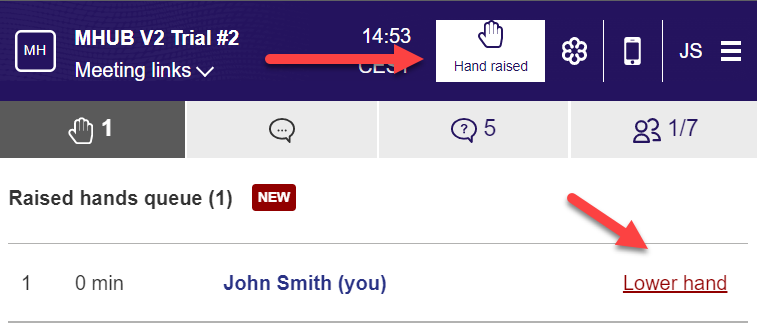
When you have clicked the RH button , the icon indicates your hand is raised, and clicking it again will remove your request for the floor from the list. This request is visible to all that are connected to Mhub.
You can lower your hand by pressing either the button indicating your hand is raised, or the link next to your name in the list of raised hands.
The list will indicate what number in the queue your request has, and for how long you have been waiting in minutes.
The list is organised as a FIFO list (First In First Out).
Please note only yourself and any user appointed organiser can lower your hand.
It is good practice to lower the hand when you have completed your intervention.
Chat
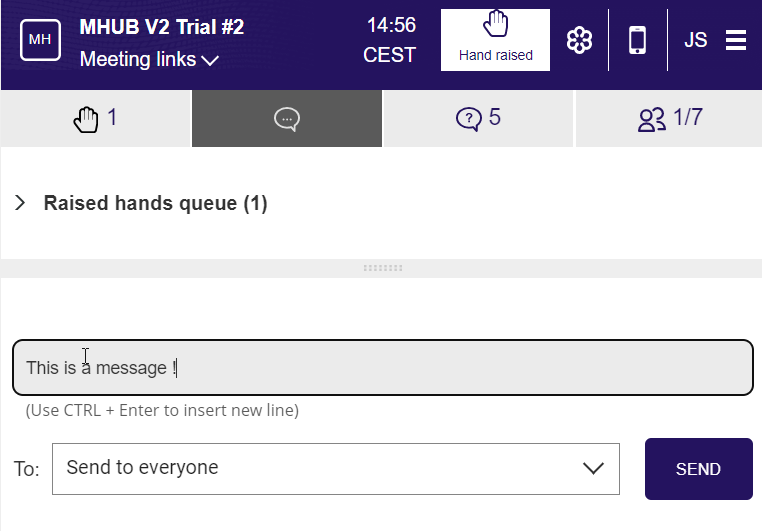
The MeetingHub tool contains a basic chat tool.
The tool also give you access to see the raise hand list at the top of the window by clicking the small arrow next to the title "Raised hands queue".
You can write chat messages either to all members of the MeetingHub session, or privately to a single person.
Write the message in the indicated field, select recipient (default is "Send to everyone"), press enter to send, or click the send button.
If you need to insert new lines, you must press both the Ctrl and Enter key simultaneous
If you need to insert a link to a webpage, please provide the entire URL (i.e. https: in front)
List of participants
The list of participants is a list of any user that has been logged into the MeetingHub for the specific meeting.
At the top of the list its possible to see the raised hand queue.
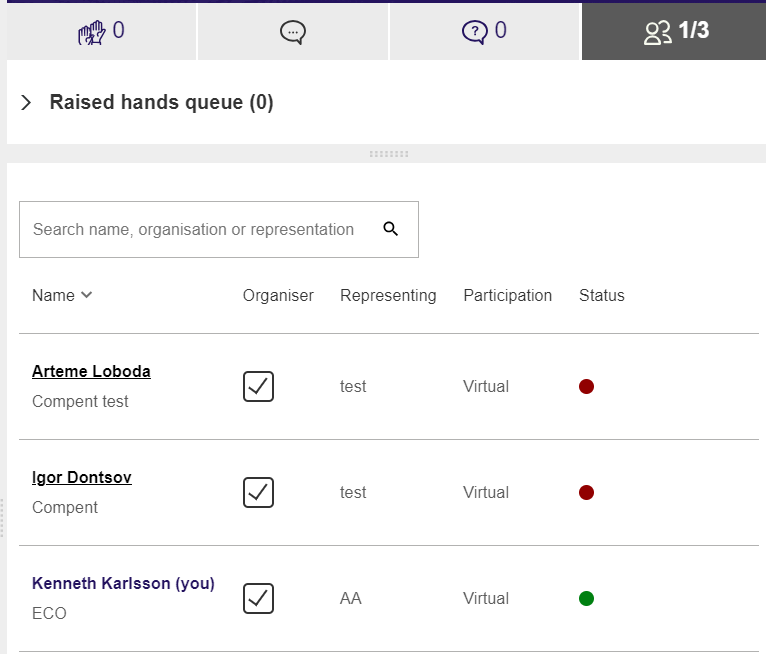
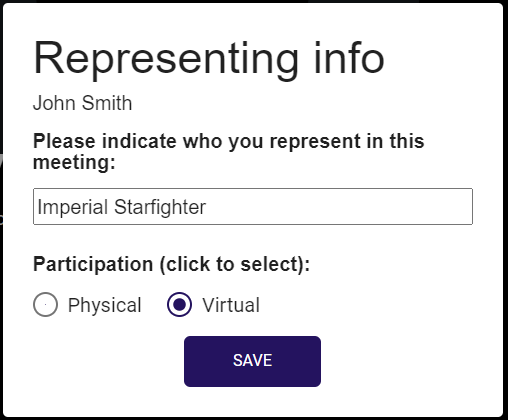
The list also indicates the name, and which entity the user represents as indicated in the registration for the meeting.
If the meeting is not linked to CEPT portal meeting, you will be asked for representing info upon entering the meeting.
Please make sure that this information is correctly reflected when typing the name-tag in GoToMeeting.
Sorting
The list of participants is sortable by clicking the headlines of the columns in either ascending or descending order.
Online/Offline indication
The list also shows whether the user is online in the MeetingHub by either a green (online) or red (offline) dot. Please note the list has no association to the participants list in GoToMeeting.
Start a private chat
You can from the list initiate a private chat message by clicking the name of the participant.
Organiser
The checkbox field "Organiser" is only editable by the ECO staff, when appointed as organiser, options to manage raise hands and live questions will be available.
Edit your representing information
In “open” meetings i.e. meetings that is not linked to a CEPT portal meeting (like breakout sessions) it is also possible to edit your participation info by clicking the “Edit” link.
It is not possible to edit your name, main affiliation and email address , this is taken from your profile on the CEPT portal.
Live Questions
An organiser can ask questions with a defined set of response options, in the Live Question (LQ) section.
Depending on the settings on the LQ, the result of the poll can be either published publicly, or not.
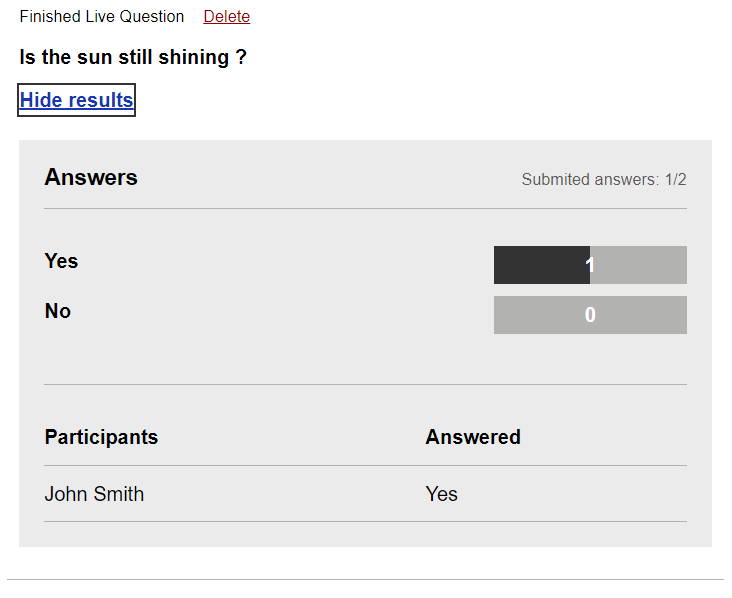
Also the answer you provide can depending on the settings in the LQ be anonymously or visible, you will see the setting on the question panel.
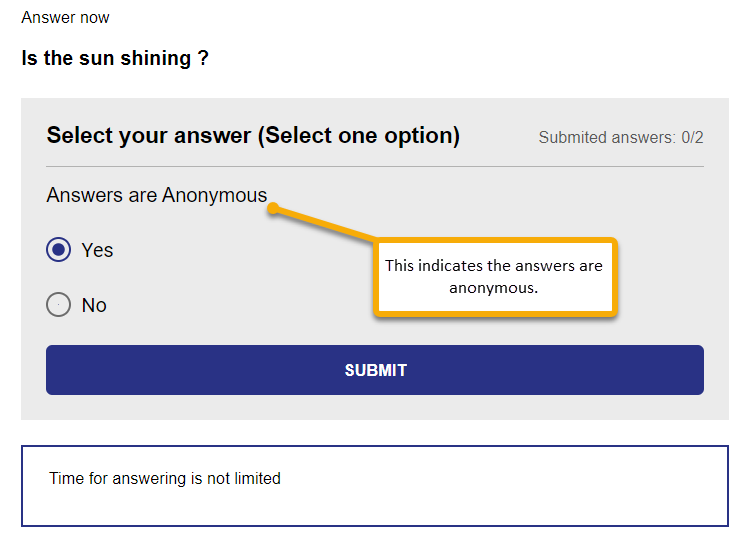
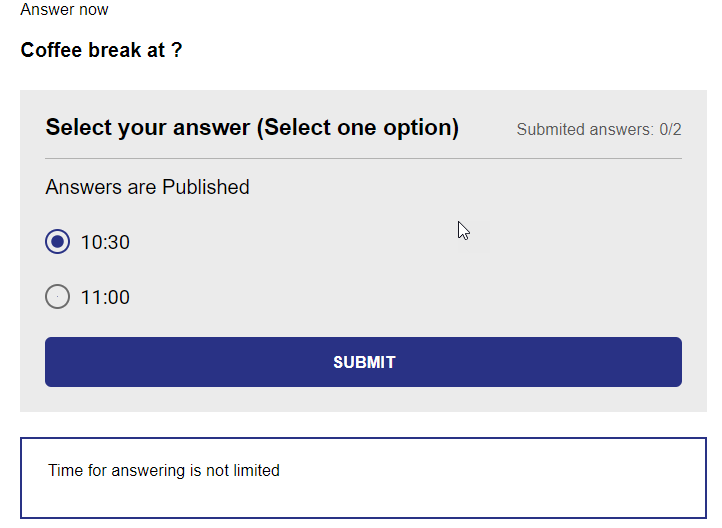
FINAL RESULT OF AN ANONYMOUS QUESTION
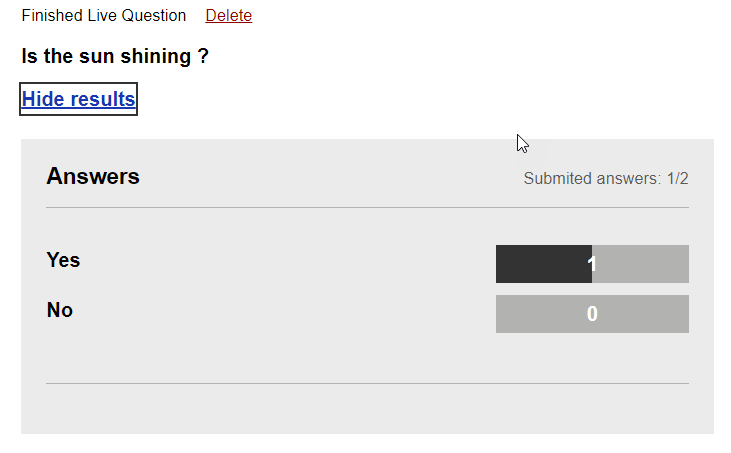
FINAL RESULT OF A QUESTION WITH PUBLISHED RESULTS
FAQ
I accidentally closed the MeetingHub Window — how do i get back ?
No problem — log into the CEPT portal again and start the mHub link from your ”My meetings” page.
My raised hand was lowered automatically, how did this happen ?
The individual user can raise and lower their own hands, however the organiser in the meeting can also lower participants hands. there's no auto function to lower hands.
I forgot to answer a Live Question, and now it is closed, can i still answer it ?
The organiser can either set a Live Question to expire after a certain period (minutes), or close it when they see fit. The Live Question will need to be closed in order to calculate the result. Closed questions can not be re-opened.
When answering a Live Questions that says anonymous answering, who can see who answered what ?
When a Live Question is configured to be anonymous, we do not record who answers what in the system, so we will not be able to retrieve the personal answers when the question closes.
I get an error in the browser indicating "You do not have permission" - "This site is blocked" or similar.
Some networks have restrictive filters where all new websites need to be approved before they can be accessed. Please contact your IT department for clarifications.
The mobile access link has dissappeared - how do i find it ?
The mobile access link will move to the burgermenu if the MHub window becomes to narrow.
Can the system send notifications for actions in MHub ?
Browser notifications are received only on the web, no notifications will be sent via email or mobile push.
Notifications are a personal browser preference, therefore this needs to be set by the user. The setting is made once and is stored in your browser for future use.
Notifications will be sent for these events:
-
Raise hand
-
New participant arrived / exiting
-
Start/End Live Questions
Notifications are shown in the lower right corner of the screen (Windows) and will indicate the action that has taken place.
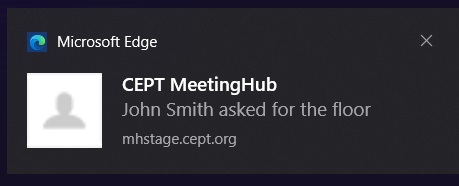
Notifications are not enabled by default, please consult your browser manual to learn how to enable notifications.
Release History
We try our best to test all functionalities of the MeetingHub before we release the software, however sometimes details can slip our attention. If you find any error or misunderstanding in the system, please report to helpdesk@eco.cept.org and be as descriptive as possible in your error report.
|
Date and version |
Notes |
V.1.001.07.2021 |
initial release. |
|
V1.122.10.2021 |
•Scroll to last message in Chat now works, in all browsers •Notifications will indicate action in MeetingHub (will tell what is happening, asking for floor, entering MeetingHub etc.) •Representing when “invited by chairman” now shows the correct information. •A new link to indicate “Reply privately” is now shown in each chat message – this is still possible by clicking the name of the sender in the chat message. •Template function in Live Question – you can now save a LQ as a template for future quick creation of repetitive LQ. •Link to manual pages are now available in the top right corner menu. •Corrected spelling mistake in "Submitted" text •Template Live Question functionality, including admin management function •Unread number in chat is now cleared when all messages shown •Representing info now updated for all users when accessing the MeetingHub |
NEW DESIGNRelease 1Restart version.28.10.2022 |
Major rewrite of MH. •New overall design •MeetingHub and GoTo in one window •Dynamic menus (links access during meeting etc.) •Breakout sessions •New Raise Hand options (visibility and management) •Live Questions functions to appoint participants |
Release 221.04.2023
|
Minor changes and error corrections
|
Release 303.07.2023 |
Minor changes and error corrections
When entering parallel session - use userinfo from main meeting
|
|
Release 4 |
Expected 2026 |