General Info
ECO has deployed a number of tools to help CEPT groups to work together.
If you need more assistance with our tools, please write to helpdesk@eco.cept.org
For general inquiries , please write to eco@eco.cept.org
- Info for newcomers to the office
- Info for external meetings in ECO
- Browser Compatibility for all tools
- Searching for data on ECO websites
- Frequently Asked Questions
- GDPR
Info for newcomers to the office
Meeting facilities
We have the following meeting rooms:
1. Hamlet for up to 60 participants with projector and screen (connections for HDMI and adaptors for MacOS devices), microphones, speakers, remote participation facilities, webcam, flipchart, whiteboard.
2. Ophelia for up to 24 participants with projector and screen (connections for HDMI, ClickShare and adaptors for MacOS devices), speakers, flipchart, webcam, whiteboard and remote participation facilities.
3. Gertrude for up to 8 participants with 55" Screen (connections for HDMI and adaptors for MacOS devices), speakers, flipchart, whiteboard and remote participation facilities.
Print options
If you need printing services, please contact the reception.
Internet Access
You can log on to the internet in by using the WLAN SSID: ECO_Meeting - password is announced on posters in the meeting rooms. Proceed to https://startwifi.cept.org for information and links to ease your stay in CPH.
Food and drink: Lunch will be provided to delegates to CEPT meetings at no cost (usually in the meeting room Ophelia). Hot and cold drinks are available from a machine in the kitchen (self-service).
Miscellaneous: Toilets are located in the nearest end of the meeting rooms. In the wardrobe you are welcome to hang your coat and leave your luggage. The office is a non-smoking office. Smoking is only allowed outside the building.
How to get here: From the airport you can take a regional train to central station. From central station the office is within walking distance, or you can take the S-Train on platform 9/10 to Vesterport station. You can use the official danish travelplanner here: Journey planner .
Please note that normal office hours are from 8.30 to 16.30, Friday 8.30 to 15.30. For reasons of security the office must be vacated when the last member of the ECO staff leaves for the day
Info for external meetings in ECO
ECO meeting room facilities
Information for external meetings held in ECO where an ECO staff may not participate
You are kindly requested to note the following:
Normal office hours are from 8.30 to 16.30, Friday 8.30 to 15.30.
If you would like to extend your meeting beyond these hours, please let Reception know in advance and as early as possible (extension up till 18.00 o’clock). We will then do our best to meet your request.
The meeting room is equipped with overhead projector and monitors (connections for HDMI and adaptors for iOS devices), microphones, speakers, remote participation facilities, Wi-Fi, webcam, flipchart, whiteboard.
Please be notified that no lunch will be served but cold drinks and coffee will be available at no cost in the kitchen.
Please inform the Reception about meeting schedule and number of participants as soon as possible.
Contact point for Reception: eco@eco.cept.org
For reasons of security the office must be vacated when the last member of the ECO staff leaves for the day.
Browser Compatibility for all tools
The software that ECO offers for collaboration is for the most part hosted on the internet. As such we aim to support as many users as possible by focusing on the browsers used to access our software. Unfortunately the amount of different browsers is big and we cannot accomodate all variants. We focus on the 4 major browser in the latest 2 versions when we test our software.
The browsers are:
-
Microsoft Edge
-
Google Chrome
-
Mozilla Firefox
-
Apple Safari
We generally also test on 2 major mobile operating system, with standard software:
-
Apple iOS / Safari Browser
-
Google Android / Chrome Browser
If you run into problems accessing our services with the supported versions, please first try to clear the cache of your browser and try again. Also test with browser in “Incognito” or “Private” mode, this can tell whether the problem could be related to a plugin in your browser. If all fails contact your IT department for assistance before you contact ECO Helpdesk at helpdesk@eco.cept.org.
|
Tool/Browser |
Microsoft Edge *1 |
Google Chrome / Vivaldi browser |
Mozilla Firefox |
Apple Safari |
|
CEPT Portal |
Supported |
Supported |
Supported |
Supported |
|
EFIS |
Supported |
Supported |
Supported |
Supported |
|
DocDB |
Supported |
Supported |
Supported |
Supported |
|
Workprogram Database |
Supported |
Supported |
Supported |
Supported |
|
GotoMeeting/GoTo App and Teams video meeting |
Supported |
Supported |
(WebApp access not supported, when connecting it will ask to start/install PC application) |
(WebApp access not supported, when connecting it will ask to start/install PC application) |
|
Onedrive document Access *2 |
Supported |
Supported |
Supported |
Supported |
|
The MeetingHub |
Supported |
Supported |
Supported (GoTo App must be installed on the computer) |
Supported (GoTo App must be installed on the computer) |
1) Microsoft Edge browser is the successor of Internet Explorer and the default browser from Microsoft Windows 10 going forward
Ref.: Microsoft Edge
2) Access to OneDrive shared documents can be blocked by local settings on your computer, if you are not able to access a shared document, and it’s confirmed to be working, please contact your IT department for assistance. ECO has unfortunately no possibility to assist with local settings.
Searching for data on ECO websites
The indiviual CEPT websites do not contain their own search engine for generel content like documents and web articles. Use ecosia search engine to find information on our websites - using specific search parameters helps finding the exact information you need.
Examples:
Find info on decision 70-03 on all CEPT sites:
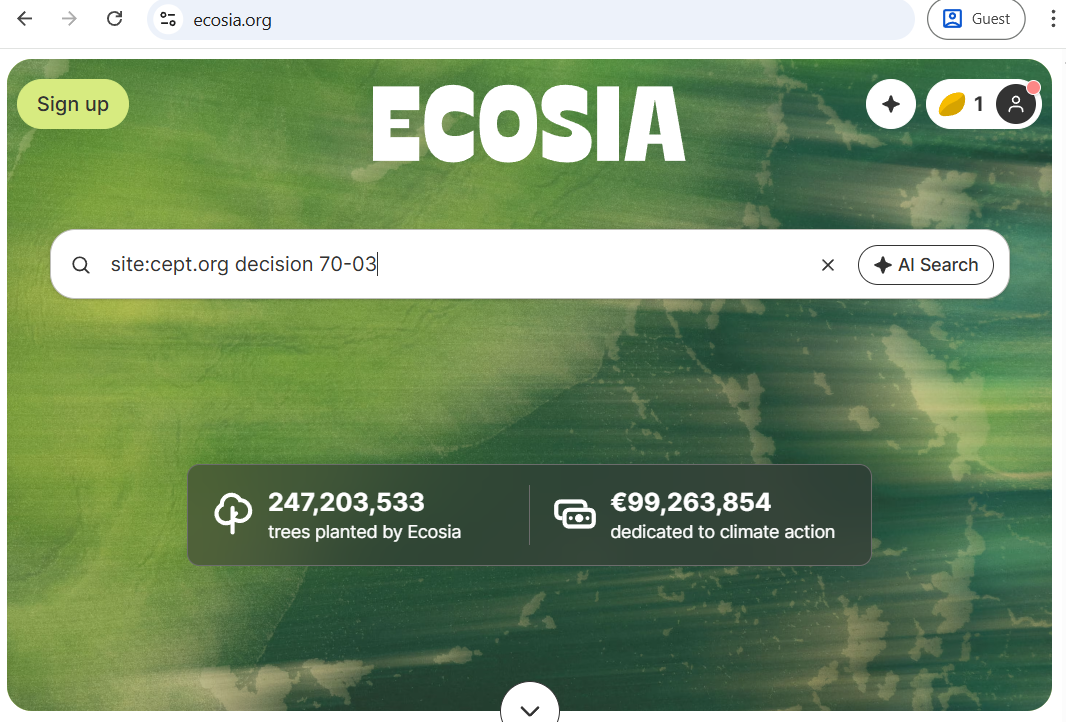
This will give you search results from DocDB, EFIS and CEPT.org
If you only want to search the DocDB site change the query to:
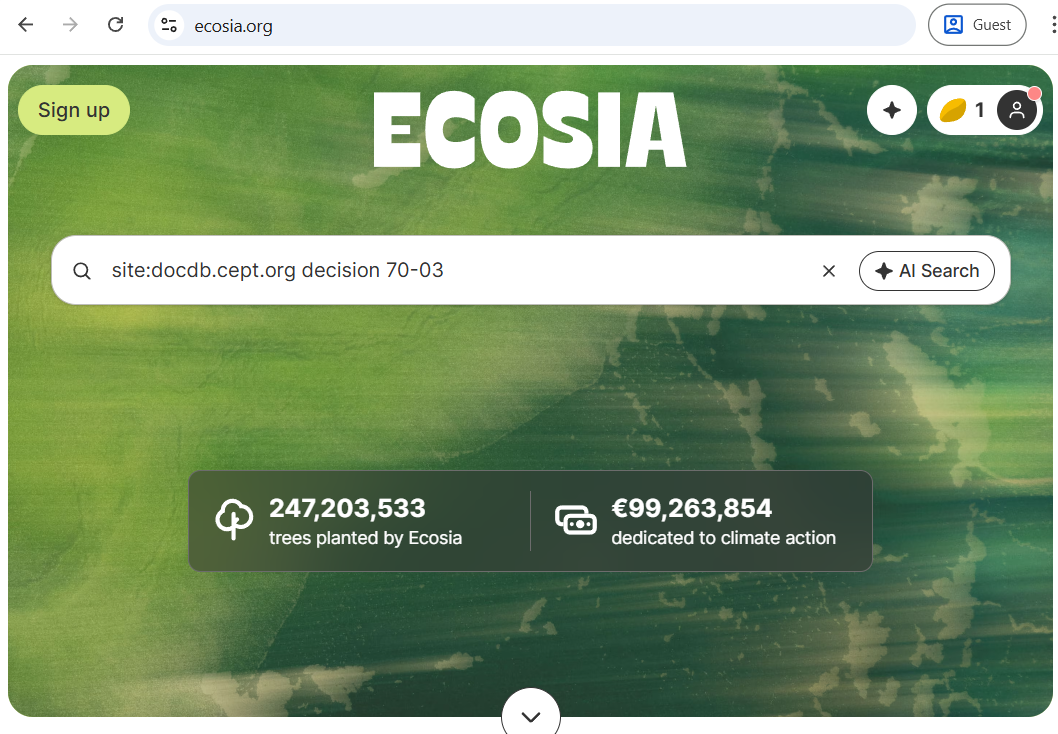
Frequently Asked Questions
If you need assistance, please contact helpdesk@eco.cept.org.
-
I forgot my password for the CEPT portal , how do I get a new one ?
If you forgot your password, please use the “Forgot password” link in the login box. This will send you a link to set a new password. See how here.
-
The CEPT portal says my account is locked out - how do I unlock it ?
After 20 attempts to access your account with the wrong password, we lock the account from further attempts. This is to avoid brute-force password hacking. You will need to contact helpdesk@eco.cept.org to have the account opened again. - Where do I find my login for the chat system ?
The assigned login information for the chat server is displayed on your CEPT profile information page almost at the bottom. See more here. If needed, you can set a new password directly on the chat system frontpage by using the forgot password option and your email address. Please note this will invalidate the assigned password on your CEPT profile page.
-
My main email address is wrong in the system - how do I change it ?
If you need to replace your main email address on the CEPT portal, please contact helpdesk@eco.cept.org for assistance, indicating the old address and the new address. Please note the change is subject to evaluation for group membership - for example if you change from administration to industry you may have to apply for individual group membership again. We may come back to you for clarification.
GDPR
The European Communications Office is committed to protecting the privacy of your personal data that we have in our care.
In this book we have assembled some usefull information on how we work with GDPR to safeguard your data.
GDPR Account validation
In order to be compliant with the EU General Data Protection Regulation (GDPR), we would like to verify that the personal data about you, that is stored in our systems are correct and that you still wish to have an account with us.
The account validation is an annual process we initiate usual in the first half of the year - in order to be compliant to the General Data Protection regulation article "12-23 Rights of the data subject".
You can always find our current policies on the front page of the CEPT portal - in any case you will receive a copy every year when we launch the account validation and in between if we update the policies.
How to verify
We initiate the process when we email all accounts on the CEPT platform asking to verifying the data we have is correct. The email will inform which time-period the validation is performed.
The process is as follows: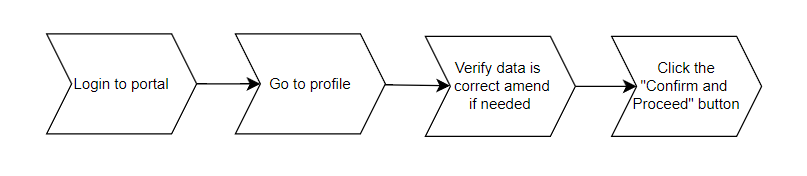
You need to:
- Login to you account of https://cept.org
- Go to your profile information
- Check the data is correct, amend if needed
- Click the "Confirm and Proceed" button to finish
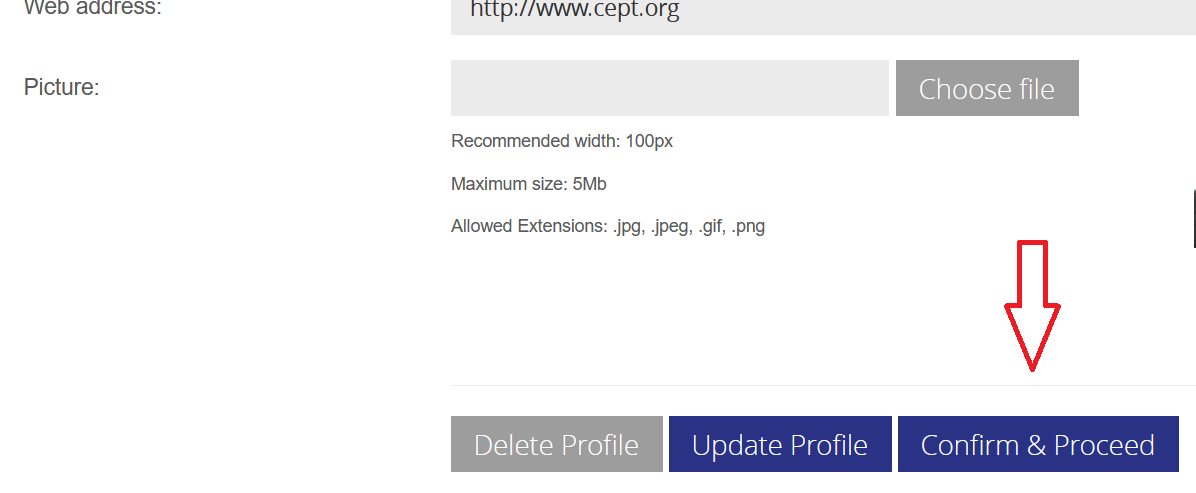
When you have verified your data, you will receive an email with a confirmation. (PLEASE NOTE this mail can be delayed in transit due to high volume when we start the process)
If you don't want to keep your profile, you can either delete it yourself from the profile page, or you can ask helpdesk@eco.cept.org to initiate the deletion. In any case the profile will be deleted , if you do not Confirm your account data when the validation period expires.
Please note that the "Confirm and Proceed" button is only visible until its clicked or in the time period we run the validation process, after this this button will disappear from your profile page.
Reminders
If you do not perform the validation within 14 days, we will send a reminder, this is the only reminder we will send.
Deletion
When the validation period is over, we will proceed to delete the accounts that have not been verified. No notifications will be sent for this.
Restore a deleted profile
Please be mindful, that it is not possible to recreate a deleted profile, if your account is removed, you will have to create a new profile, and re-apply for membership of relevant groups again.