# How to get started

### **This is a short guide how to install the Signal app on your mobile device and setup an account.**

### **Step 1: Download Signal**

- **On your phone (Android/iOS):**
    
    
    - Go to the **Google Play Store** (Android) or **App Store** (iOS).
    - Search for **"Signal Private Messenger"**.
    - Tap **Install** and wait for the app to download.
- **On your computer (optional):**
    
    
    - Visit [signal.org/download](https://signal.org/download) and download the desktop app for Windows, macOS, or Linux.

---

### **Step 2: Open Signal and Register**

1. **Open the Signal app** on your phone.
2. Tap **"Continue"** on the welcome screen.
3. Enter your **phone number** (make sure it’s correct—Signal will send a verification code).
4. Tap **"Register"**.

<span class="image-block w-fit transition-all duration-200 ease-in-out fade-in hover:shadow-lg relative me-2 mt-2 inline-block h-40 max-w-72 min-w-24 overflow-hidden rounded-md bg-card-subtle"><span class="group/zoomable-image relative block h-full w-full"><span aria-owns="rmiz-modal-d85896586319" data-rmiz=""><span data-rmiz-content="found">![Signal app is seen on a smartphone in this illustration taken](https://chat.mistral.ai/cdn-cgi/image/width=400,fit=scale-down/https://mistralaichatupprodswe.blob.core.windows.net/chat-images/assistant/61/bc/b6/61bcb6f1-9927-4625-9e4d-bef12c475fef/dcd11940-1dd0-4aa9-9e82-b8c1487a0d75/0d70e1a8-3e9f-4607-b739-7eccbb3227f8/53876cf5-f506-4a03-844c-7a8a974877a5.jpg?sv=2025-01-05&st=2026-01-14T07%3A44%3A51Z&se=2026-01-14T08%3A44%3A51Z&sr=b&sp=rade&sig=rsZpmAMJszjB1uuXpSqoOeyr1obRvcsC4xNJtqEWUiw%3D)</span><span data-rmiz-ghost=""><button aria-label="Expand image: Signal app is seen on a smartphone in this illustration taken" data-rmiz-btn-zoom="" type="button"><svg aria-hidden="true" data-rmiz-btn-zoom-icon="true" fill="currentColor" focusable="false" viewbox="0 0 16 16" xmlns="http://www.w3.org/2000/svg"><path d="M 9 1 L 9 2 L 12.292969 2 L 2 12.292969 L 2 9 L 1 9 L 1 14 L 6 14 L 6 13 L 2.707031 13 L 13 2.707031 L 13 6 L 14 6 L 14 1 Z"></path></svg></button></span></span><span class="absolute end-2 top-2 z-1 flex items-center gap-1 opacity-0 transition-opacity duration-200 group-hover/zoomable-image:opacity-100"><button aria-label="Copy Image" class="flex items-center justify-center text-center font-medium cursor-pointer outline-hidden focus-visible:ring-3 relative whitespace-nowrap transition-colors focus-visible:ring-default focus-visible:ring-offset-1 aria-disabled:text-hint aria-disabled:cursor-not-allowed aria-busy:cursor-wait aria-busy:text-transparent aria-disabled:aria-busy:text-transparent hover:not-disabled:bg-state-ghost-hover active:not-disabled:bg-state-ghost-press gap-1 text-sm rounded-md size-7 h-7 w-7 bg-(--secondary-900)/40 p-1.5 text-(--secondary-100) hover:bg-(--secondary-900)/50 hover:text-(--secondary-50) dark:bg-subtle/40 dark:text-default dark:hover:bg-subtle/50 dark:hover:text-default" data-state="closed" type="button"><svg aria-hidden="true" class="lucide lucide-copy" fill="none" height="24" stroke="currentColor" stroke-linecap="round" stroke-linejoin="round" stroke-width="1.5" viewbox="0 0 24 24" width="24" xmlns="http://www.w3.org/2000/svg"><rect height="14" rx="2" ry="2" width="14" x="8" y="8"></rect><path d="M4 16c-1.1 0-2-.9-2-2V4c0-1.1.9-2 2-2h10c1.1 0 2 .9 2 2"></path></svg></button><button aria-label="Download Image" class="flex items-center justify-center text-center font-medium cursor-pointer outline-hidden focus-visible:ring-3 relative whitespace-nowrap transition-colors focus-visible:ring-default focus-visible:ring-offset-1 aria-disabled:text-hint aria-disabled:cursor-not-allowed aria-busy:cursor-wait aria-busy:text-transparent aria-disabled:aria-busy:text-transparent hover:not-disabled:bg-state-ghost-hover active:not-disabled:bg-state-ghost-press gap-1 text-sm rounded-md size-7 h-7 w-7 bg-(--secondary-900)/40 p-1.5 text-(--secondary-100) hover:bg-(--secondary-900)/50 hover:text-(--secondary-50) dark:bg-subtle/40 dark:text-default dark:hover:bg-subtle/50 dark:hover:text-default" data-state="closed" type="button"><svg aria-hidden="true" class="lucide lucide-download" fill="none" height="24" stroke="currentColor" stroke-linecap="round" stroke-linejoin="round" stroke-width="1.5" viewbox="0 0 24 24" width="24" xmlns="http://www.w3.org/2000/svg"><path d="M12 15V3"></path><path d="M21 15v4a2 2 0 0 1-2 2H5a2 2 0 0 1-2-2v-4"></path><path d="m7 10 5 5 5-5"></path></svg></button><button aria-label="Open Image Source" class="flex items-center justify-center text-center font-medium cursor-pointer outline-hidden focus-visible:ring-3 relative whitespace-nowrap transition-colors focus-visible:ring-default focus-visible:ring-offset-1 aria-disabled:text-hint aria-disabled:cursor-not-allowed aria-busy:cursor-wait aria-busy:text-transparent aria-disabled:aria-busy:text-transparent hover:not-disabled:bg-state-ghost-hover active:not-disabled:bg-state-ghost-press gap-1 text-sm rounded-md size-7 h-7 w-7 bg-(--secondary-900)/40 p-1.5 text-(--secondary-100) hover:bg-(--secondary-900)/50 hover:text-(--secondary-50) dark:bg-subtle/40 dark:text-default dark:hover:bg-subtle/50 dark:hover:text-default" data-state="closed" type="button"><svg aria-hidden="true" class="lucide lucide-external-link" fill="none" height="24" stroke="currentColor" stroke-linecap="round" stroke-linejoin="round" stroke-width="1.5" viewbox="0 0 24 24" width="24" xmlns="http://www.w3.org/2000/svg"><path d="M15 3h6v6"></path><path d="M10 14 21 3"></path><path d="M18 13v6a2 2 0 0 1-2 2H5a2 2 0 0 1-2-2V8a2 2 0 0 1 2-2h6"></path></svg></button></span></span></span>

*(Example: Signal registration screen—you’ll see a field for your phone number.)*

---

### **Step 3: Verify Your Phone Number**

1. Signal will send you a **6-digit verification code** via SMS.
2. Enter the code in the app.
3. If you don’t receive the code, tap **"Resend code"** or **"Call me"** to get it via a phone call.

*(Note: Signal requires a real phone number for registration.)*

---

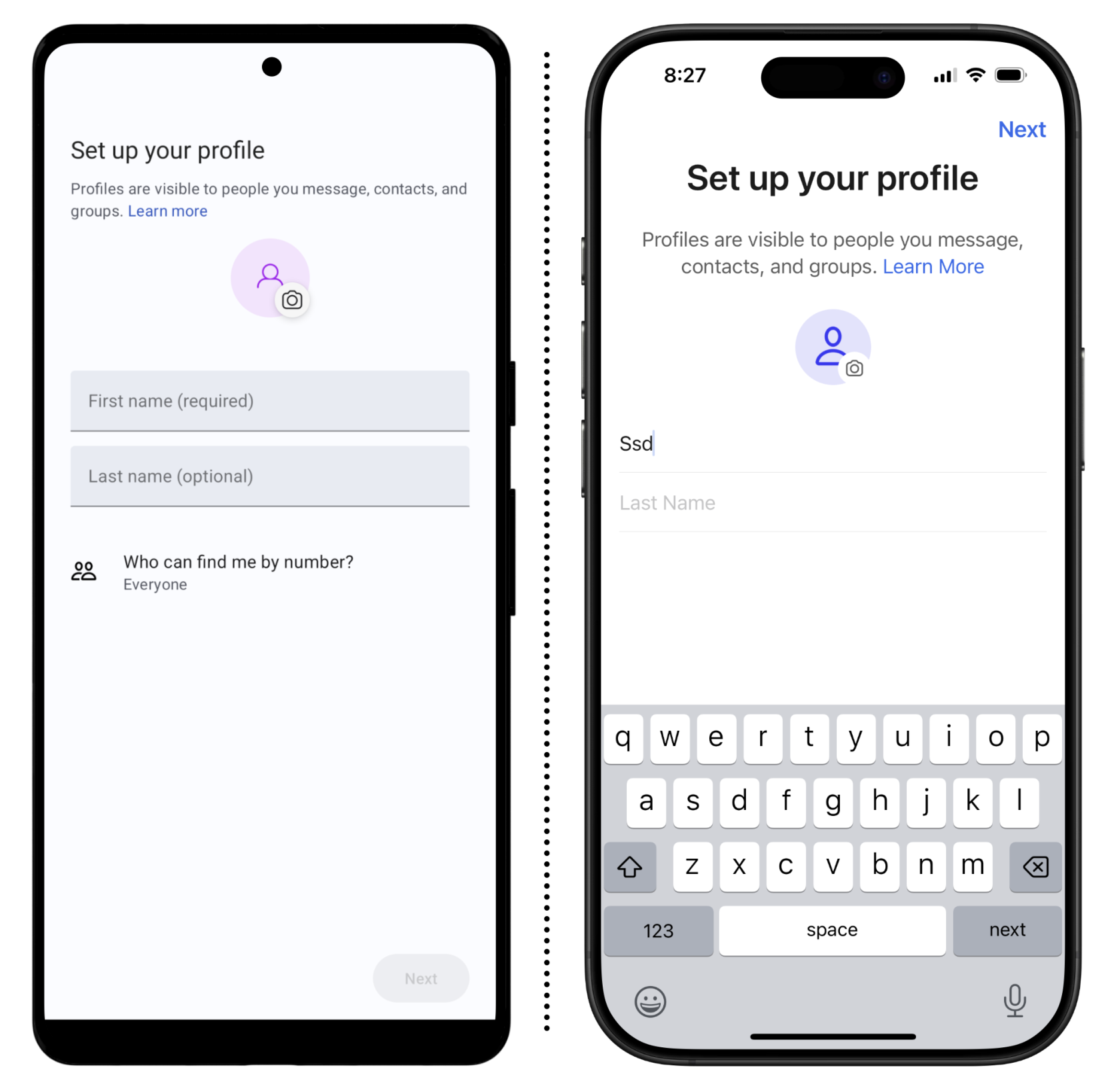
### **Step 4: Set Up Your Profile**

1. After verification, Signal will ask for your **profile name** (this can be your real name or a nickname).
2. You can also add a **profile picture** (optional).
3. Tap **"Continue"**.

<span class="image-block w-fit transition-all duration-200 ease-in-out fade-in hover:shadow-lg relative me-2 mt-2 inline-block h-40 max-w-72 min-w-24 overflow-hidden rounded-md bg-card-subtle"><span class="group/zoomable-image relative block h-full w-full"><span aria-owns="rmiz-modal-27e906919d18" data-rmiz="">[![content_04_set_up_profile.png](https://wiki.cept.org/uploads/images/gallery/2026-01/scaled-1680-/r2bSSVpCXUdE1TZo-content-04-set-up-profile.png)](https://wiki.cept.org/uploads/images/gallery/2026-01/r2bSSVpCXUdE1TZo-content-04-set-up-profile.png)</span></span></span>

---

### **Step 5: Set a PIN (Optional but Recommended)**

- Signal will prompt you to create a **4-digit PIN** to secure your account and backups.
- Choose a PIN you’ll remember and confirm it.

*(This PIN helps recover your account if you switch phones.)*

---

### **Step 6: Allow Permissions**

- Signal will ask for permission to access your **contacts, microphone, and camera** (for calls and media sharing).
- Tap **"Allow"** for each permission to enable full functionality.

---

### **Step 7: Start Chatting!**

- Signal will automatically sync your contacts (if allowed) and show you who else is using Signal.
- Tap the **pencil icon** (✏️) to start a new chat.
- Search for a contact and send your first message.

<span class="image-block w-fit transition-all duration-200 ease-in-out fade-in hover:shadow-lg relative me-2 mt-2 inline-block h-40 max-w-72 min-w-24 overflow-hidden rounded-md bg-card-subtle"><span class="group/zoomable-image relative block h-full w-full"><span aria-owns="rmiz-modal-fc31a12623bc" data-rmiz=""><span data-rmiz-content="found">![](https://chat.mistral.ai/cdn-cgi/image/width=400,fit=scale-down/https://mistralaichatupprodswe.blob.core.windows.net/chat-images/assistant/61/bc/b6/61bcb6f1-9927-4625-9e4d-bef12c475fef/dcd11940-1dd0-4aa9-9e82-b8c1487a0d75/ad9935e7-8796-4f64-b8eb-11b910ad3331/e3721f37-d2fa-48c6-89ae-15b9979d3fd3.png?sv=2025-01-05&st=2026-01-14T07%3A44%3A51Z&se=2026-01-14T08%3A44%3A51Z&sr=b&sp=rade&sig=uTOBw4mcGGmiWDdBXv%2FwgW%2BVj00bB986Xxbs5G7Eb54%3D)</span><span data-rmiz-ghost=""><button aria-label="Expand image" data-rmiz-btn-zoom="" type="button"><svg aria-hidden="true" data-rmiz-btn-zoom-icon="true" fill="currentColor" focusable="false" viewbox="0 0 16 16" xmlns="http://www.w3.org/2000/svg"><path d="M 9 1 L 9 2 L 12.292969 2 L 2 12.292969 L 2 9 L 1 9 L 1 14 L 6 14 L 6 13 L 2.707031 13 L 13 2.707031 L 13 6 L 14 6 L 14 1 Z"></path></svg></button></span></span><span class="absolute end-2 top-2 z-1 flex items-center gap-1 opacity-0 transition-opacity duration-200 group-hover/zoomable-image:opacity-100"><button aria-label="Copy Image" class="flex items-center justify-center text-center font-medium cursor-pointer outline-hidden focus-visible:ring-3 relative whitespace-nowrap transition-colors focus-visible:ring-default focus-visible:ring-offset-1 aria-disabled:text-hint aria-disabled:cursor-not-allowed aria-busy:cursor-wait aria-busy:text-transparent aria-disabled:aria-busy:text-transparent hover:not-disabled:bg-state-ghost-hover active:not-disabled:bg-state-ghost-press gap-1 text-sm rounded-md size-7 h-7 w-7 bg-(--secondary-900)/40 p-1.5 text-(--secondary-100) hover:bg-(--secondary-900)/50 hover:text-(--secondary-50) dark:bg-subtle/40 dark:text-default dark:hover:bg-subtle/50 dark:hover:text-default" data-state="closed" type="button"><svg aria-hidden="true" class="lucide lucide-copy" fill="none" height="24" stroke="currentColor" stroke-linecap="round" stroke-linejoin="round" stroke-width="1.5" viewbox="0 0 24 24" width="24" xmlns="http://www.w3.org/2000/svg"><rect height="14" rx="2" ry="2" width="14" x="8" y="8"></rect><path d="M4 16c-1.1 0-2-.9-2-2V4c0-1.1.9-2 2-2h10c1.1 0 2 .9 2 2"></path></svg></button><button aria-label="Download Image" class="flex items-center justify-center text-center font-medium cursor-pointer outline-hidden focus-visible:ring-3 relative whitespace-nowrap transition-colors focus-visible:ring-default focus-visible:ring-offset-1 aria-disabled:text-hint aria-disabled:cursor-not-allowed aria-busy:cursor-wait aria-busy:text-transparent aria-disabled:aria-busy:text-transparent hover:not-disabled:bg-state-ghost-hover active:not-disabled:bg-state-ghost-press gap-1 text-sm rounded-md size-7 h-7 w-7 bg-(--secondary-900)/40 p-1.5 text-(--secondary-100) hover:bg-(--secondary-900)/50 hover:text-(--secondary-50) dark:bg-subtle/40 dark:text-default dark:hover:bg-subtle/50 dark:hover:text-default" data-state="closed" type="button"><svg aria-hidden="true" class="lucide lucide-download" fill="none" height="24" stroke="currentColor" stroke-linecap="round" stroke-linejoin="round" stroke-width="1.5" viewbox="0 0 24 24" width="24" xmlns="http://www.w3.org/2000/svg"><path d="M12 15V3"></path><path d="M21 15v4a2 2 0 0 1-2 2H5a2 2 0 0 1-2-2v-4"></path><path d="m7 10 5 5 5-5"></path></svg></button><button aria-label="Open Image Source" class="flex items-center justify-center text-center font-medium cursor-pointer outline-hidden focus-visible:ring-3 relative whitespace-nowrap transition-colors focus-visible:ring-default focus-visible:ring-offset-1 aria-disabled:text-hint aria-disabled:cursor-not-allowed aria-busy:cursor-wait aria-busy:text-transparent aria-disabled:aria-busy:text-transparent hover:not-disabled:bg-state-ghost-hover active:not-disabled:bg-state-ghost-press gap-1 text-sm rounded-md size-7 h-7 w-7 bg-(--secondary-900)/40 p-1.5 text-(--secondary-100) hover:bg-(--secondary-900)/50 hover:text-(--secondary-50) dark:bg-subtle/40 dark:text-default dark:hover:bg-subtle/50 dark:hover:text-default" data-state="closed" type="button"><svg aria-hidden="true" class="lucide lucide-external-link" fill="none" height="24" stroke="currentColor" stroke-linecap="round" stroke-linejoin="round" stroke-width="1.5" viewbox="0 0 24 24" width="24" xmlns="http://www.w3.org/2000/svg"><path d="M15 3h6v6"></path><path d="M10 14 21 3"></path><path d="M18 13v6a2 2 0 0 1-2 2H5a2 2 0 0 1-2-2V8a2 2 0 0 1 2-2h6"></path></svg></button></span></span></span>

*(Example: Signal chat screen—tap the pencil icon to start a conversation.)*

---

### **Optional: Link Signal to Your Computer**

1. Install the Signal App on your computer first
2. Open Signal on your **phone** and go to **Settings &gt; Linked Devices**.
3. Open Signal on your **computer** and scan the QR code shown there with your phone.

*(This syncs your messages across devices.)*

---

### **Troubleshooting Tips**

- **No verification code?** Check your SMS or request a call.
- **Contacts not showing?** Ensure Signal has permission to access your contacts.
- **Need help?** Visit [Signal Support](https://support.signal.org).

<sub>(Created with Mistral AI)</sub>