Chat System
ECO are the custodian of Chat channels in Signal Messenger. This section describes how to connect and how to have a chat channel setup in your CEPT portal group.
The old RocketChat system was closed in March 2026.
Signal Chat
ECO is managing Signal Messaging groups related to WG and PT of the CEPT.
The Signal messenger is operated by the Signal Foundation LLC.
The system is chosen for the following reasons :
- Fully Open-Source
- Privacy focused
- Endorsed and suggested by the EU-Commission
- No data profiling or Collection (i.e no AI or commercials)
- Fully E2E encrypted – private chats and group chats
- Operated by a non-profit Organisation
Official user manual can be found here: https://aboutsignal.com/signal-messenger-user-guide/
How to get started
This is a short guide how to install the Signal app on your mobile device and setup an account.
Step 1: Download Signal
-
On your phone (Android/iOS):
- Go to the Google Play Store (Android) or App Store (iOS).
- Search for "Signal Private Messenger".
- Tap Install and wait for the app to download.
-
On your computer (optional):
- Visit signal.org/download and download the desktop app for Windows, macOS, or Linux.
Step 2: Open Signal and Register
- Open the Signal app on your phone.
- Tap "Continue" on the welcome screen.
- Enter your phone number (make sure it’s correct—Signal will send a verification code).
- Tap "Register".

(Example: Signal registration screen—you’ll see a field for your phone number.)
Step 3: Verify Your Phone Number
- Signal will send you a 6-digit verification code via SMS.
- Enter the code in the app.
- If you don’t receive the code, tap "Resend code" or "Call me" to get it via a phone call.
(Note: Signal requires a real phone number for registration.)
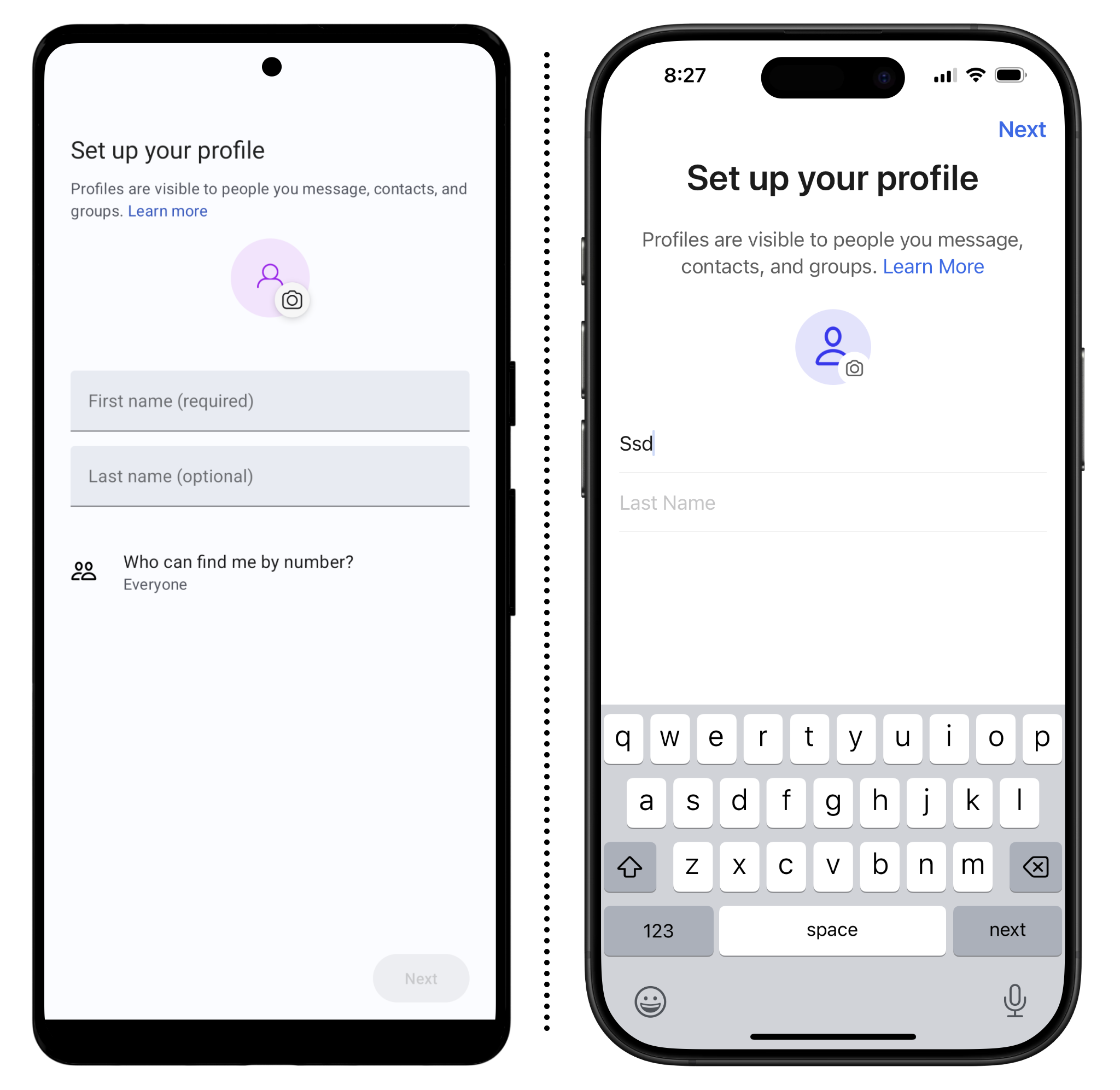
Step 4: Set Up Your Profile
- After verification, Signal will ask for your profile name (this can be your real name or a nickname).
- You can also add a profile picture (optional).
- Tap "Continue".
Step 5: Set a PIN (Optional but Recommended)
- Signal will prompt you to create a 4-digit PIN to secure your account and backups.
- Choose a PIN you’ll remember and confirm it.
(This PIN helps recover your account if you switch phones.)
Step 6: Allow Permissions
- Signal will ask for permission to access your contacts, microphone, and camera (for calls and media sharing).
- Tap "Allow" for each permission to enable full functionality.
Step 7: Start Chatting!
- Signal will automatically sync your contacts (if allowed) and show you who else is using Signal.
- Tap the pencil icon (✏️) to start a new chat.
- Search for a contact and send your first message.

(Example: Signal chat screen—tap the pencil icon to start a conversation.)
Optional: Link Signal to Your Computer
- Install the Signal App on your computer first
- Open Signal on your phone and go to Settings > Linked Devices.
- Open Signal on your computer and scan the QR code shown there with your phone.
(This syncs your messages across devices.)
Troubleshooting Tips
- No verification code? Check your SMS or request a call.
- Contacts not showing? Ensure Signal has permission to access your contacts.
- Need help? Visit Signal Support.
(Created with Mistral AI)
Groups on Signal
ECO are the custodian of PT and WG groups on Signal.
When a chat group associated with a CEPT portal group is created, we will upload the signal access QR code on the CEPT portal in the relevant group.
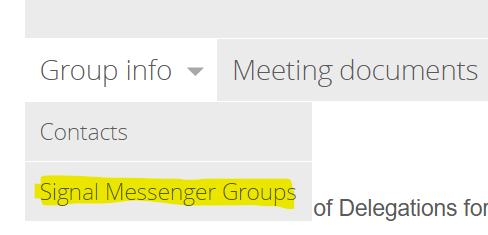
The QR connection code will only be visible for group members under the tab "Group Info", please be mindful NOT to share these groups with outsiders. Signal groups are not publicly searchable in the Signal system.
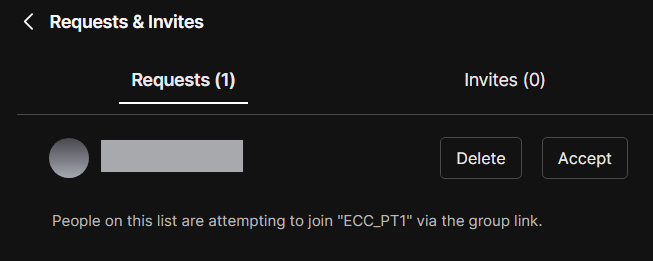
A Signal chat group can be locked for admission pending approval, this means that you can connect to the group, but an administrator of the group needs to approve access. When you have applied for access please contact Chair of the group, ECO expert or ECO Helpdesk. The system do not alert admin of new applicants , therefore we may not immidiately see that you have applied.
If you are a Chair or Vicechair role on the CEPT group for which there's a chat group,you can become admin on the Signal chat group. You are then also in charge of maintaining the member list in the group together with ECO. Please read here how to.
Membership access
If the CEPT group is small (< 50 members), it will be necessary to approve all members applying for access to the Signal chat when the chat group is created.
For larger groups ( > 50 members) - the Signal group will have a period of open entry, hereafter the chat group will be closed as described above and require admin approval of access.
Existing groups
If you are managing an existing group in signal that you want to be posted, please contact helpdesk@eco.cept.org
General rules:
- ECO must be made co-admin of the group
- The group must be available to all members of the group that we publish the connection details.
Signal Tips and Tricks
Set a Signal Handle ( Username)
A Signal Handle or username can be used instead of your telephone number when connecting with other people.
It also generates a QR code that can bed used to connect with eachother.
Tap your profile picture - and find the section with an @
Set the desired username and a 2-digit number or use the one suggested.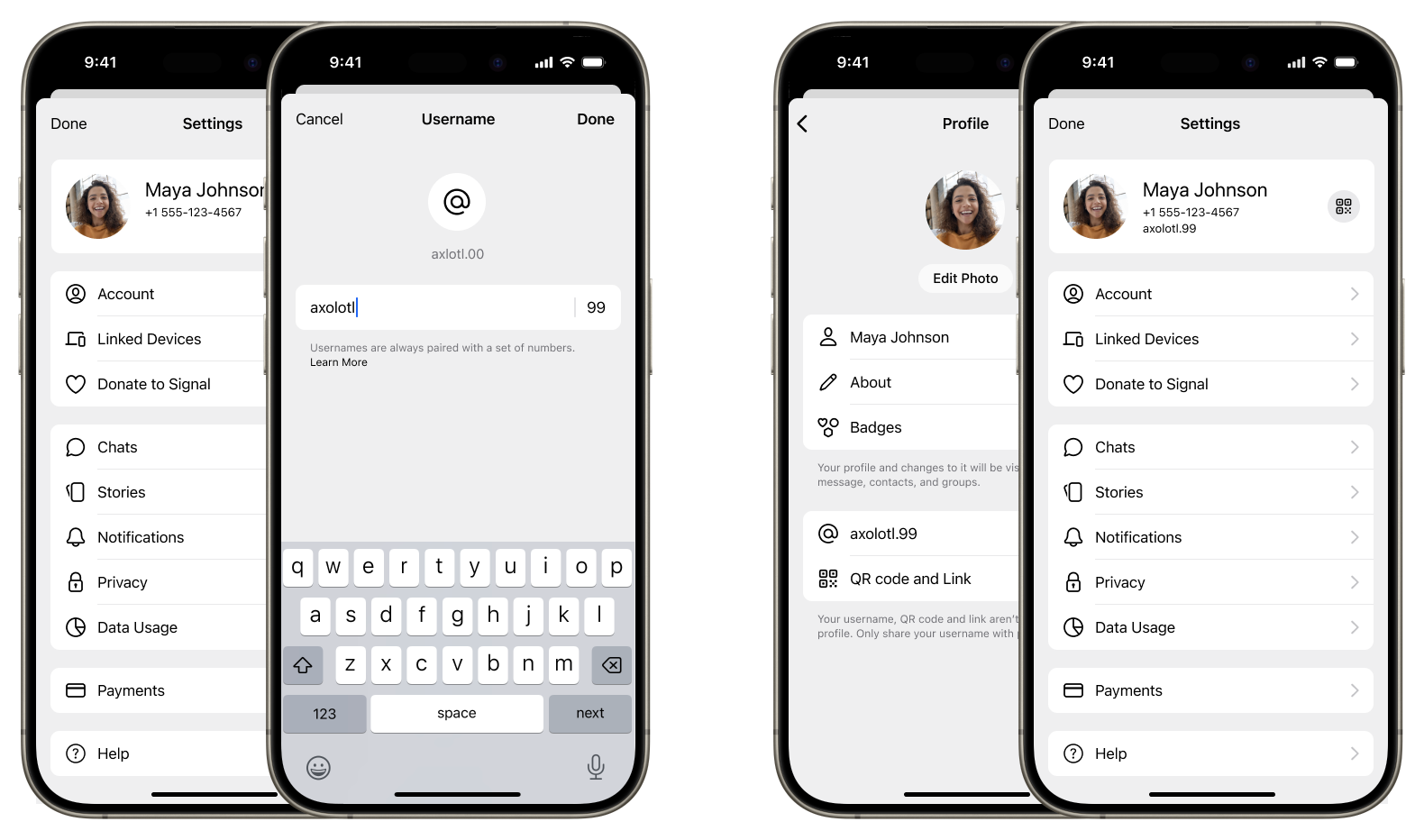
This username can now be relayed to any contacts.
The username can always be changed if needed - if you suspect its being to widely spread, change to a different handle - this will not affect your established contacts.
Message status indicators
How do you know if a message is delivered and read ?
Messages has an indicator in the bottom right of the message with the following meaning:
 Sending
This indicates that your message is in the process of being sent. If this continues for an extended period of time, please ensure that your device is connected to the internet.
 Sent
Sent
This indicates that your message has been sent to the Signal service. If you see this icon, there is no issue with your phone's connectivity.
 Delivered
This indicates that the message has been delivered to the recipient's device.
 Read
Read
If both you and your contact have read receipts enabled, this indicates your contact has read the message.
Send a short video
You can send a short video in a chat, by starting the camera, and then press the release-button and keeping it pressed - a video will be recorded. When released you can replay the video before posting it. Remember to select front camera to be visible in the video.
Pin a message
Your most frequently asked questions, dinner reservations, and vacation itineraries are already top of mind. Now they can be top of chat as well.
Now you can pin up to three messages to the top of any 1-1 or group chat to share important information. Messages can be pinned forever or for a limited time. Simply tap-and-hold any message and select "Pin" to get started. On the desktop client, click the 3 dots and select "pin".
Put a label to your name
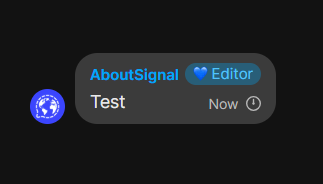
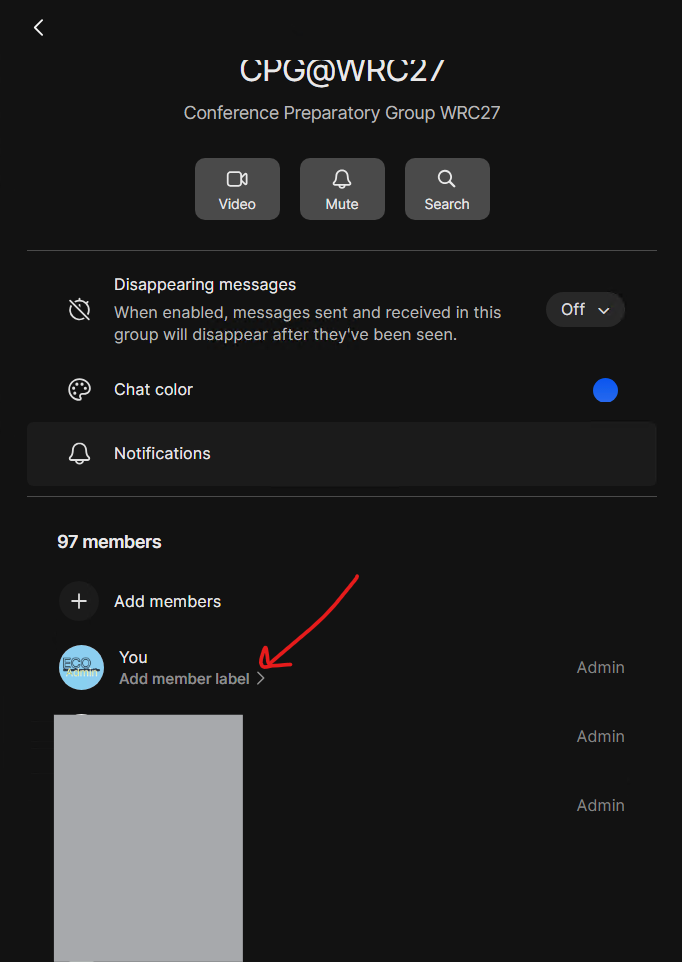
You can mark you name in a group with a title - labels can start with an emoji, just like the ‘About’ description in your profile. You can only create a label for yourself, so you can’t assign a label to someone else in the group.
Member administration
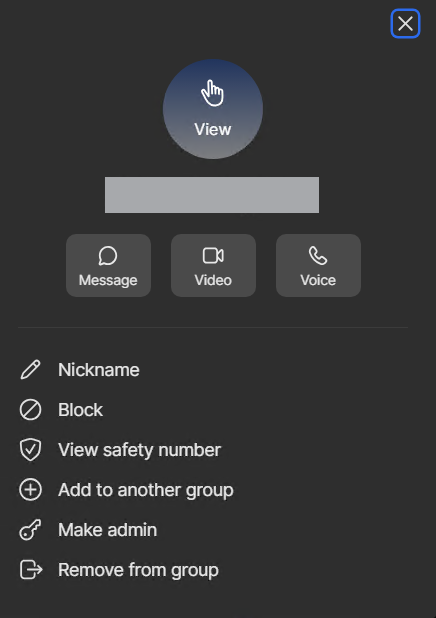
As a Chair in a group, you are also co-responsible to maintain the memberlist in the chat.
This includes:
- Inviting users
- Removing users
- Approve/Reject user access
You are therefor appointed "admin" rights in the chat groups you are responsible for.
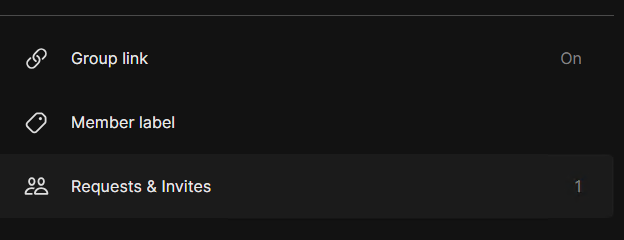
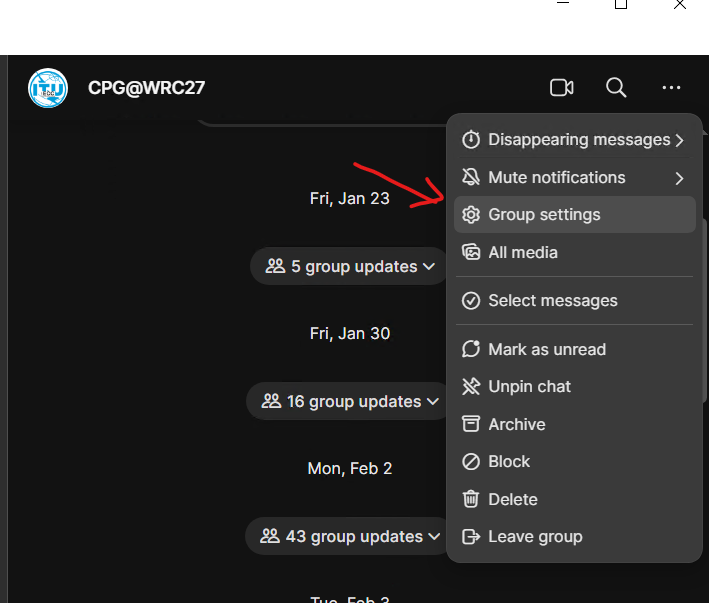
In the Signal App, you find the admin section by clicking the three dots upper right when in the group, go to group settings. (same on both desktop and mobile)
Managing /inviting members:
|
Find members in Group Setting
|
Click on any member to get options
Click the "+ Add member" to invite a member |
Options for the user |
|
|
|
|
Approving / Denying Requests
| Find "Requests and Invites" : | Accept or delete request/invite | |
|
Go to "Group Settings"
|
|