CEPT Portal
The CEPT portal provides a window for the world to explore the work of CEPT and its committees. It provides a common platform to the websites of CEPT, its three business committees (ECC, Com-ITU and CERP) and its permanent Office (ECO)
- How to get started
- Profile Information
- Groups
- Meetings
- How to register to attend a meeting
- Meeting Documents
- Meeting Documents - notifications
- Meeting documents - filter and search
- Meeting documents - Document accessibility
- Meeting documents - revisions
- Meeting documents - upload
- Old document archive
- Meeting Calendar
- Forum
- Group Question
- FAQ
- Release history
- The Chair manual
How to get started
Are you new to the CEPT universe ? - follow this guide to get started with your account
If you need assistance, please contact helpdesk@eco.cept.org
Step 1 - Create an account.
First step is creating an account. When you create an account, you have access to become member in working groups (WG) and project teams (PT). By this membership you have access to documents, meetings and other information.
It’s quite simple - proceed to this address and create your account: https://cept.org/system/member-registration/
When you're profile is created, you will need to verify by clicking the link that will be send to you by email, this is to ensure that your details is not used by intruders.
Now you are ready to login, please go ahead and do that , and you are ready to apply for membership of groups.
Step 2 - Group memberships
All work done in the PT’s and WG’s which are organised in groups under their relevant organisations (ECC, Com-ITU, CERP and ECO).
Some PT’s and WG’s are open, which means their work is publicly available on the CEPT portal. However as a member of the groups you will also be a member of the mail reflector and receive news by email from the group.
Other PT’s and WG’s are closed for public access, therefor you can experience a message that states you need to be a member to view the content. You can always find the relevant PT or WG chair contact information on this page, please contact The Chair directly if you find that should have access but haven't.
Membership is subject to either the group Chair or ECO expert approval (in coordination with The Chair)
Find first the organisation, and then the PT or WG you want to be a member of. See more instructions here how to apply for membership: Group Membership | wiki
Step 3 - Engage in the work
For PT or WG, there is a number of tools that can be available.
- Calendar - meetings in WG/PT will be advertised in the group calendar, here you can register for meetings.
- Meeting documents - for meetings planned on the CEPT portal, there usually are an associated document storage associated. Use this to exchange relevant documents for the meetings.
- Group Questions - sometimes its necessary to ask a simple question i.e. for the next meeting date a.o, this can be done in the Group Question module.
- Mail reflector - an associated mailing list exists for all groups. All members of the relevant group become member of the associated mailing list. Please note that some groups can have extra mailing lists, these are usually listed on the frontpage of the group. Ask The Chair or ECO contact for assistance to be connected to these, or email helpdesk.
-
Forum - some groups use forum for community based communication. In the relevant group a tab in the menu will give you access to the forum.
-
Chat system - the Chat system are enabled in some groups - access to the chat is given by a tab in the group menu. Please note the chat system have a different login scheme, you will find the login information in your profile page.
Profile Information
Start page

The Start page is the entry page for your profile, when you login to the portal, you will always start on this page, unless you set another starting point.
This page contains updates on group news, meeting activities and document updates.*
“News from my groups”:
The news feed on the left contains the most recent news from:
-
Groups you are a member of
-
Groups you are watching
The news is listed in reverse chronological order with the most recent news item on top.
“My upcoming meetings”:
The meetings listed under this heading are from the groups of which you are a member and the groups you are watching.
“Latest documents in my groups”:
The documents listed under this heading are the most recent ones from the groups of which you are a member of or are watching.
Startpage / Landing page
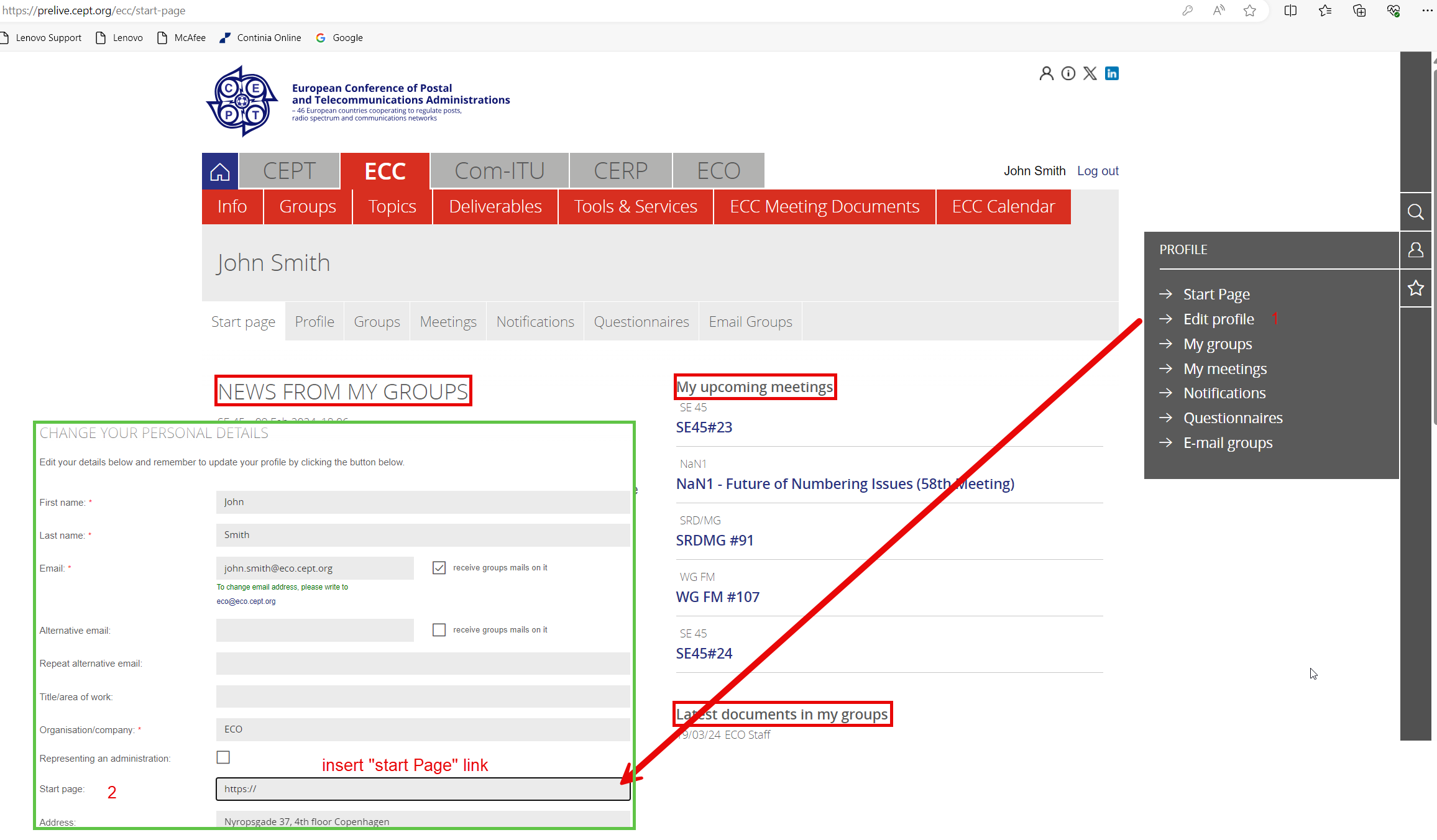
When you login to the portal, you will always start at "My Start Page" unless you set another page to be the starting point :
To change to another start/landing page:
-
Log in to Cept.org and find the page you would like to be your “landing page”, copy link,
-
Go to “Edit Profile” (1)
-
Insert link in “Start page” (2) field and click “update” to save the change.
Profile
Your profile data is the information that will be used in the various function on the portal when you navigate the site.
Creating a profile
To create a profile you need to perform 2 steps.
Step 1 is entering your information and submitting the entry form,
step 2 is for you to acknowledge by email link that you want to have an account with us.
On the frontpage of the CEPT portal, you simply click the “Log in” link in the top left corner. And from login box that appears you can now click the “Register Profile” link.
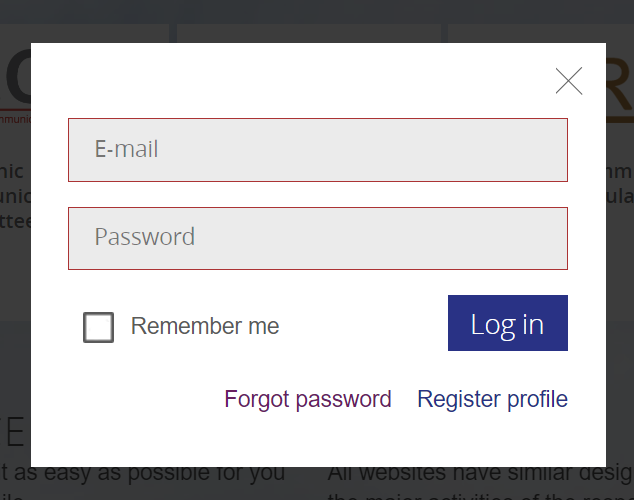
A profile entry form will now appear. Please fill out the form with relevant information - be mindful that you only enter business data. Fields marked with a red * are mandatory fields and needs to be filled.
Please read the Terms and Conditions for the use of the portal before entering the Captcha code and submit the form.
We handle information in accordance with the GDPR rules, please read here for information about the annual account validation and where to find our GDPR policies.
The form is now submitted and shortly after an approval email should arrive in your inbox. Please click this link to approve your wish for an account - this step is to confirm that you asked for the profile yourself and not somebody else.
Changing your profile


On your startpage - in the section “Profile” you can change your profile data.
Here you can change your profile information, except your main email address. If you need to change this please contact eco@eco.cept.org (please note that a consequence of changing your main email address, could be that you need to re-apply for membership of relevant groups).
You can also change your password on this page, and you will find the special login information needed for the chat system.
My groups

This page gives you an overview of the working groups and project teams that you are a member of.
-
Favourite groups: These groups are the ones you have listed in the “My profile” box under Favourite groups .
-
Member: The groups of which you are a member.
-
Watching: The groups you are watching (and getting news updates from).
My meetings
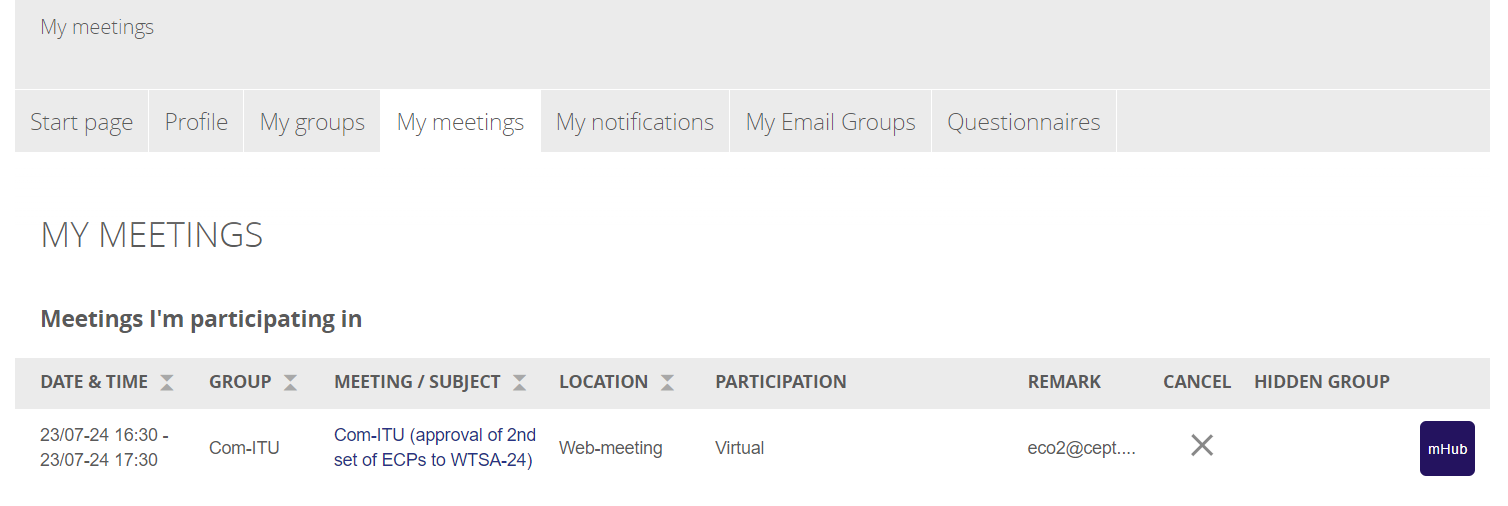
From here you can access the MeetingHub for attendance. Also you can cancel your registration by clicking the X.
If you need to change your participation type (Virtual/Physical) for hybrid meetings, you need to contact the meeting organiser, this is subject to availability of the chosen type.
My notifications
Within the meeting documents area, you can choose to be notified about updates to a document or a folder.
Notifications are sent out daily in the morning for changed document/folders that have been altered the previous day.
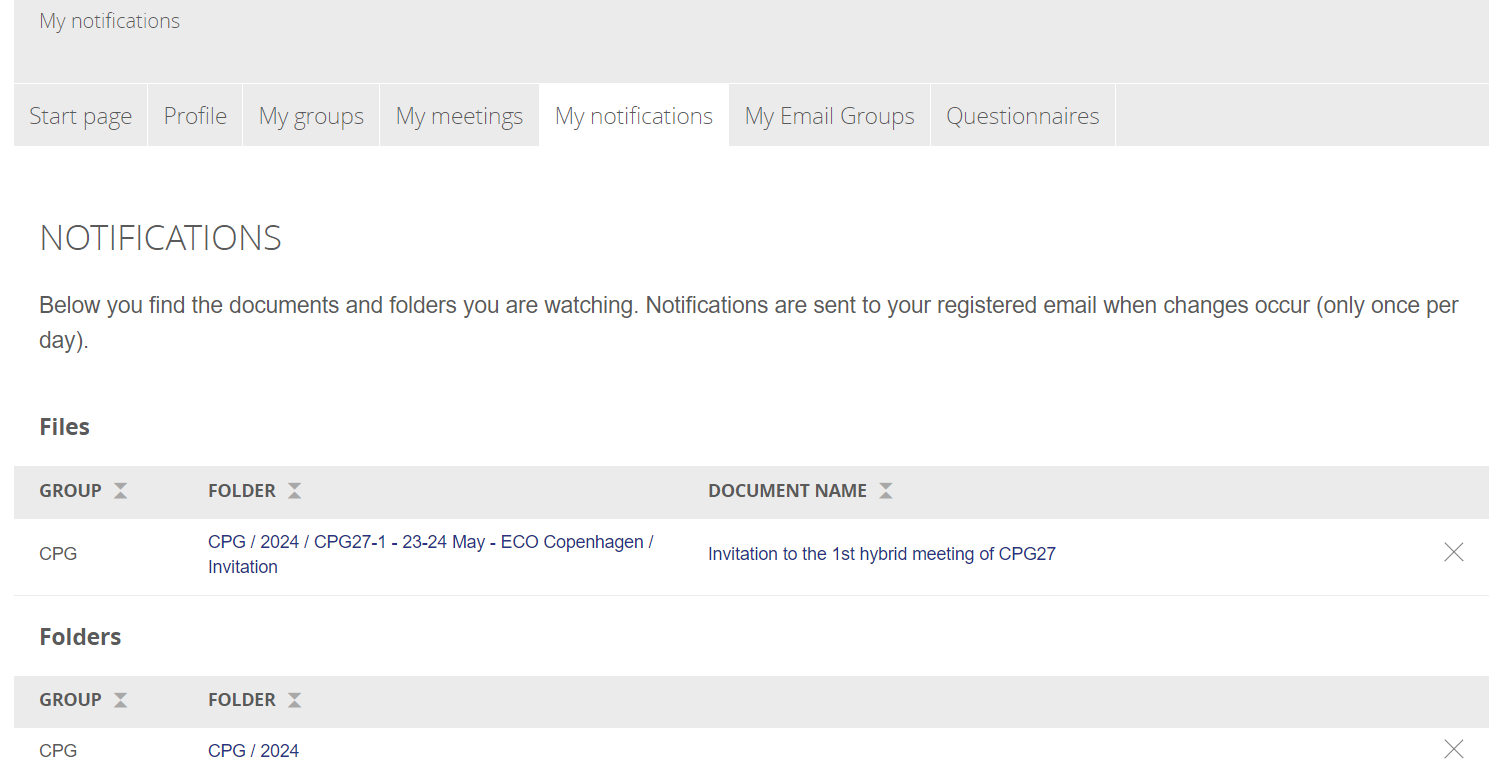
You can cancel your notification subscription by clicking the X in the right side of the table.
My Email groups
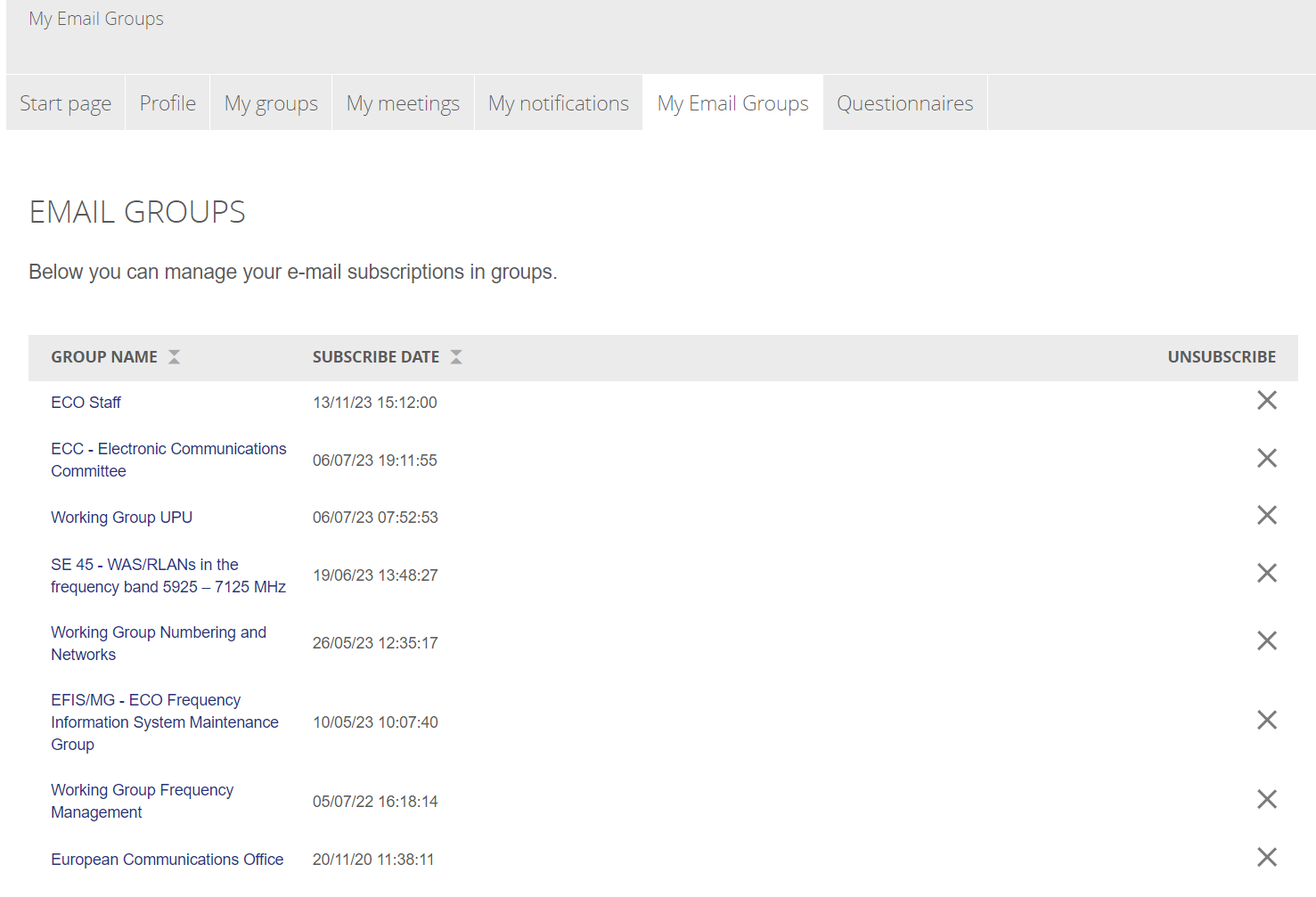
In “My Email Groups” you can manage your e-mail subscriptions in groups.
When you enter a group, you will automatically be signed up for the group email list.
Questionnaires
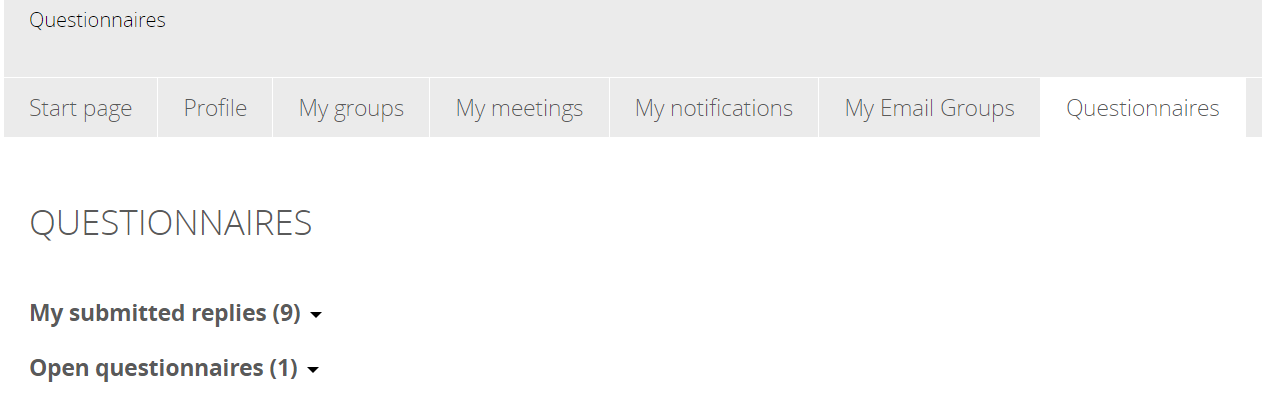
On this page you have a list of questionnaires that are open to you for answering, and the submitted replies from previous questionnaires.
Groups
Groups are home to Members, Meetings and Meeting Documents, added can also be a Forum area and a chat function.
You can attend meetings, download documents and get news updates from groups. This chapter takes you through the central features and how they work.
NOTE: The group SE 24 is used as an example in this chapter but the functionality described applies to all groups throughout the website. Groups are available through the dropdown-menu at the top of the page.
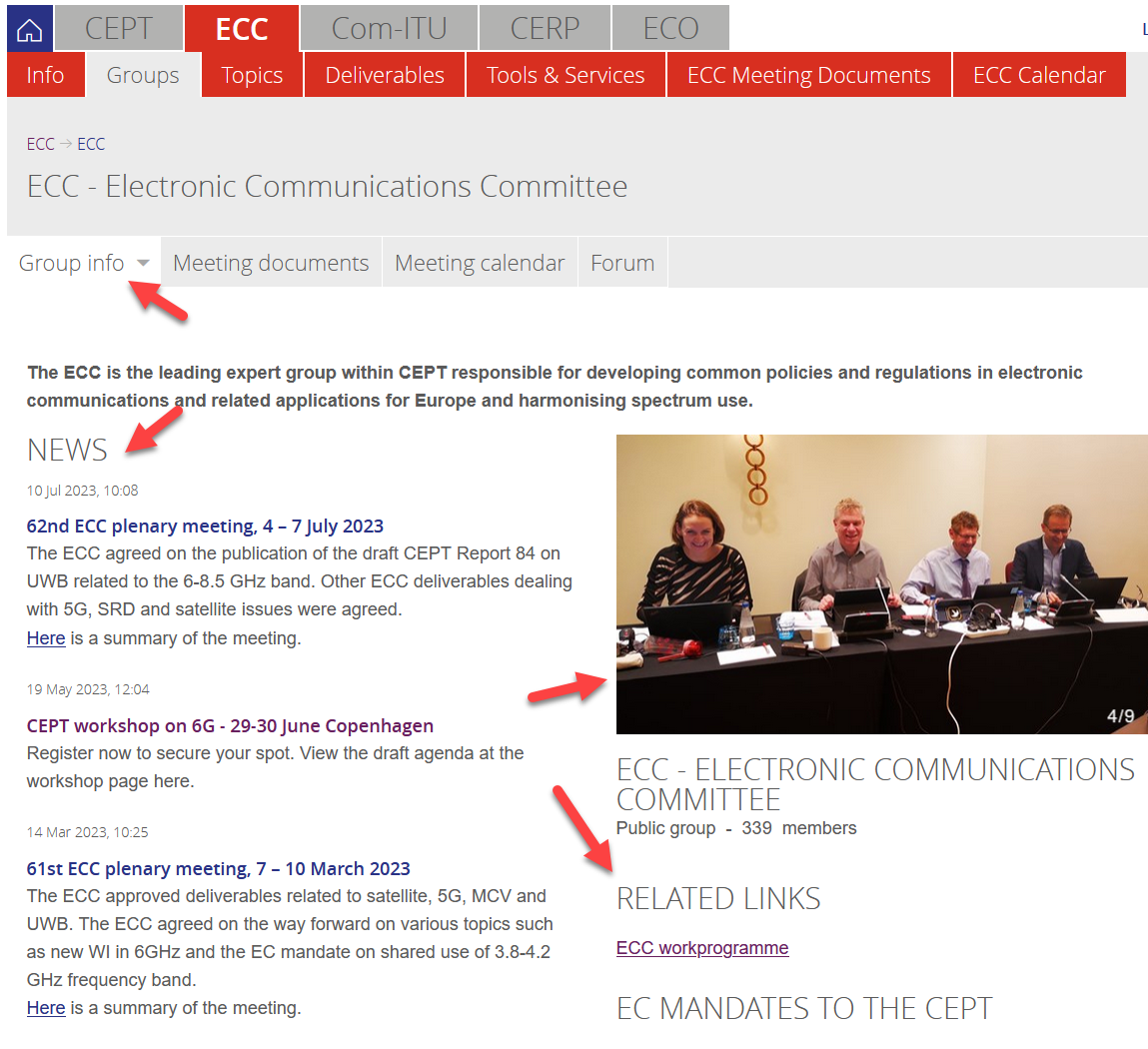
Group Content
All groups consists of a series of default content items.
Group info:
Consist of Terms of Reference (ToR) for the group and Contacts for the group. More pages can be added to this section if necessary.
News:
is listed on the left when you enter a group. The list shows news items in reverse chronological order with the most recent posts on top. Clicking the title of the news item takes you to the full news article.
Images:
Chairs and ECO can upload pictures for the carousel.
Links:
There are three boxes available for adding links to the right on a group’s front page.
Group Membership
In order to become a member of a group you need to apply for membership. The Chair must approve your application through the administrative interface for the group.
When you are approved as a group member, you will have access to the protected documents for the group and will automatically be a part of this group’s mail reflector. You will also be part of the group chat where enabled.
Request group membership
To become a member of the group you need to apply for membership via the link in the Group information box, click “request group membership”. The link will take you to a form where you can submit your application to the Chair of the group.
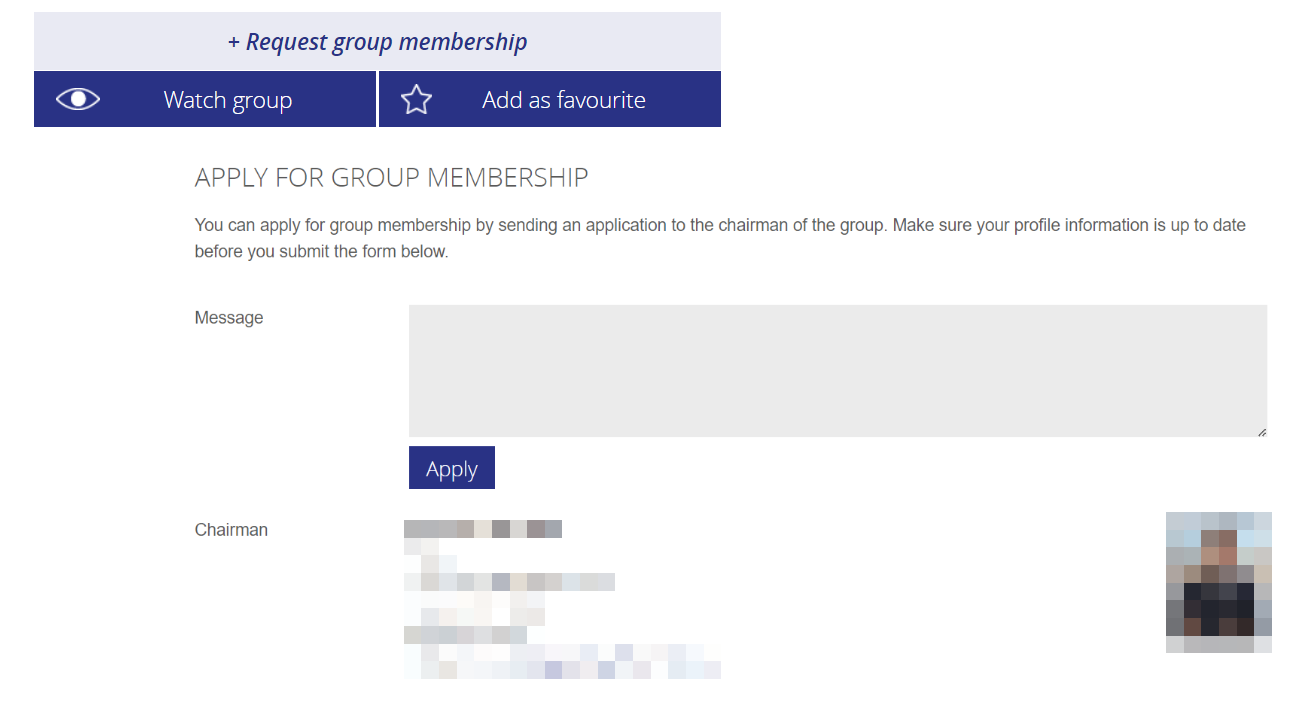
Group information and functions
The Group information box is specific to the group and is always visible when you are in a group.
The following functions are available.

Request group membership - Is described in the above chapter: Group membership
Add as favourite - You can add this group to your favourites by clicking the box. A link will appear under your "My Profile" for quick access to the group.
Watch group - By watching this group you will get news updates from the group in your personal Start page. Your Start page is available through the "My Profile"
Meetings
To attend meetings, you will need to find and register for the meetings.
Meetings are planned on either Committee or Group level.
Here you will find information how to navigate the calendars and how to register for the meetings.
How to register to attend a meeting
To register to a meeting, you need to:
-
Log in with your CEPT profile account (see how to make an account here)
-
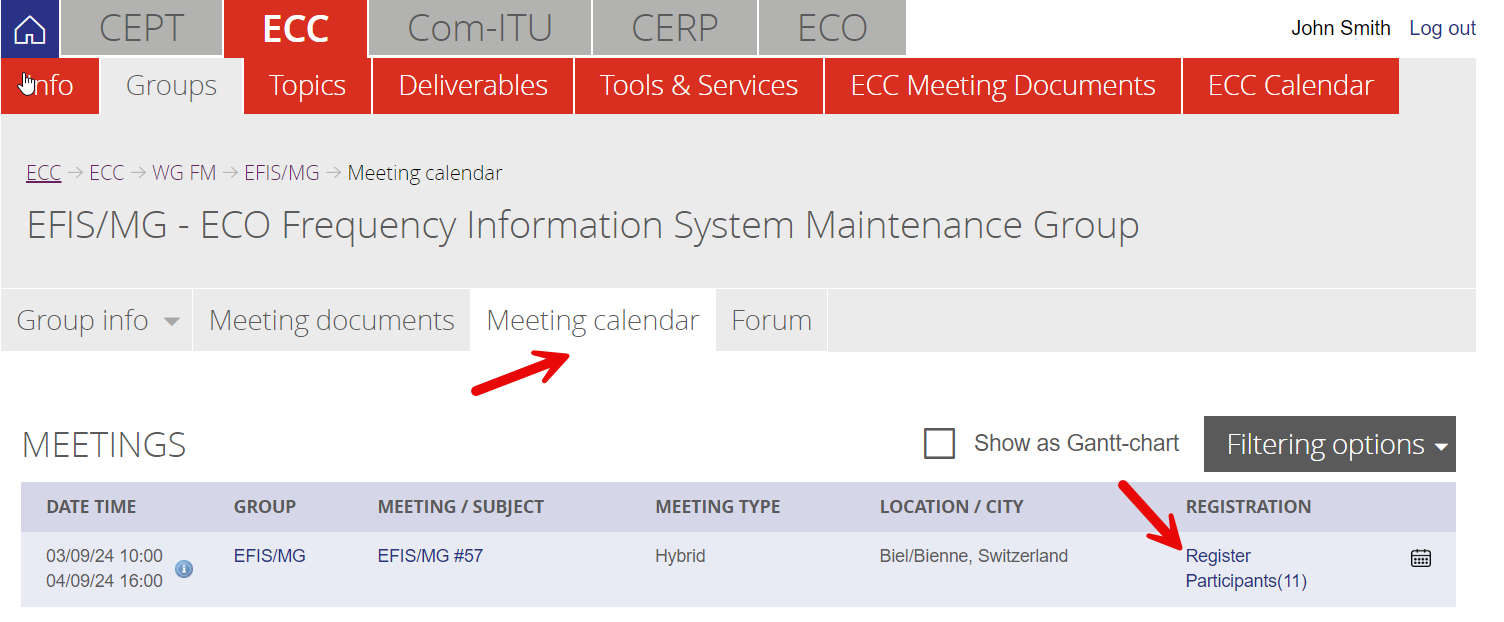
go to the group or the meeting calendar and find the “register” button for the meeting you want to register to:
-
There can be circumstances where the register button is not visible to you, mainly for closed group meetings, please contact Chair of the relevant group if you think you should have access.
-
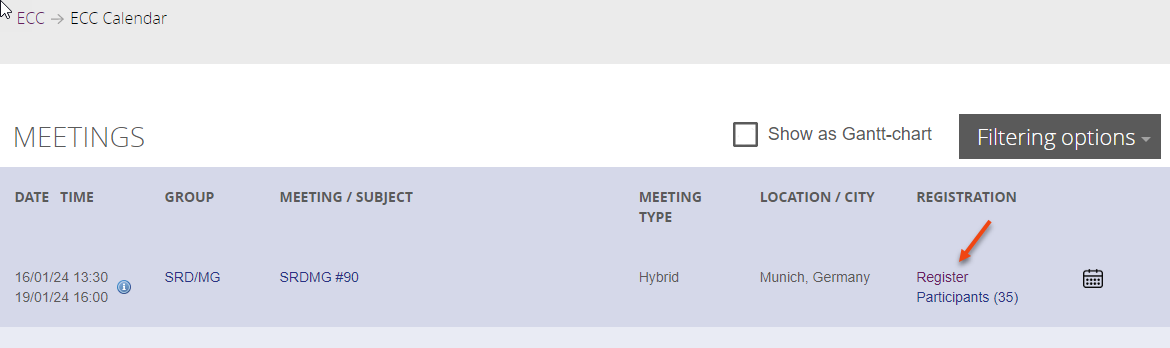
Fill in the missing info and “submit” the form. See explanation of the different representing fields below.
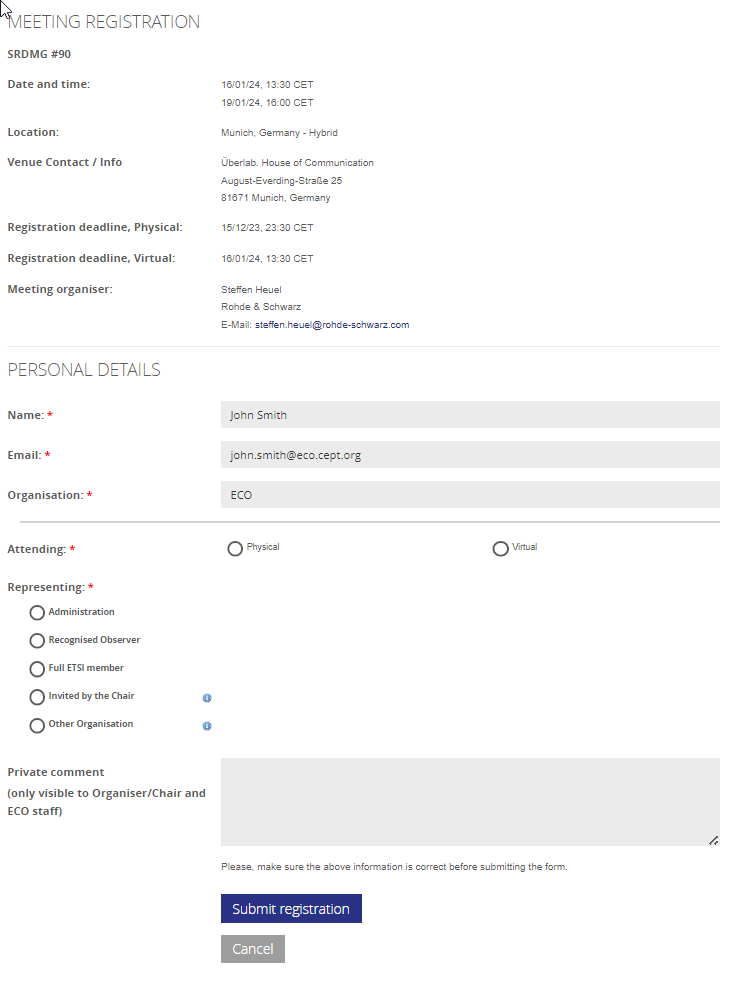
You will receive an email confirmation of your attendance from the system and be able to see the meetings you are participating in, in your Start Page under “my meetings”.
Detailed field description in meeting registration:
Part 1 - Meeting registration details - contains general info about the meeting and a access link for the mHub in case the meeting is either Virtual or Hybrid.
Part 2 - Personal details - show your personal details from the profile data. It is NOT possible to edit these data on this form. If data are not correct, please cancel the registration and proceed to your profile section and edit these.
Part 3 - Attendance type and affiliation - is where you indicate how you will attend the meeting, and which entity you are representing during the meeting.
Attending: if a meeting is Hybrid the option to participate either physical or virtual are indicated as options. Please note that a meeting can be hybrid with no more available seats in either physical or virtual, in which case the option is not selectable.
Representing: Under "Representing" you will indicate which entity you are representing, while attending the meeting, according to the following options:
-
Administration: Indicate which administration you represent. You will also be able to indicate if you are appointed "Head of Delegation" for that administration.
-
Recognised Observer: This option will show a dropdown list of the CEPT´s LoU/MoU partner Organisations. Please select the recognised Observer you represent from this list.
-
Full ETSI member: This field is only visible if the meeting is held in a Project Team of the ECC Plenary and of the Working Groups of the ECC. The option will show a dropdown list of Full ETSI Members as published by ETSI. Please select the organisation you represent from this list.
-
Invited by the Chair or Other organisation: Use these if you are either invited by the Chair or you intend to participate in a meeting representing an Organisation other than those in the options above. If you are representing an Organisation other than your own, please indicate it here.
This choice is subject to the Chair´s approval.
Private Comment: If you have a private comment for the organiser/Chair of the meeting, please use the text field. The note will ONLY be visible to the organiser of the meeting, the Chair and ECO staff. Please do not use this field to enter any personal information - this includes any dieatary constraints - if such information is needed for the organiser, please contact these directly.
Meeting Documents
You can access meeting documents from either the main menu or the group menu.
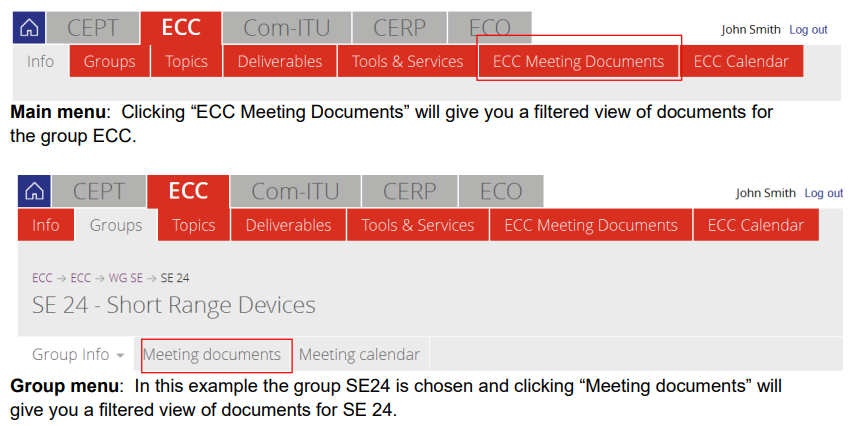
Document list:
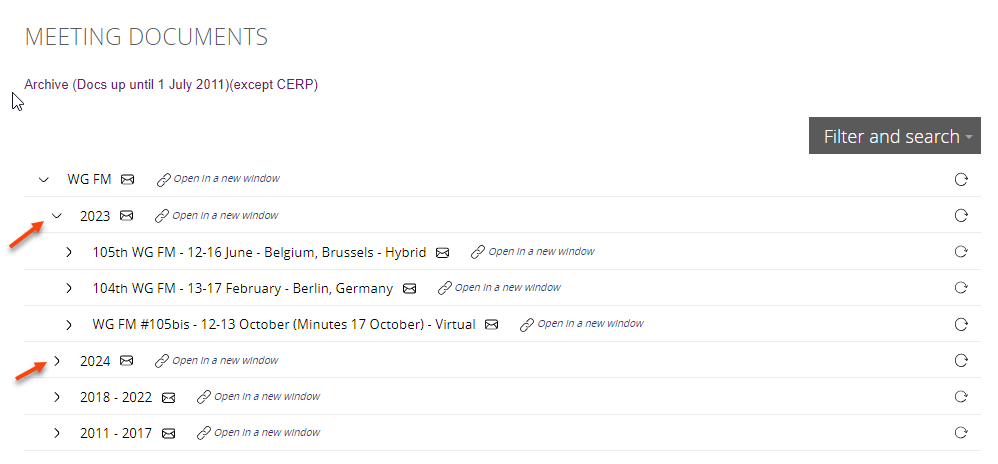
All documents are listed in separate folders. All folders are collapsed by default. To expand a folder simply click the arrow.
Meeting Documents - notifications
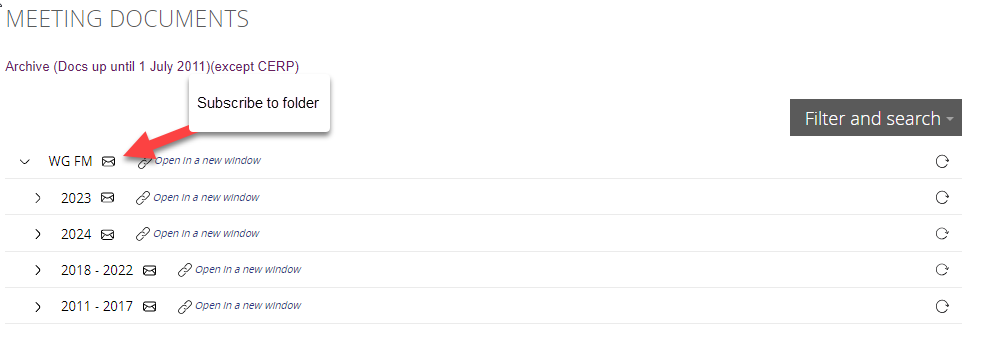
You can subscribe to updates on specific folders. Click the icon next to the folder name. When a new document is added to this folder, you will be notified by email. You can always unsubscribe to a folder from your “Notifications” page under your profile.
Meeting documents - filter and search
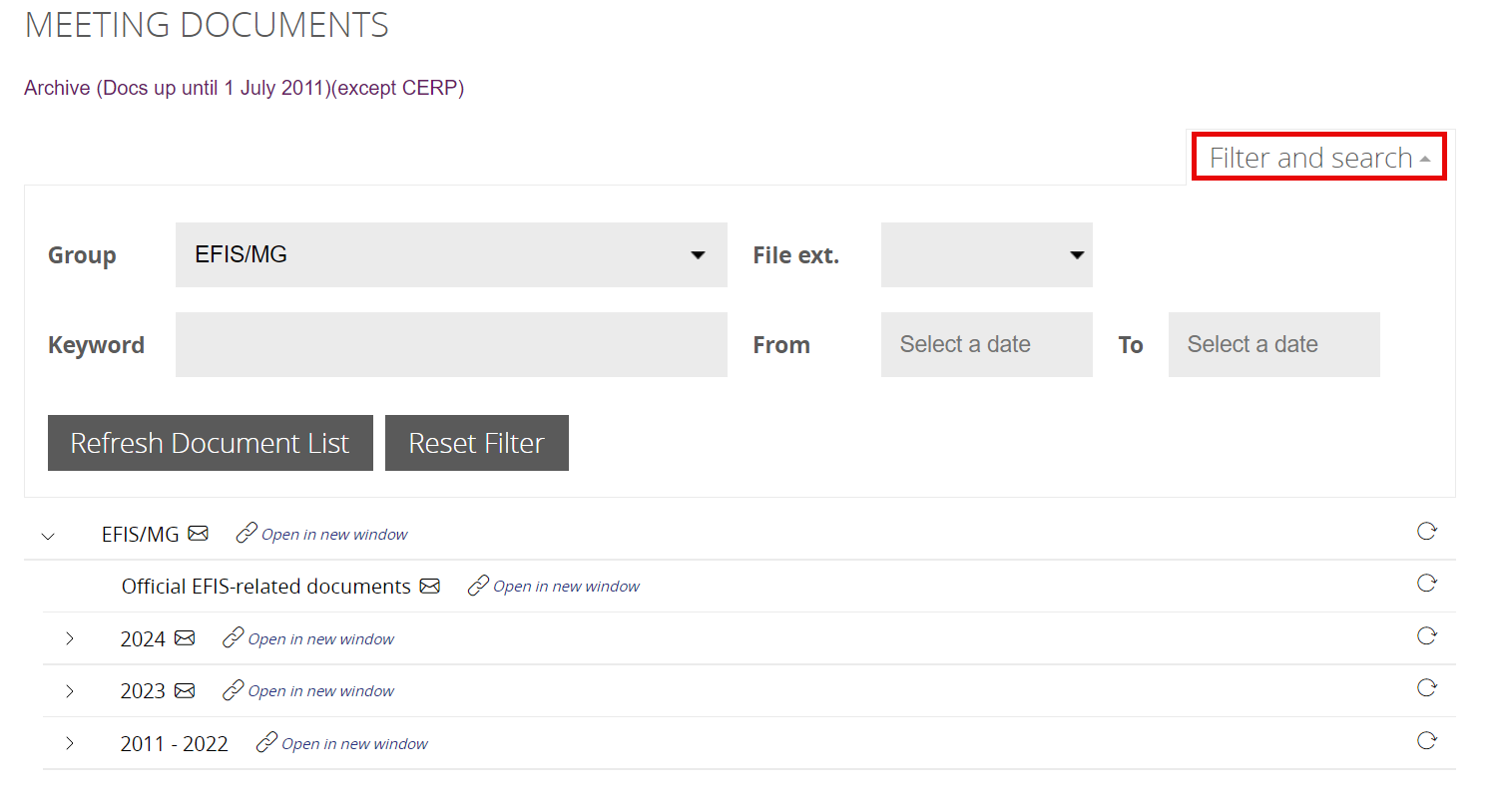
In the top to the right of the meeting documents area you will find the “filter and search” options. The options assist you in filtering the list of documents even further. The “Keyword” field will filter on any keyword you enter in the input field (separate by space).
Meeting documents - Document accessibility
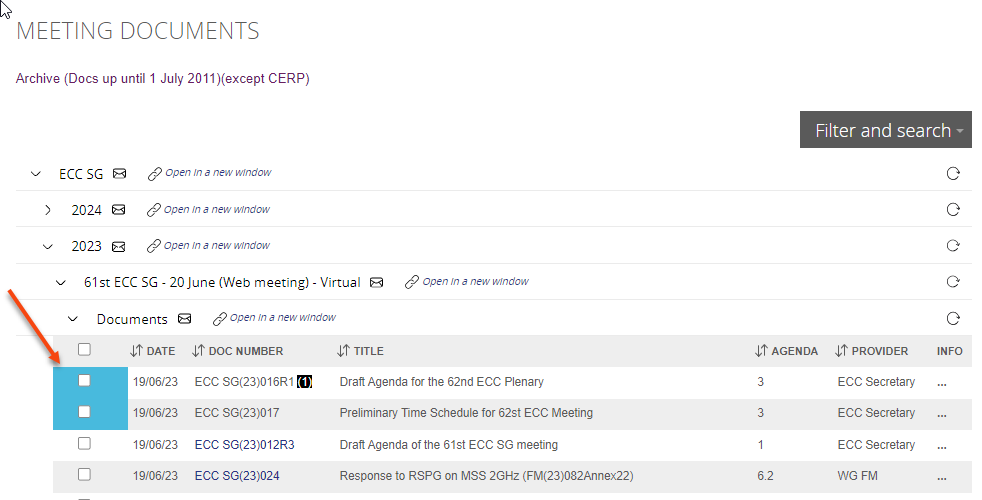
In the document list some files might have a coloured border around the checkbox in the far left column. This indicates the accessibility of the document.
The blue border indicates that the document is only accessible to members of the group. NOTE: the document name is still visible to the public.
Meeting documents - revisions
Documents can have revisions. The number of revisions is indicated in brackets next to the document number (column: Doc No.)
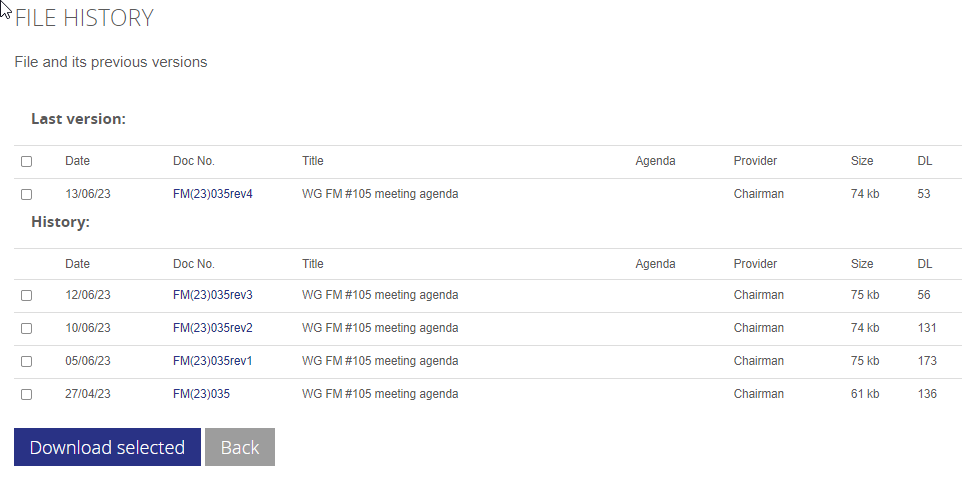
Clicking the document will take you to a page where you can see the revisions (File History).
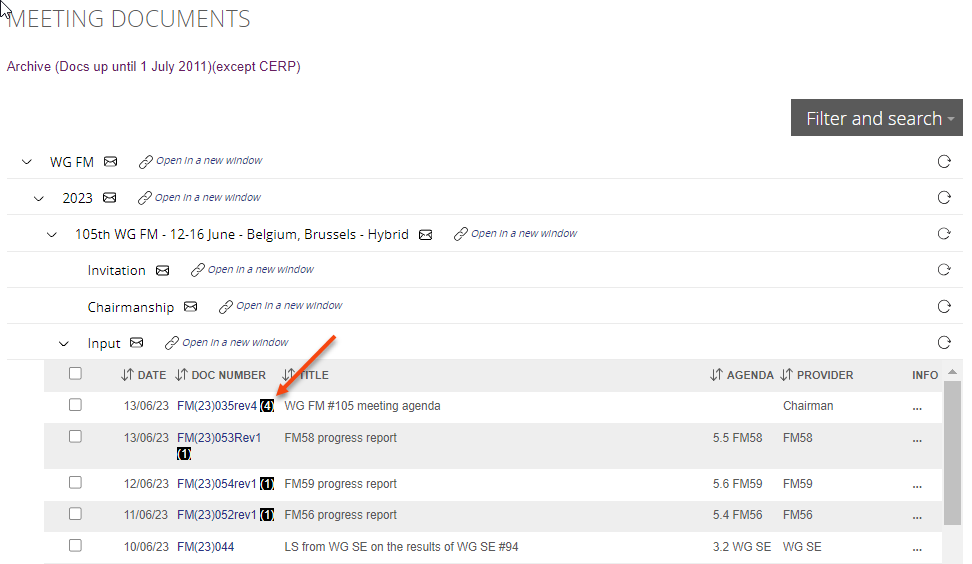
The document will take you to a page where you can see the revisions (File History).
Meeting documents - upload
In 2024 we launched a new simplified meeting document upload form. This functionality has been improved so that the users have one single form for uploading multiple and single documents.
The upload form
You enter the meeting document area as usual through the tab “Meeting documents” either on committee or group level. Also, here you find the folder that you need to upload documents to.
When you click the upload link, a simple form appears:
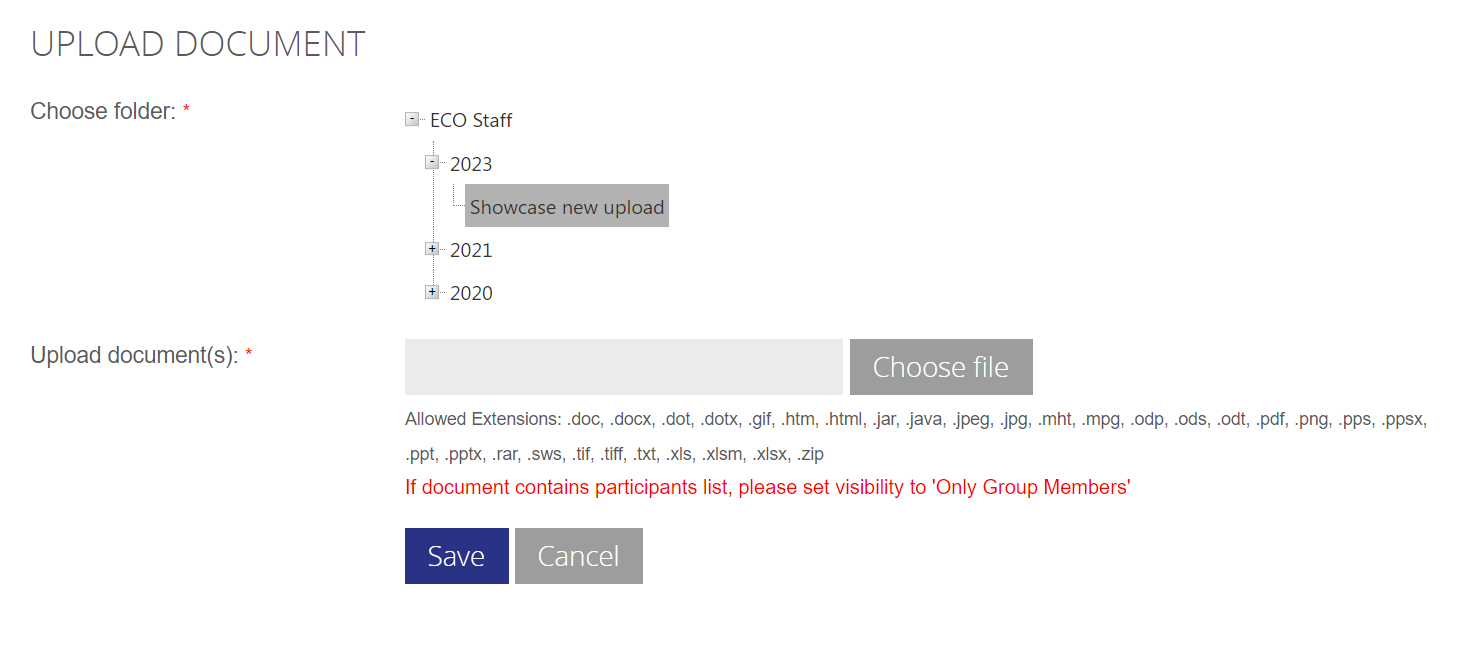
The form contains a folder hierarchy, and a single textbox for filenames.
This input box has the option to contain one or more filenames in one go:
Single document upload
For a single filename, click the “Choose file” button, and select the file you want to upload from the file list box appearing - this is pretty much as previous.
When the file is selected, an overview of the metadata is shown, edit to your needs and select save.

When done, click the Save button to upload your files.
Multi-document upload
For multiple file upload, the process is almost the same, click the “Choose file” button, but this time select multiple files from the filelist box (by holding down the Ctrl key, you can select individual files) :
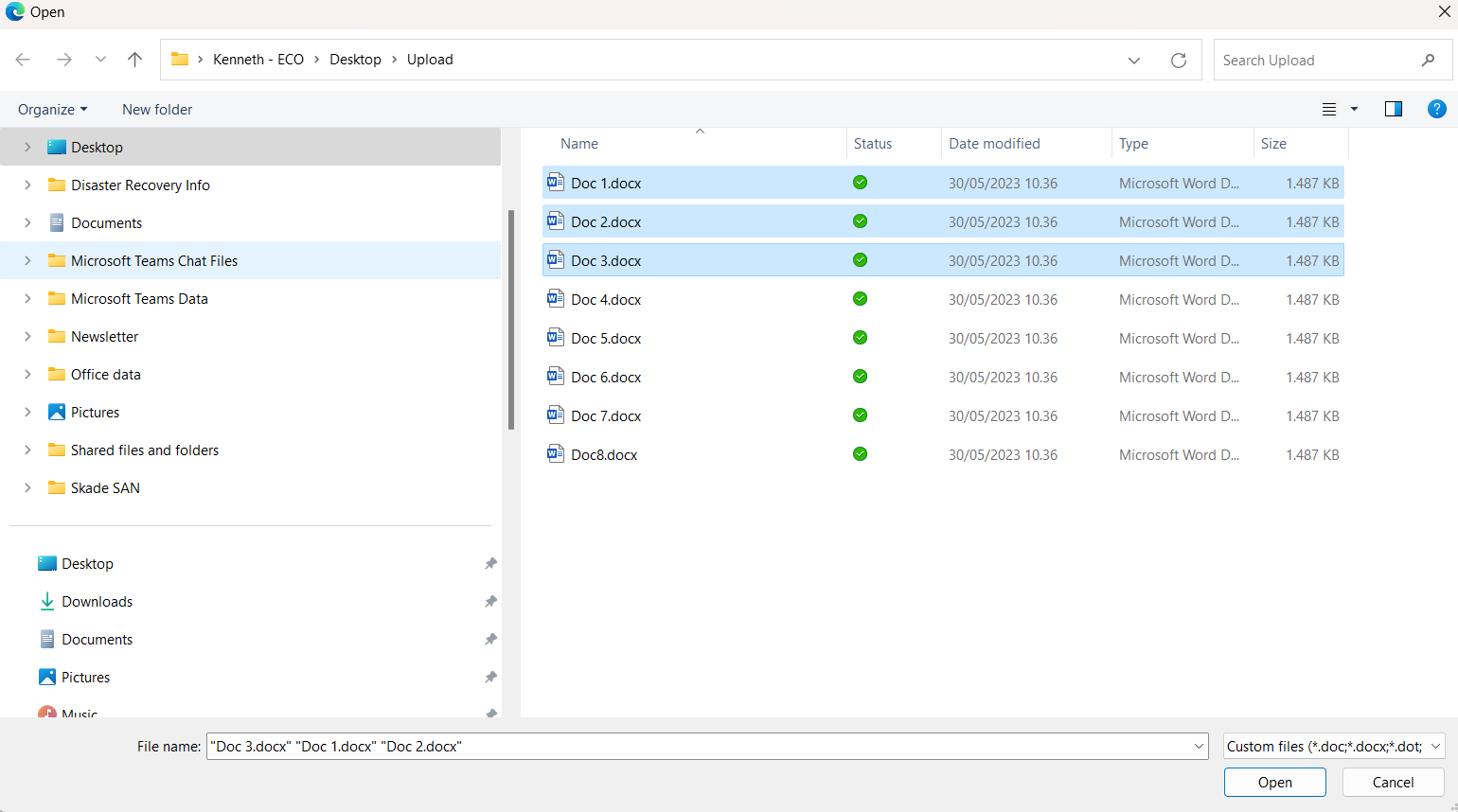
Click “Open” when done, and you will now see a list of the files and metadata you selected for upload:
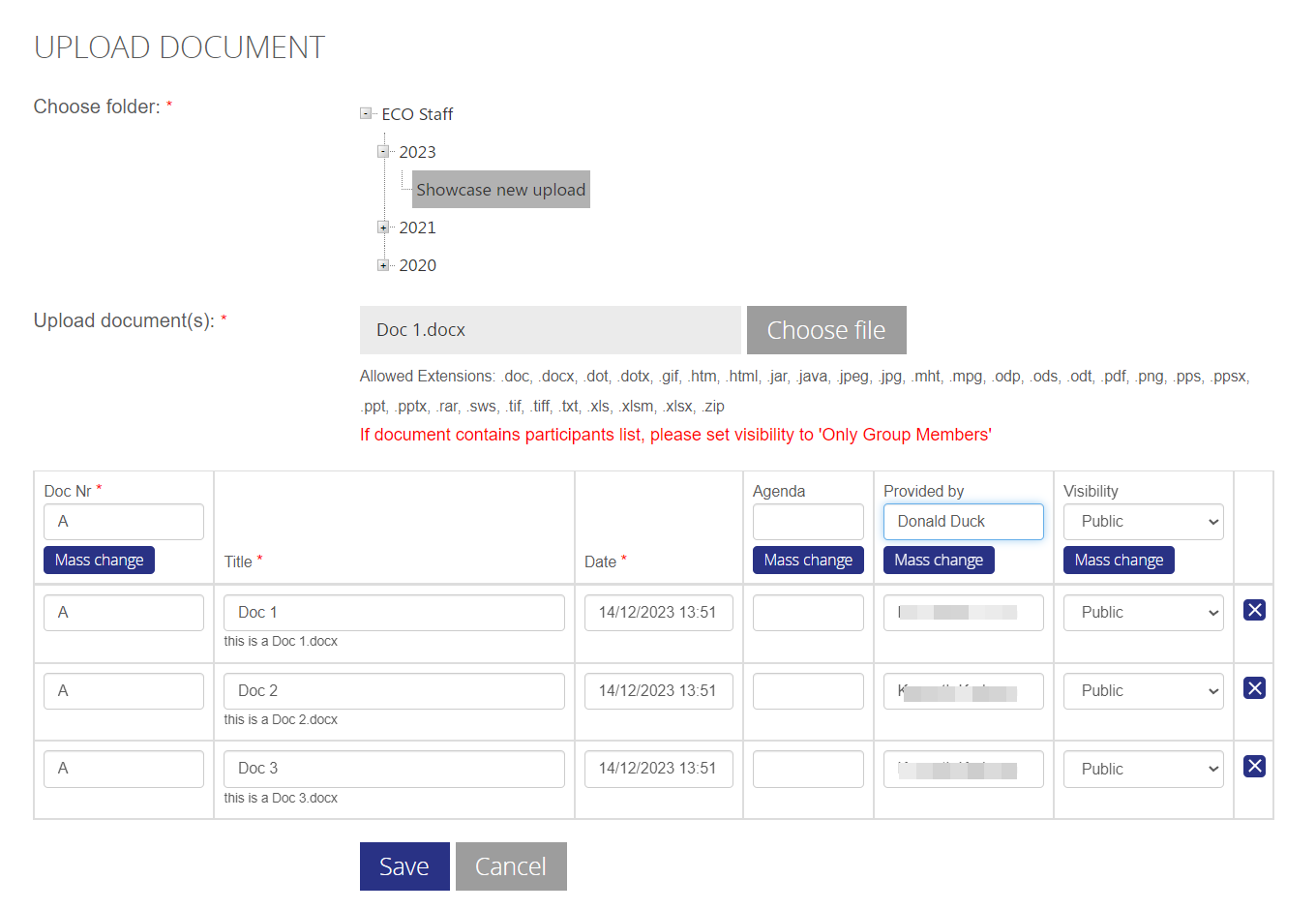
Edit the meta data to your needs, please notice that if you need to change to a similar value in the fields Doc.Nr, Agenda, Provided by or visibility, you can do so by entering the value in the designated textbox and click “Mass change”.
When done, click the Save button to upload your files.
Upload revision of document
To upload a revision of a document, the process is the same as a single file upload. The difference is that you can only select one file in the filelist box, and the metadata listed is from the main document uploaded - you can change these metadata if wanted.
Old document archive
The CEPT portal received a major transformation in 2011, where it unfortunately was necessary to move the document library from that solution to a new frontend, it was not possible to integrate this in the new system.
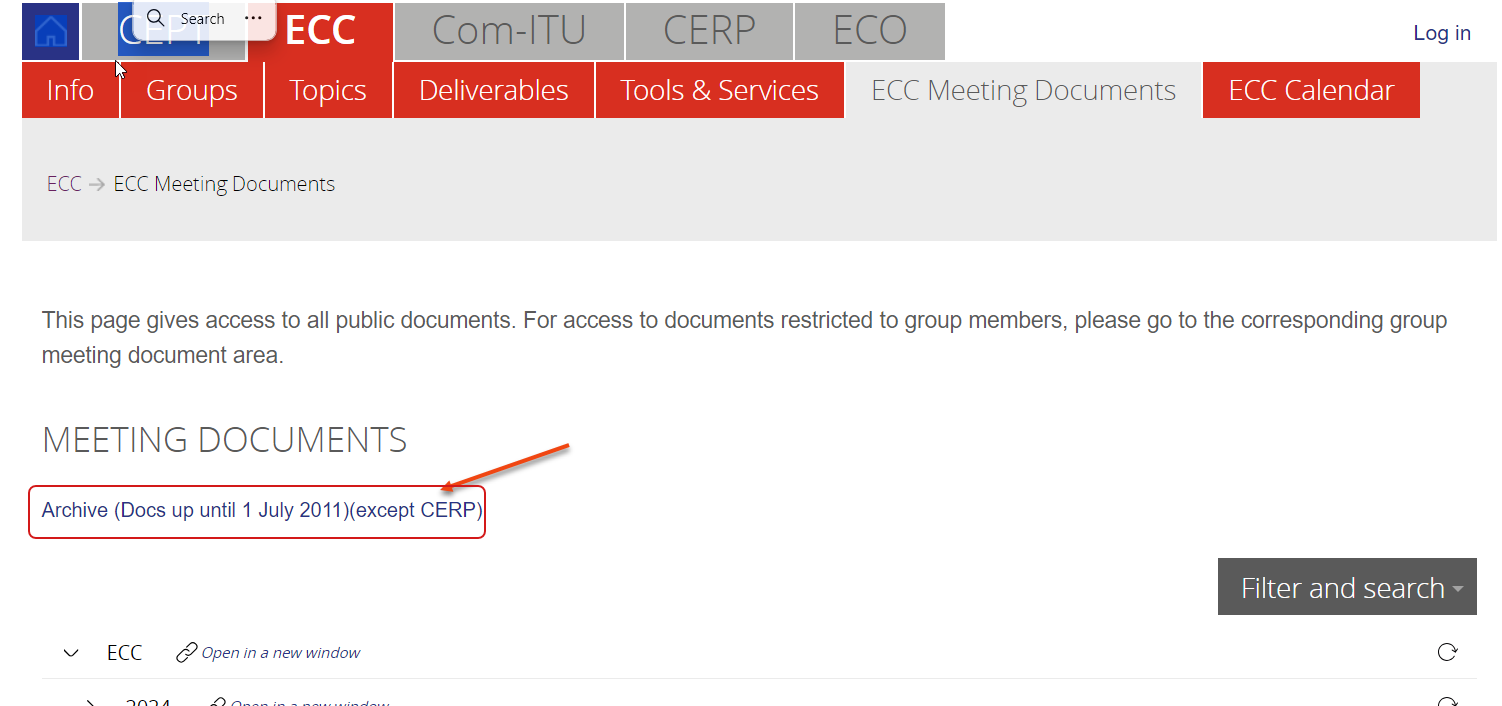
Archive from before 2011 is still available through the meeting documents, via a link on the page.
You will be taken to a page where you can browse the documents in the structure they where stored under at the time, be mindful that this can mean that names of groups and project teams can have changed.
Some documents are locked from access, if you need any of these , contact the office, and we will provide access after a review process.
Meeting Calendar
Location of calendars
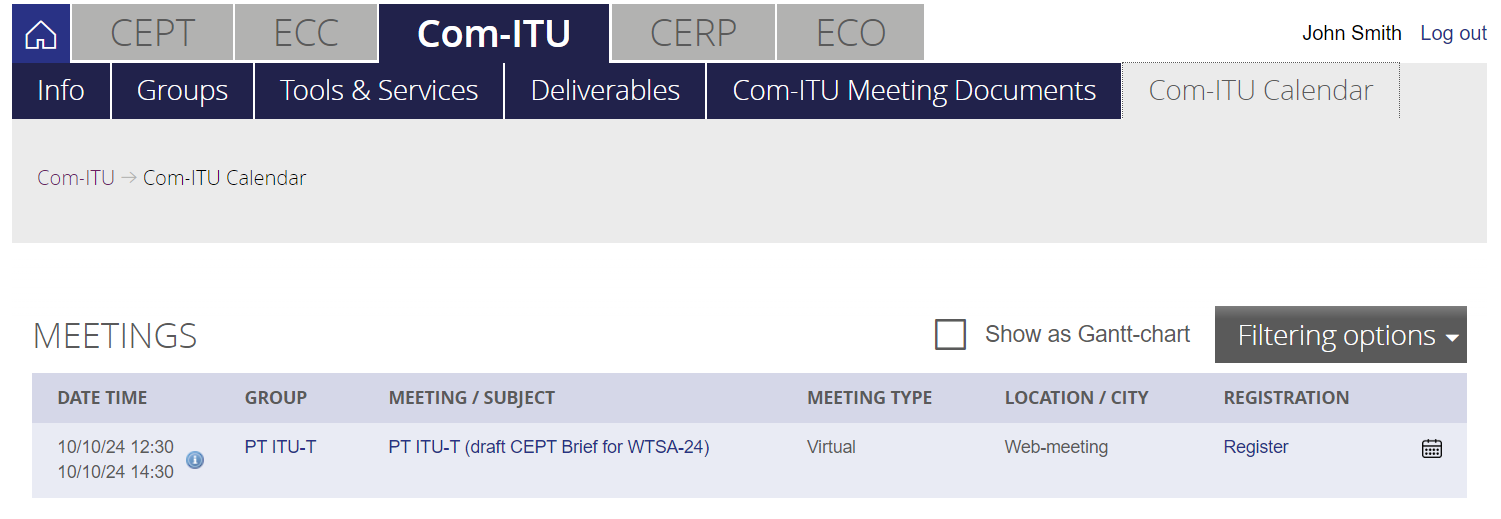
The meeting calendar are accesible in three different layers, by commitee, by group or all combined.
You find the calendar in these locations
By Commitee:
By Group
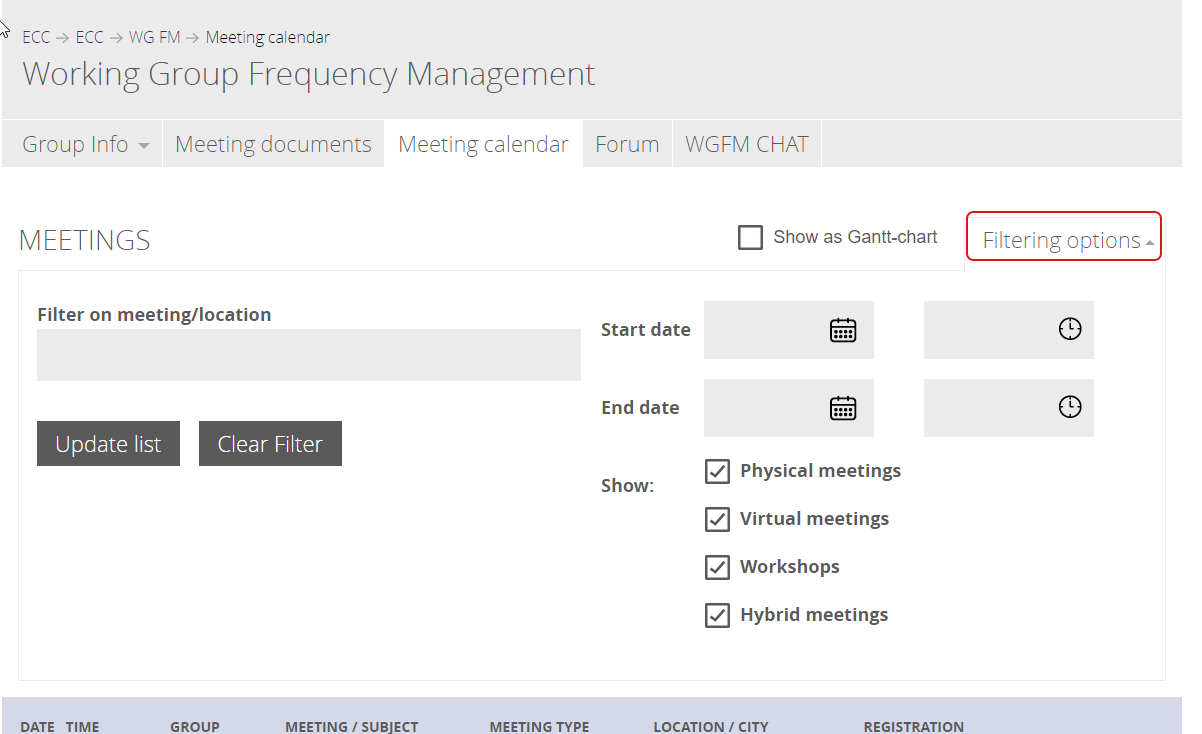
Filtering
You can filter meetings in a number of different ways, select the filter options and click "Update list" to narrow the list of meetings.
Forum
Access to forum
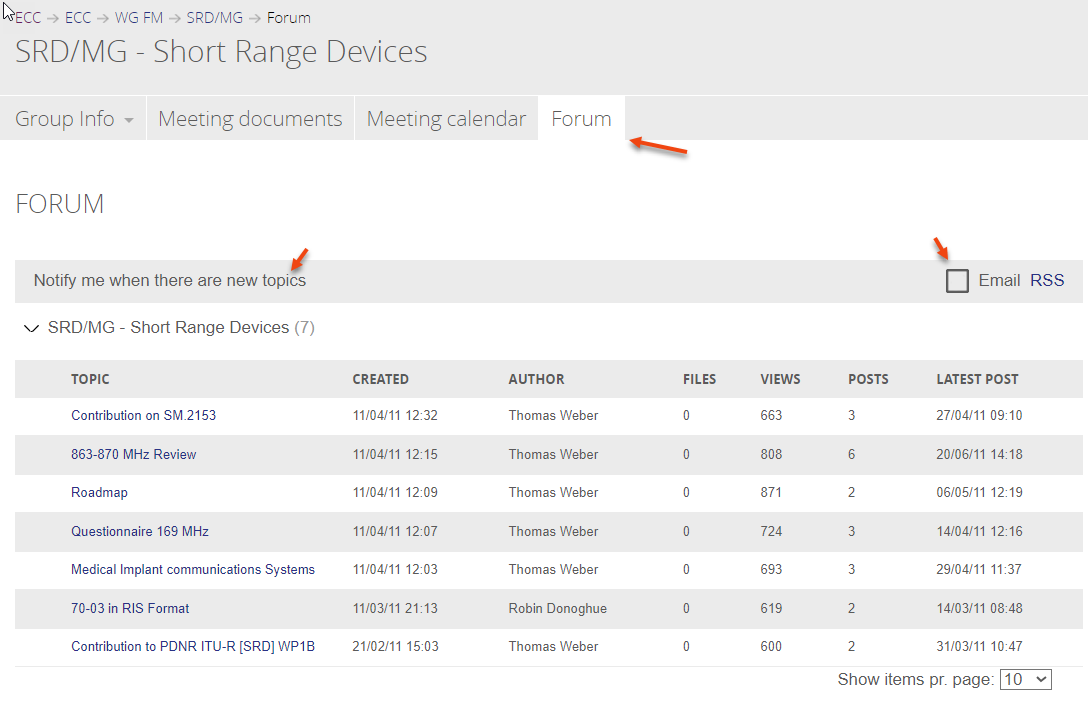
All groups on the portal, has the option to have a forum area connected, but not all do, so if you dont see the tab in the group menu for your group, its not activated in this group.
A member of a group will have the opportunity to join the conversation in the groups Forum and be notified when there is a new Topic.
Group Question
Group question is a tool used for asking simple questions in a working group / project team. You could ask to find a common date for next meeting, or if you want to know who will attend a social event in a meeting.
Access Group Question
The group question, are accessible for members of a working group / project team. This means that guests in groups cannot see the group questions.
You access the group question in two ways, one is from your profile page - a tab for group questions will show you all the questions from any group you are a member of, both the active questions, and the finished questions.

You can also find group questions for the specific groups in the frontpage of the group, if the function is activated in that group, a tab will show you group questions - but only for that specific group:
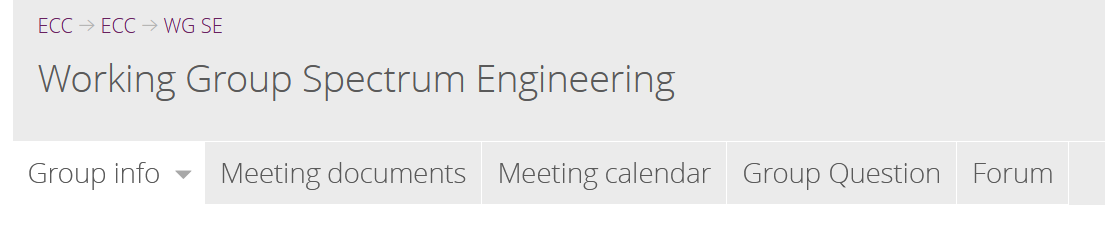
If the tab is not there, it simply means that the function is not active in this group. If you think it could be useful, please contact the chair of ECO contact for that group.
FAQ
Forgot your password ?
If you forgot your password to login to the CEPT portal, you can request to have it reset by the system.
In the login box, click the link “Forgot password”
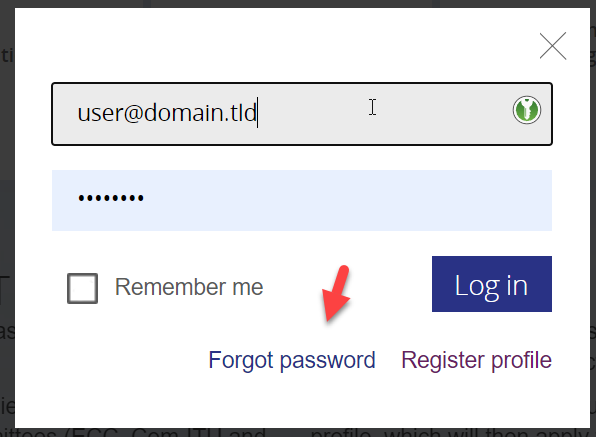
The system will now ask you for your email address and a captcha code to verify you are a human being asking for the password reset. Click the “send email” button when formular is filled.
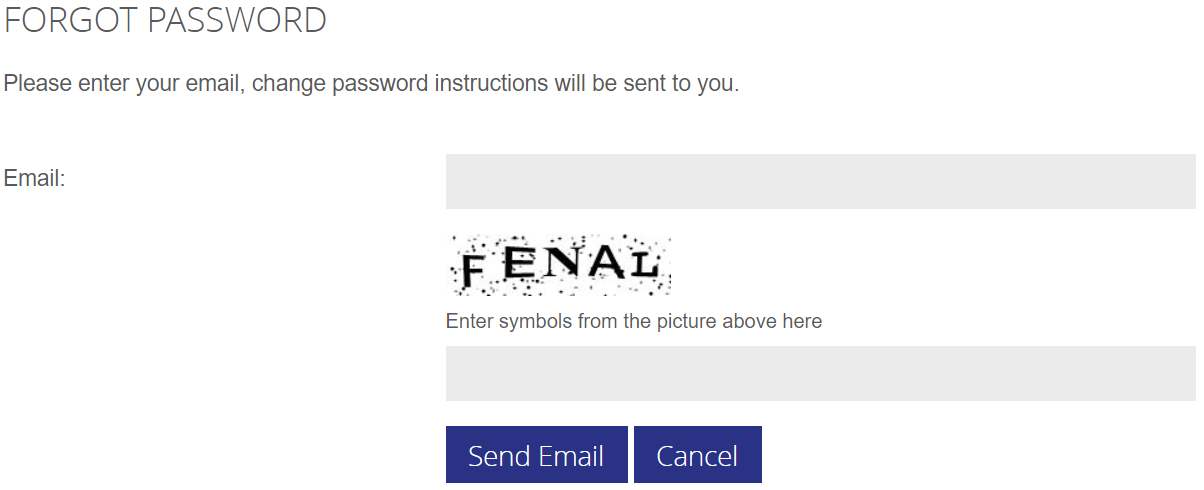
You will receive an email in your inbox from no-reply@cept.org , with a one-time link to set a new password.
Click the link and enter your preferred password (please note the requirements) :
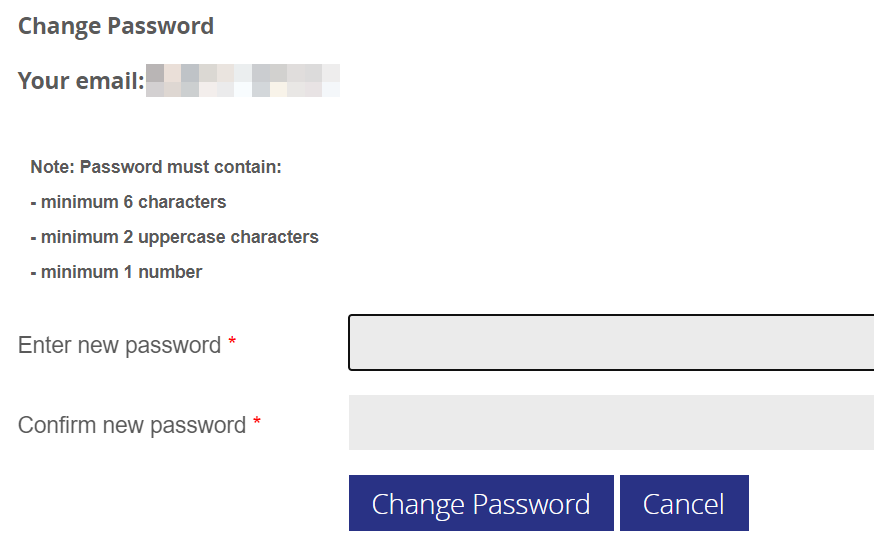
 If you are having problems setting a new password, please contact helpdesk@eco.cept.org
I need to change my main email address
Usually when you change position or job, your main email address needs to be change.
This has to be done by ECO, and we will follow a procedure to assertain wether you must be removed from the WG/PT you currently are a member of.
If you change :
- Workplace / Job function (internally or externally)
you will be removed from all groups you are a member of, and must apply for membership of relevant groups.
In case of :
- Your domain name changes, but you maintain the same position - we will change your email, group memberships will remain.
- Your domain name changes, and you are being repostioned to new job function in the same organisation - we will remove you from current groups
- death or retirement - your account will be removed completely, it is not possible to re-assign the account to a co-worker or other party.
Release history
ECO maintains a continuing list of improvements and corrections that we implement.
These releases are performed on an adhoc basis, and is not related to the major update of the portal.
|
Release - Date |
Highlights |
Release 25 - April 2022 |
Major rewrite of the Meeting Registration module. Meeting registration now aligns with working methods.
|
Release 26 - Nov 2022
|
Minor error corrections and adjustments |
Release 27 - January 2023
|
Minor error corrections, changes to registration deadlines for virtual/physical participation |
Release 28 - July 2023 |
Minor error corrections and adjustments. Fixed close button in dowload overview. Fixed quoted text in forum not aligned with answered post Fixed filefolder naming when creating document folder for meeting Corrected text for No-Access page to be more precise. |
Release 29 - October 2023 |
Minor error corrections.
|
Release 30 - February 2024 |
The following has been corrected in release 30.
|
Release 31 - May 2024 |
The following has been corrected in Release 31 CEPT-2411 - Notifications to ? for "Invited by chair" and "Other organization" |
Release 32 - 21. October 2024 |
CEPT-2560 - Sorting of countries in "location" in "create meeting" |
Release 33 - 15. December 2024 |
A release to handle a change in statistics script and removal of link to X (formerly twitter) |
Release 34 - 26. May 2025 |
CEPT-2608 GDPR: account validation - process tools |
Release 35 - 06. October 2025 |
CEPT-2559 Statistics in "registered participants" |
Release 36 - 8. December 2025 |
CEPT-2569 GDPR: Users must auto logoff after X days |
Release 37 - 1. April 2026 |
CEPT-2761 [TODO on production] Clean database |
The Chair manual
If you are appointed Chair or Vicechair - you will have elevate rights on some part of the portal. Find here information on your options.
Default extra rights for Chair/Secretary role
When you are appointed the Chair/Secretary of a group, you will automatically be set for some elevated rights. This page will briefly list what these are, and how you use them.
| Right | Purpose |
| Access to protected files | |
| Manage pages | |
| Manage files | |
| Manage forum | |
| Add meetings | |
| Add news | |
| Invite users | |
| Manage users |
Meeting Participants
As a Chair or ECO staff you have the following extra options for meeting participants:
Late registration
If a user has forgot to register for a meeting, you can use the "Late registration" option in Meeting Participants to register them. Please be aware of seat availability.
Invite guests
It is possible to invites guests to the meetings - the guest will need to be an established profile on the CEPT portal, but are not required to be a member of the group that the meeting is held in.
Please be aware that if the group is "Public" , documents will default also be public visible unless otherwised set when uploaded.
Exported list to excel
In the exported participants list, you will se more details than normal users.

Approve "Invited by Chair" and "Other organisation"
As a Chair you have the option to approve a meeting registraion that requires approval - for instance if they registered as "Other organisation" or "Invited by chair".
Group Questions
As a Chair, you have the option to setup Group Questions.
The tool can be used to ask simple questions to a WG/PT , if you need more complicated workflows, please contact ECO to make use of the Questionnaire tool.
The group questions tool is similar to the "Live Question" tool in MeetingHUB.
To setup a Group Question, find the "Group Question" tab in the WG/PT. If the tab is not there, its because it is not enabled in the group, please contact the responsible ECO export for asisstance.
When clicked you will be presented with a list of ready or on-going questions.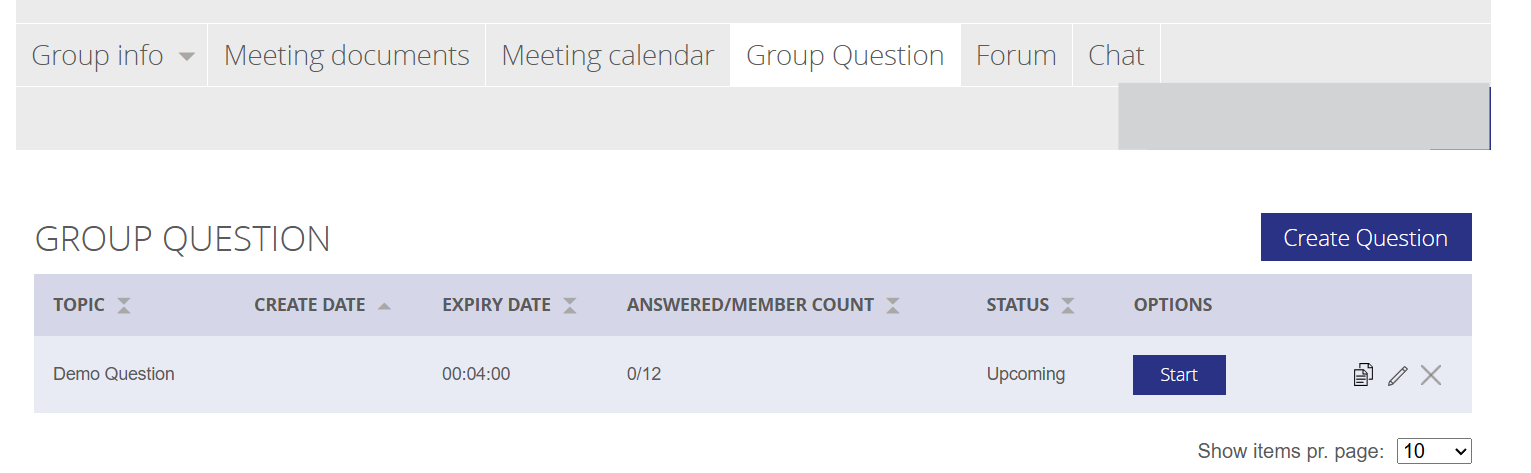
Click the "Create Question" button and fill out the form:
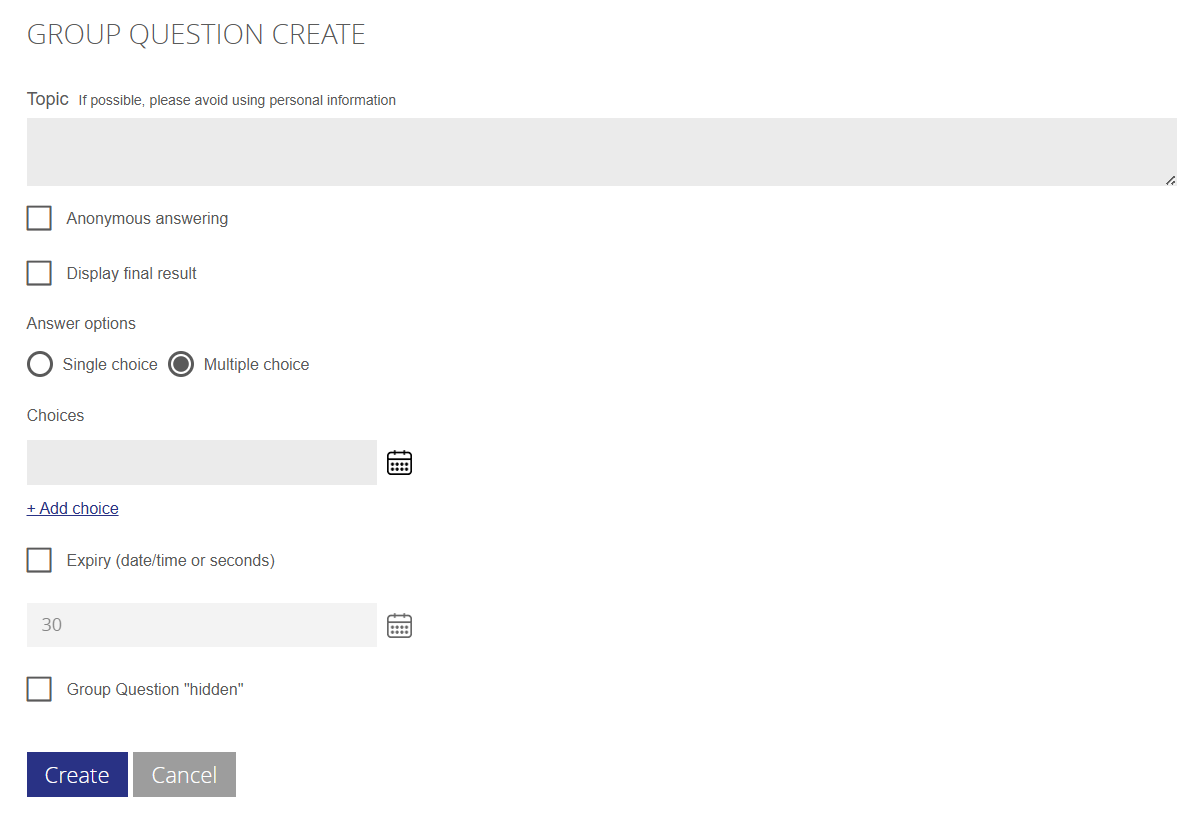
| Topic | The question asked - i.e. "What time for coffee break ? " |
| Anonymous answering | The system will not record who answered what, but only the answer |
| Display final result | The Chair and ECO Staff will always be able to see the final result, but users will only be able to if this box is ticked |
| Answer options | Single choice or multiple choice answers |
| Choices |
Put in the possible answers. If you need to select a date or date range ( for instance if options to find a new meeting date) click the calendar icon. Any text or numbering is accepted There needs to be a minimum of 2 choices. |
| Expiry | Set the date or time in seconds this question will expire. The question is only open in this time span. If not set, the question will have to be closed manually |
| Group Question Hidden | Sometime its needed to send out a question to only a few members, use this option to hide the question in the list - there will be a direct link you can copy and send to the members who need to answer the question. |
'When the Question is created and saved, you ned to activate it by clicking start.

The question will now be visible to the group members and depending on settings it will automatically end, or you will have to end answering period by clicking the button "Finish". You can also finish it before time expires if needed , by clicking "Finish".

In the list you can see how many have answered out of how many group members possible to answer.
Past Group Questions can be found in the profile menu under "Group Questions". Here you can also see the results of the questions.
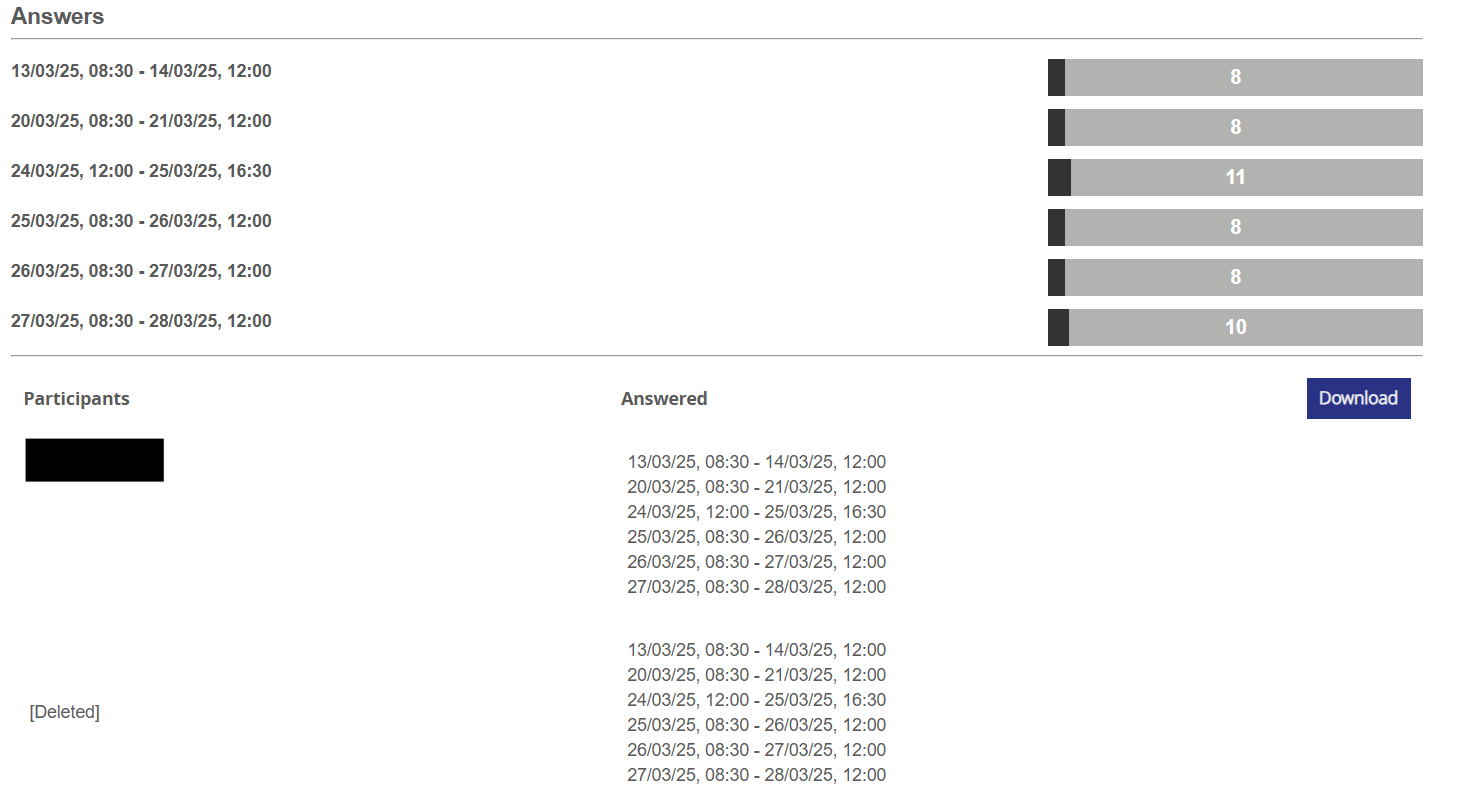
The result can be views in 3 parts, the top is the number of answers pr. option, below is the answers given pr. user and finally its possible to download a CSV file for processing or circulation.