13.5 Plugins Library
- 13.5.1 Antenna plugin elements
- 13.5.2 Coverage radius plugin elements
- 13.5.3 Propagation model plugin
- 13.5.4 Event Processing Plugin
13.5.1 Antenna plugin elements
To create or modify a library element containing parameters of a particular antenna, select the Antennas command from the Library pull-down menu or directly with CTRL+SHIFT+A.
Since the antenna is implemented as a plugin, it is possible to include a new antenna plugin using the .jar installer and to add it to the list of existing pre-defined antennas. Any of the antenna elements is then selectable as shown in the picture below:

When adding a new antenna, enter the name (unique identifier) and description of the antenna as well as its technical parameters - peak gain and one or more radiation patterns, as necessary. See Annex A11.6 for further details.
Note 1: It is possible to quickly see the antenna pattern with mouse-over capability on top of the pattern button.
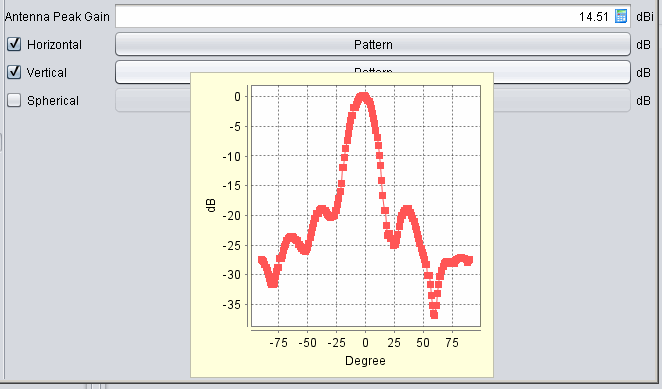
Note 2: If none of the radiation patterns is checked, SEAMCAT will assume this being an omni-directional antenna.
Note 3: It is possible to create an antenna from the workspace and export it to your library environment.
13.5.2 Coverage radius plugin elements
To create or modify a coverage radius element, select the Coverage radius library command from the Library pull-down menu or directly CTRL+SHIFT+C. This activates the Coverage radius library window which displays a list of existing Coverage radius options:

13.5.3 Propagation model plugin
To create or modify a library element containing parameters of a particular propagation model, select the Propagation model command from the Library pull-down menu or directly with CTRL+SHIFT+P.
Since the propagation models are implemented as plugin, it is possible to include a new propagation model using the .jar installer and to add it to the list of existing pre-defined models. Any of the propagation models is then selectable as shown in the picture below:

More detailed information on specific propagation models is available in ANNEX 17:
13.5.4 Event Processing Plugin
To create or modify a library element containing parameters of a particular event processing plugin, select the event processing plugin command from the Library pull-down menu or directly with CTRL+SHIFT+E. A list of available built-in event processing plugin is available in Figure 240.