12.8 Cellular Structure
Introduction
When simulating CDMA or OFDMA systems, you will have access to the additional tab "Cellular structure", which will become active after completion of the simulation. This new tab allows you to inspect the internal details of CDMA/OFDMA cluster based on data on one event.
After a simulation these GUI parts are used to provide access to calculated results but also detailed insight into the last event of the simulation as illustrated in Figure 265, but you can reproduce any event using the play/replay feature (Section 2.15).
The “Summary of event #n” and “inspect selected element” panel of Figure 265 are shared components from the CDMA and OFDMA module.

12.8.1 Plot configuration
The top part of the detailed system information screen contains a range of checkboxes used to control which information is plotted (Figure 266). A full description of each checkbox is given in Table 53.

|
Name |
Description |
|
Users |
Plot active UEs across the entire system |
|
Dropped users |
Plot dropped UEs across the entire system |
|
Connection lines |
Plot active connections for all active UEs – this only shows if “UEs” are checked |
|
TX stats |
If system is downlink this toggles the display of the transmit power of each base-station. If system is uplink this toggles the display of the noise rise of each base-station as well as the total interference experienced by that base-station. Also the number of active UEs connected to each base-station is shown – regardless of link direction. |
|
Antenna Pattern |
Toggles a visual representation of the antenna pattern of the selected base-station. This is mostly interesting in tri-sector scenarios. The plot of the antenna pattern can be used to ensure that the correct sector is selected. |
|
Cell centre |
Toggles the display of base-station position within the cell. |
|
External Interferers |
Toggles the display of external interferers. This only has effect when CDMA is victim. |
|
Cell ID# |
Toggles the display of the internal SEAMCAT cell id next to the cell centre |
|
Legend |
Toggles the display of the legend in the top left part of the main plot area |
The main part of the CDMA network Details window is used by the main plot. The plot shows a visual representation of the last snapshot and should be used to validate that the input parameters actually corresponds to the system that should be simulated. The plot allows for heavy user interaction. A very basic example is shown Figure 267 below.
 Figure 267: Main plot of CDMA network
12.8.2 Summary of event #n
The “Summary of event#n” panel provide a few metrics on the number of users simulated Figure 268
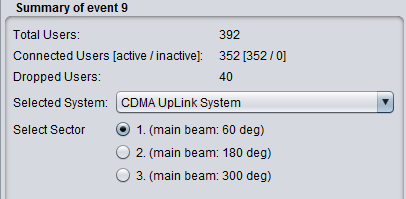
Table 54: Snapshot summary description
|
Name |
Description |
|
Total Users |
The total number of UEs in the system (number of BS x UEs per cell) for CDMA (active and dropped) and number of active users for OFDMA. |
|
Connected Users (active/ inactive) |
Number of UEs connected. In CDMA and OFDMA it is assumed that all users are active. |
|
Dropped Users |
Number of Ues dropped after power balancing. If CDMA is victim it is the number of Ues dropped after introduction of interference. Note that uplink CDMA drops Ues based on the average noise rise in the system – so it is possible for a single interferer to “shut-down” the entire system (causing all Ues to be dropped). In OFDMA, the purpose is to look at the bitrate/throughput loss and not to look at the number of dropped users, but it is possible to drop users depending on the input set-up. |
|
Selected system |
If more than one CDMA network is available in the scenario, a dropdown is used to select the system. You can choose to visualise either the victim or the interfering system which has been simulated. When you select the victim system, it is also possible to see the position of the interferer. |
|
Selected sector |
When tri-sector layout is used, it allows you to see the antenna pattern for the selected sector. Note that the antenna pattern should also be selected in the plot configuration (for visualisation purpose only). |
12.8.3 Inspect selected element
12.8.3.1 Detail
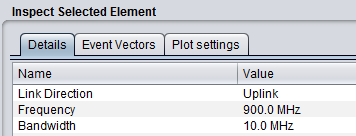
When an element of the main plot is selected, its detailed information is shown in a table. Further detailed are presented in Annex A15.1 with respect to CDMA network, Detailed of voice users, cell.
12.8.3.2 Event Vectors
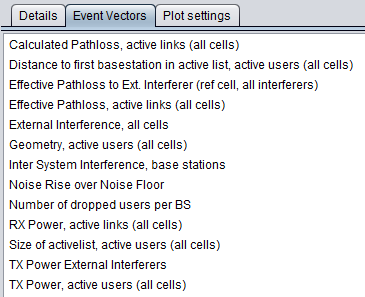
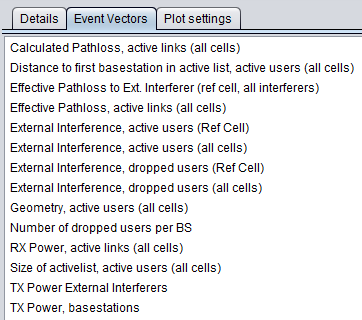
You are able to investigate some intermediary output vectors resulting from the cellular simulation.
For the position information (x,y) of the active UE details, all coordinates are always shown in the SEAMCAT coordinate system which by definition either the VLT or the victim reference cell in (0,0). Therefore, the position of the elements of an interfering CDMA or OFDMA system is based on the victim reference cell and not its "internal" reference cell.
|
|
|
|---|
|
Name |
Description |
|
Calculated pathloss |
Raw parthloss for all the active links (i.e. active UE to ist serving BS) |
|
Distance to first BS |
Distance from UE to its serving BS (first refer to cases where tri-sector is active) |
|
Effective Pathloss to Ext. interferer (all victims, all interefers) |
Effective pathloss between all the victims and all the external interferers |
|
Effective pathloss, active links |
Effective pathloss between all the victims and there respective serving BSs. Results of the below equation for all the active links |
|
External interference, all cells |
Sum of the iRSSblocking and iRSSunwanted at each victim cell |
|
Geometry |
Evaluate the Geometry for the active users for the all network |
|
Inter System Interference |
Evaluate the interference from your own network |
|
Noise rise over the noise floor |
Evaluate the Noise rise over the noise floor |
|
Number of dropped users per BS |
Evaluate the Number of dropped users per BS |
|
Rx power, active links |
Received power at the victim serving BS (UL) or active UE (DL) from its own system (used for investigating the inter-system interference from other cells) |
|
Size of active list |
Size of active list |
|
Tx power external interferers |
Tx power from the interferer |
|
Tx power, active users |
Tx power from its own system |
|
Name |
Description |
|
External interference, active users (all cells) |
Evaluate the external interference on all the active users for the whole network |
|
External interference, active users (ref cell) |
Evaluate the external interference on all the active users for the reference cell only |
|
External interference, dropped users (all cells) |
Evaluate the external interference on all the dropped users for the whole network |
|
External interference, dropped users (ref cell) |
Evaluate the external interference on all the dropped users for the reference cell only |
|
|
|
|---|---|
|
(a) |
(b) |
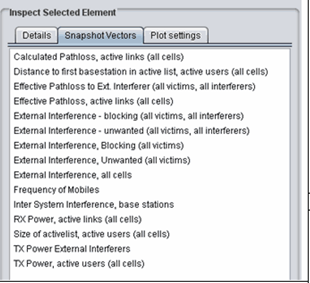
|
Name |
Description |
|
Calculated pathloss |
Raw parthloss for all the active links (i.e. active UE to ist serving BS) |
|
Distance to first BS |
Distance from UE to its serving BS (first refer to cases where tri-sector is active) |
|
Effective Pathloss to Ext. interferer |
Effective pathloss between all the victims and all the external interferers |
|
Effective pathloss, active links |
Effective pathloss between all the victims and there respective serving BSs. Results of the below equation for all the active links |
|
External interference –blocking (all victims – all interferers) |
iRSSblocking for each of the victim UE interferered by each interferer |
|
External interference –unwanted (all victims – all interferers) |
iRSSunwanted for each of the victim UE interferered by each interferer |
|
External interference –blocking (all victims) |
Aggregate external interference iRSSblocking for each of the victim UE. Sum over all the interferers |
|
External interference –unwanted (all victims) |
Aggregate external interference iRSSunwanted for each of the victim UE. Sum over all the interferers |
|
External interference, all cells |
Sum of the iRSSblocking and iRSSunwanted at each victim cell |
|
Frequency mobiles |
Vector of the frequency of the UE (in UL) for each active link |
|
Inter System Interference |
Evaluate the interference from your own network |
|
Rx power, active links |
Received power at the victim serving BS (UL) or active UE (DL) from its own system (used for investigating the inter-system interference from other cells) |
|
Size of active list |
Size of active list |
|
Tx power external interferers |
Tx power from the interferer |
|
Tx power, active users |
Tx power from its own system |
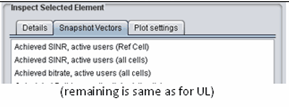
Table 60: Output vector results for OFDMA DL (the rest of the vectors are like for the UL)
|
Name |
Description |
|
Achieved SINR, active users (ref cell) |
Achieved SINR in the ref cell only |
|
Achieved SINR, active users (all cells) |
Achieved SINR for the all system |
|
Achieved bitrate, active users (all cells) |
Achieved bit rate for the all system |
12.8.3.3 Plot settings
The plotting options control how the system is shown in the main plot area and how you select elements from the system. This potting option can be seen on the overview page Figure 270.
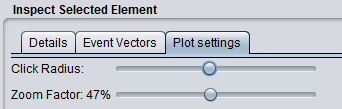
You can zoom in and out by using either the mouse wheel or the Zoom Factor slider. When clicking on a displayed item SEAMCAT tries to match the coordinates of the click to a cellular element – selecting the first matched item.
When SEAMCAT tries to match the click to an element it allows for a certain amount of uncertainty when matching the coordinates. This uncertainty is also called click radius to illustrate the effect of the actual click point being in the centre of a circle used to search for CDMA elements. You can adjust the “click radius” and in combination with the zoom this allows for all elements to be selected using the algorithm supplied above.
It is often the case that an element different than desired or no element at all is selected when clicking the plot. This problem is resolved by zooming in and possibly changing the click radius.