11 Event processing
- 11.1 Event processing concept
- 11.2 Event processing GUI
- 11.3 Loading an EPP to a simulation
- 11.4 Configuring an EPP
11.1 Event processing concept
The Event Processing tab is the place in SEAMCAT where you can set the Event Processing Plugin (EPP). The EPP is a plugin that is given access to the EventResults, one by one, as they are produced by the simulation - an EPP can be viewed as an adjacent simulation. An EPP is allowed to inspect the scenario and the EventResult and based on this observation it can produce its own results. Once an EPP is installed in SEAMCAT it can be configured for any scenario possible.
Figure 236 depicts the basic flow of SEAMCAT for a single thread example i.e. One event result (Ri) is calculated at a time in sequence.

Each of the produced event results can be ‘processed’ by a plugin in the sense that it can make additional computation based on the event result and scenario settings. This has huge potential. Basically, there is no limits to how this can be used!
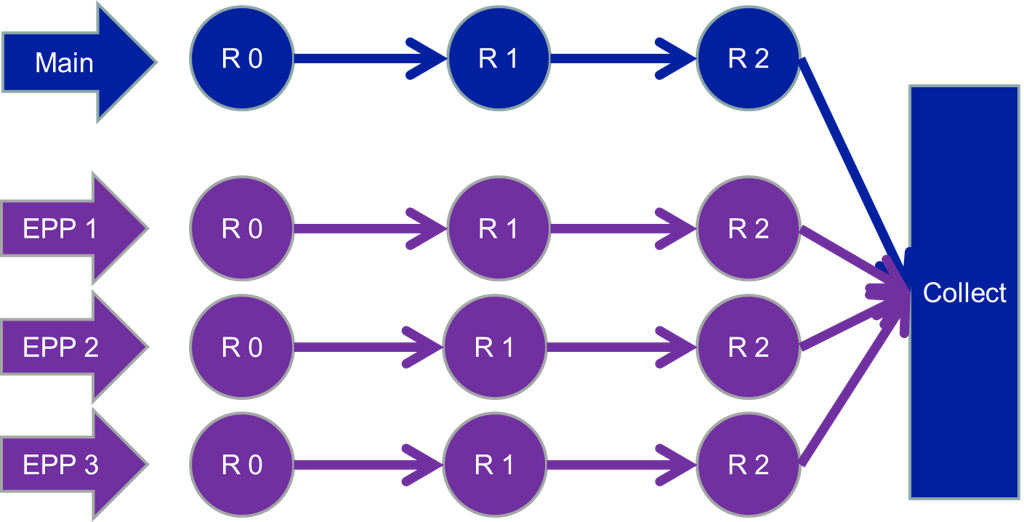
Figure 237: EPP Flow in SEAMCAT
EPPs have a dedicated thread to run in, and therefore run at the same time as the simulation runs as depicted in Figure 237. EPP inputs are exactly the same for other plugin inputs, but the EPP results are very different. The EPP can produce results like Single values, Vectors, Vector groups, Scatter diagrams, Barcharts.
11.2 Event processing GUI
The Event processing GUI consists of 2 main parts as shown in Figure 238. On the left hand side you can add (  ) or duplicate (
  ) an EPP to the simulation, duplicate an EPP, remove (
  ) an EPP from the simulation and export (
  ) an EPP.
There exist some predefined EPPs builtin stored in the library environment (Section 13.5.4) but you can also install your own EPP into SEAMCAT by loading your own .jar file (Section 2.23). The list of builtin EPPs is not exhaustive and will increase with time and needs of SEAMCAT community.
A dedicated section on how to develop your own EPP is given in Section 14.

11.3 Loading an EPP to a simulation
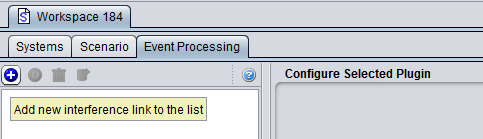
To use EPP in a simulation go to the event processing tab and click the plus sign (Figure 239).
You will be prompted with a list of available EPPs and their preview as shown in Figure 240.
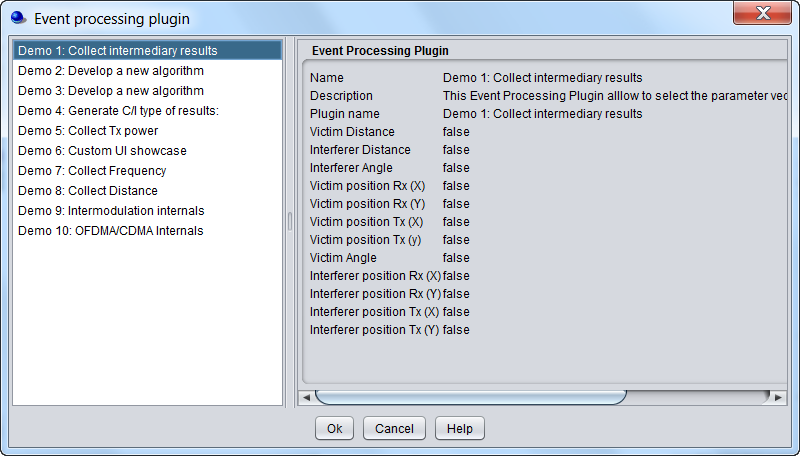
You can add as many EPPs as you want to your simulation.
11.4 Configuring an EPP
The EPP can be configured as wanted for this particular simulations soon as it is loaded to the simulation workspace. In this example the EPP called “Demo 1: Collect intermediary results” is loaded. With this EPP, you can select the intermediary vector results that you want to display after simulation.
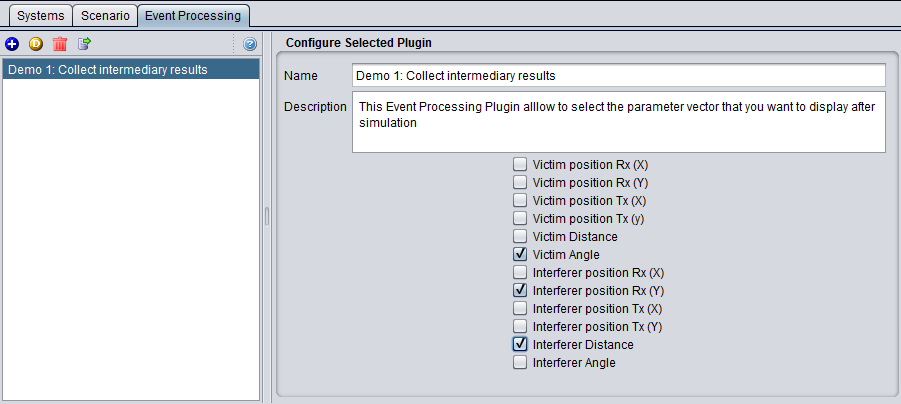
In case an EPP is used in a simulation, it can return a set of result. The EPP results are described in Section 12.7.